How to Use NanoBanana MCP in Claude Code for Image Editing Workflows
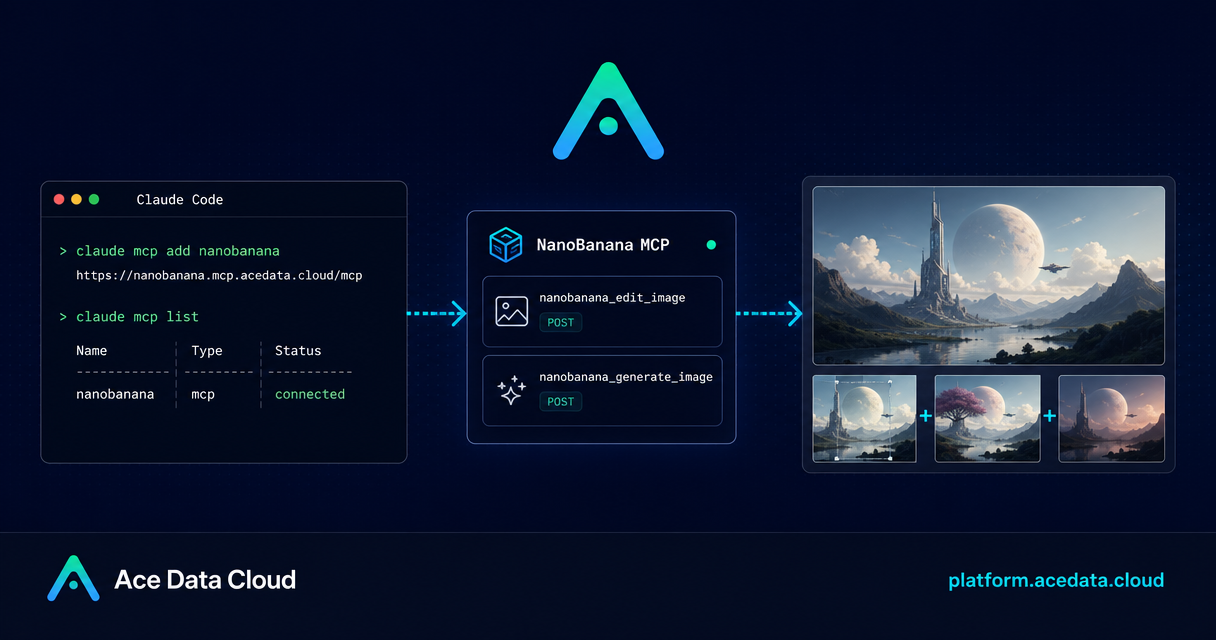
When a development workflow needs visual assets, the slowest part is often not the image model itself—it is leaving the terminal, uploading references, copying outputs back, and trying to keep the result aligned with the project you are already editing.
NanoBanana MCP gives Claude Code a terminal-native way to generate images, edit existing images, and compose multiple image inputs through a remote MCP server. The useful part is not that it adds another image tool; it lets a coding agent call that tool while it still has your project context.
What you can do
The NanoBanana MCP document describes two exposed tools:
nanobanana_generate_imagefor text-to-image generation.nanobanana_edit_imagefor image editing, including multiple image inputs.
That makes it practical for everyday builder tasks: create a page illustration for a 404 screen, remove unwanted text from a screenshot, or combine an object from one image with the environment of another. The document specifically calls out a workflow where you can pass two images and ask the model to place items from image A into the scene of image B, while adjusting the angle and lighting so the result looks natural.
The underlying idea is simple: NanoBanana uses Google's Gemini model at its core, so the workflow is built around image understanding as much as image generation. In Claude Code, that means you can ask for an edit in plain language instead of managing a separate image-editing UI.
How it works
Claude Code connects to NanoBanana through a remote MCP endpoint:
https://nanobanana.mcp.acedata.cloud/mcpYou authenticate the MCP server with an Ace Data Cloud API token in the Authorization header. The examples in the documentation use the placeholder YOUR_ACEDATACLOUD_API_KEY; keep the real token out of public repositories, screenshots, issues, and chat logs.
Once the server is added, Claude Code can discover the MCP tools and call them from the same terminal session where you are working on your app. This is especially useful when visual tasks are downstream of code tasks: after implementing a feature, you can ask Claude Code to create a matching illustration, edit a screenshot, or compose product visuals without switching contexts.
Choose the right Claude Code scope
The setup command supports three scopes. The right choice depends on how you plan to use the image workflow.
Local scope for a single project
Use -s local when you only want NanoBanana MCP available in the current project directory. This is the safest way to test the integration before making it part of your regular environment.
User scope across projects
Use -s user when you expect to use image generation or editing across many projects. The configuration is written at the user level, so later Claude Code sessions can see the server from any project.
Project scope for team workflows
Use -s project when a team project should share the MCP configuration. The documentation notes that this writes to .mcp.json in the project root. Do not commit a real token to a public repository; use a placeholder or let each developer add their own local secret.
Configure NanoBanana MCP
The command below adds the remote NanoBanana MCP server for all projects by using the user scope. The -H flag must be uppercase; lowercase -h is help.
claude mcp add nanobanana --transport http https://nanobanana.mcp.acedata.cloud/mcp -H "Authorization: Bearer YOUR_ACEDATACLOUD_API_KEY" -s userIf you prefer to test in the current project only, replace -s user with -s local. If you are creating a private team configuration, use -s project and handle the token carefully.
Verify the connection
After adding the server, run:
claude mcp listA successful setup shows nanobanana as ✓ Connected. If the handshake fails, the document recommends checking the token, the service URL, and the selected configuration scope. It also notes that project-level configuration may appear as Pending approval the first time Claude Code reads it; confirm trust in the Claude Code session if you expect that project configuration to be used.
Practical workflows to try
Compose two images
Use this when a product object, character, or device needs to appear inside another scene:
Place the phone from the first image onto the desk in the second image, adjusting the angle and lighting to make it look natural.This maps directly to the documented nanobanana_edit_image workflow, where multiple image URLs can be passed and the model understands the relationship between them.
Clean up screenshots
For documentation screenshots, demos, or UI captures, you can ask Claude Code to remove unwanted text:
Edit this image to remove the text watermark in the lower right corner, filling it with the background.Create an illustration for a page state
For product pages, error states, and docs, start with a direct generation prompt:
Generate an illustration of a small dinosaur squatting next to a crack in the ground looking down, to be used for a 404 page.Where this fits in a builder workflow
The best use case is not “make a random picture.” It is letting your coding agent produce visual assets while it still understands the app, copy, and context. For example, after Claude Code updates an error page, it can call nanobanana_generate_image for a matching illustration. After it prepares a README or release note, it can use nanobanana_edit_image to compose a cleaner visual from existing assets.
Start with -s local, confirm the connection with claude mcp list, and run one small image edit before making the integration global. Once it is reliable, user-level configuration makes the tool available wherever your next visual task appears.
Read the full source document here: Claude Code with Nano Banana MCP.


Comments
Post a Comment