How to Build Image Generation and Editing Workflows with the Nano Banana Images API
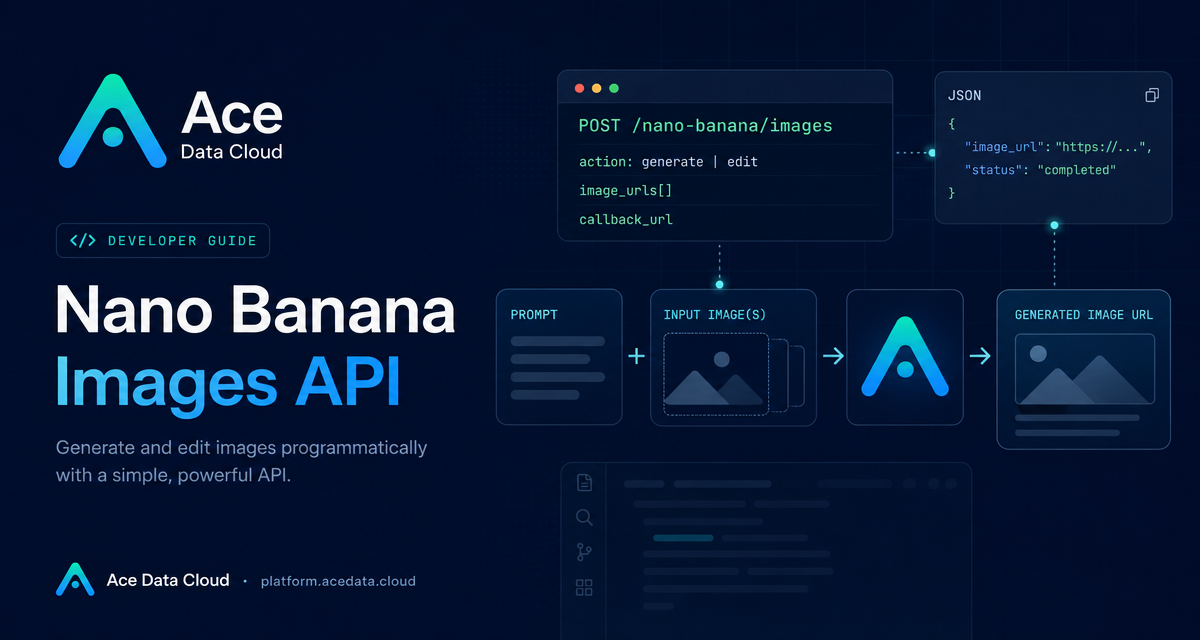
Most image workflows start simple—one prompt in, one image out—but real products quickly need more: editing an existing asset, combining multiple references, tracking task IDs, and receiving results without holding a connection open.
The Nano Banana Images API is useful when you want both text-to-image generation and image editing behind a single HTTP endpoint. This guide walks through the practical shape of that workflow using only the fields and behavior documented for the API.
What you can do
The API supports two actions through the same endpoint, POST /nano-banana/images on the base URL https://api.acedata.cloud:
action: "generate"creates images from a textprompt.action: "edit"edits one or more existing images supplied throughimage_urls, guided by a textprompt.
The same request shape also gives you production-oriented hooks: count for requesting multiple images, model for choosing the image model, callback_url for asynchronous delivery, and task_id / trace_id in responses for tracking and troubleshooting.
How it works
Every request is a JSON POST request. Authentication is sent as an HTTP header:
authorization: Bearer {token}accept: application/jsoncontent-type: application/json
For generation, the minimum required parameters are action and prompt. For editing, you still provide action and prompt, and you also pass image_urls, an array with at least one publicly accessible image URL. HTTP and HTTPS links are supported, and the documentation recommends HTTPS. The API also accepts Base64-encoded image data in the form of a data:image/png;base64,... URL.
The response includes success, task_id, trace_id, and a data array. Each item in data includes the echoed prompt and an image_url for the resulting image.
Choosing the action
Use generate when the output can be described from scratch. This is a good fit for illustrations, concept art, hero images, thumbnails, or product-background ideas where the prompt is the source of truth.
Use edit when the workflow starts from existing assets. A common example is combining a portrait and a clothing photo, then asking the model to put the clothing on the person. In that case, pass both URLs in image_urls and write a direct edit instruction in prompt. The order of references should match how you describe them in the prompt.
Generating an image with cURL
This request uses the documented endpoint, headers, and fields. Replace {token} with your API token.
curl -X POST 'https://api.acedata.cloud/nano-banana/images' \
  -H 'authorization: Bearer {token}' \
  -H 'accept: application/json' \
  -H 'content-type: application/json' \
  -d '{
    "action": "generate",
    "model": "nano-banana-pro",
    "prompt": "A clean developer workspace at night, terminal windows and image thumbnails on screen, deep navy lighting, realistic but minimal, horizontal composition.",
    "count": 1
  }'
A successful response follows this structure:
{
  "success": true,
  "task_id": "70e6931b-6e34-43db-9e36-8765e2809d04",
  "trace_id": "60df8d38-f265-4986-aec7-75c9220bced2",
  "data": [
    {
      "prompt": "A clean developer workspace at night...",
      "image_url": "https://cdn.acedata.cloud/assets/examples/nanobanana/example.png"
    }
  ]
}
In your application, store both task_id and trace_id. The first lets you associate the request with a result; the second is useful when debugging failed or unexpected calls.
Editing existing images with Python
Editing uses the same endpoint. The difference is the image_urls array. Each URL must be publicly accessible.
import requests

url = "https://api.acedata.cloud/nano-banana/images"
headers = {
    "authorization": "Bearer {token}",
    "accept": "application/json",
    "content-type": "application/json",
}
payload = {
    "action": "edit",
    "prompt": "let this man wear on this T-shirt",
    "image_urls": [
        "https://cdn.acedata.cloud/v8073y.png",
        "https://cdn.acedata.cloud/44xlah.png",
    ],
    "count": 1,
}

resp = requests.post(url, json=payload, headers=headers)
print(resp.json())
The editing result uses the same response pattern: success, task_id, trace_id, and data[].image_url.
Using callbacks for longer jobs
Image generation and editing may take time. If your backend should not keep an HTTP connection open, include callback_url in the request body. The callback endpoint must be publicly accessible and support POST JSON. The API returns immediately with a task_id or basic result, then sends the completed JSON payload to your callback URL when the task is finished.
{
  "action": "generate",
  "prompt": "a white siamese cat",
  "count": 1,
  "callback_url": "https://example.com/webhooks/nano-banana"
}
On your server, treat the callback payload as the same structure as the synchronous success response, and match it back to your internal job record with task_id.
Practical notes for builders
countsupports 1–4 images and defaults to 1. Successful images are returned indata.- For multi-image requests, ordinary technical failures or provider safety rejections can affect individual calls while other successful images may still be returned.
- A full rejection can return
403 forbidden. The documented error response also includessuccess: false, anerror.code, anerror.message, andtrace_id. - Optional image controls include
aspect_ratiosuch as1:1or16:9, andresolutionsuch as1K,2K, or4K. Thenano-banana-2-litemodel supports only1K.
If you are building an editor, CMS tool, product-image pipeline, or agent workflow, the cleanest pattern is usually: create a local job record, call /nano-banana/images, store task_id and trace_id, and either read the immediate data result or wait for your callback_url.
For the full parameter reference and current model list, read the Nano Banana Images API Integration Guide.


Comments
Post a Comment