Getting Started with Seedream MCP in Claude Code
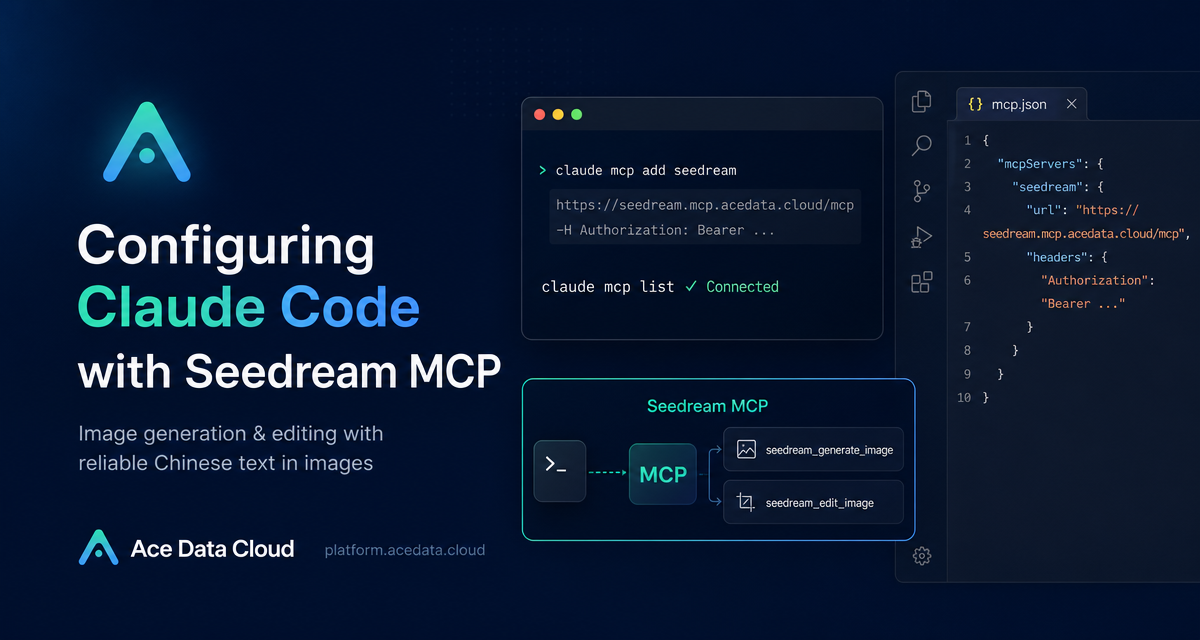
If your coding workflow already lives in the terminal, switching to a separate image tool just to create a README graphic, product poster, or localized launch visual can feel like unnecessary context switching. Seedream MCP gives Claude Code a direct way to generate and edit images from the same terminal session, with a useful edge case: it is especially strong at rendering Chinese text clearly inside images.
What you can do
The Seedream MCP documentation describes a small, focused workflow for connecting Claude Code to Ace Data Cloud's remote Seedream MCP server. Once configured, Claude Code can call two tools:
seedream_generate_imagefor generating images from text prompts.seedream_edit_imagefor editing existing images, including changing text or replacing elements.
This is most useful when the image task is part of a broader developer workflow: writing documentation, preparing a product screenshot, creating a Chinese-language poster, or updating a visual asset after a release version changes.
How it works
Claude Code supports MCP servers over HTTP. The Seedream MCP endpoint documented by Ace Data Cloud is:
https://seedream.mcp.acedata.cloud/mcpYou authenticate with an Ace Data Cloud API token using an HTTP header passed to claude mcp add. The documentation explicitly notes that -H must be uppercase, because lowercase -h is interpreted as --help. It also recommends using a placeholder such as YOUR_ACEDATACLOUD_API_KEY in examples and avoiding full tokens in public repositories, issues, screenshots, or chat logs.
Choose the right configuration scope
The same server URL can be added with three different Claude Code scopes. The right choice depends on whether you are testing, using Seedream across projects, or sharing a project configuration with a team.
Local: try it in one project
Use -s local when you only want the current project directory to know about the MCP server. Claude Code records the configuration in the local ~/.claude.json context, including the current project path.
claude mcp add seedream --transport http https://seedream.mcp.acedata.cloud/mcp -H "Authorization: Bearer YOUR_ACEDATACLOUD_API_KEY" -s localUser: make Seedream available everywhere
If you expect to generate or edit images from multiple repositories, use -s user. This writes the configuration at user level so Claude Code can access Seedream from any project.
claude mcp add seedream --transport http https://seedream.mcp.acedata.cloud/mcp -H "Authorization: Bearer YOUR_ACEDATACLOUD_API_KEY" -s userProject: share the MCP setup with a team
Use -s project when a team project should declare that it uses the Seedream MCP server. Claude Code writes this configuration into .mcp.json in the project root. The documentation recommends not committing a real token to public repositories. For a team setup, prefer a placeholder or let each teammate add the token locally.
claude mcp add seedream --transport http https://seedream.mcp.acedata.cloud/mcp -H "Authorization: Bearer YOUR_ACEDATACLOUD_API_KEY" -s projectWhen Claude Code first reads a project-level MCP configuration, it may show Pending approval. That is expected: the session is asking you to trust the project configuration before it calls the server.
Verify the connection before generating anything
After adding the server, run:
claude mcp listIf seedream appears with ✓ Connected, the handshake succeeded. If it does not connect, the documentation suggests checking three things first: the token, the service URL, and the configuration scope. Avoid debugging based on old client screenshots or fixed assumptions about tool counts; the current connection status is what matters.
Practical prompts to start with
Once connected, you can stay inside Claude Code and ask for the visual task in natural language. For Chinese-language posters, the documentation gives this kind of prompt:
Generate a promotional poster with the title "Developer Conference 2025" and the subtitle "AI Drives the Future," in a blue tech style.For a Chinese-style landing page illustration, you can describe the aesthetic directly:
Generate a new Chinese-style illustration with distant green mountains and clear waters, and close-up glowing digital particles flowing, blending technology and tradition.For an edit task, Seedream MCP can work on an existing image. The documentation's example is intentionally simple and practical:
Change "v1.0" on this poster to "v2.0," keeping everything else the same.The important pattern is that the prompt should say what should change and what should remain stable. That makes the edit request easier to reason about, especially when the image already contains layout, typography, or product context you want to preserve.
A small workflow I would actually use
- Add Seedream MCP with
-s localin a documentation or website repository. - Run
claude mcp listand confirm✓ Connected. - Ask Claude Code to read the relevant README or landing page copy.
- Generate one Chinese-language poster or hero illustration with
seedream_generate_image. - If the wording changes, ask Claude Code to call
seedream_edit_imagerather than recreating the asset from scratch.
This keeps the creative step attached to the project context. Claude Code can see the words, product names, and release notes you are already working with, while Seedream handles the image generation or image edit.
When this is a good fit
Seedream MCP is not a replacement for a full design system, but it is a good fit for builder workflows where you need quick, contextual visual output: docs covers, internal launch posters, app-store-style mockups, bilingual marketing drafts, or versioned release visuals. The most distinctive scenario is Chinese text inside generated images, where the source document explicitly calls out Seedream's reliability compared with English-first image models that often produce garbled Chinese characters.
If you want the exact setup commands and current connection notes, read the Ace Data Cloud documentation: Claude Code with Seedream MCP.


Comments
Post a Comment