A Practical Guide to Editing Images with GPT Image 2 on Ace Data Cloud
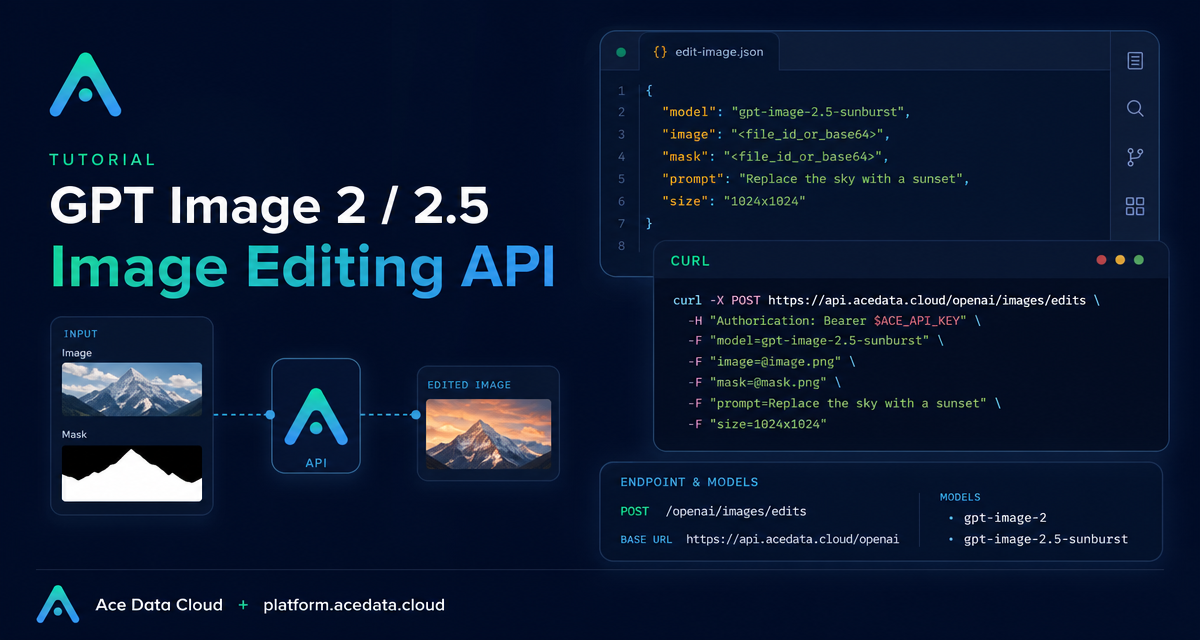
Most image editing pipelines break down at the same point: you can generate a nice picture, but making a precise change without disturbing the rest of the scene is harder than it should be. The GPT Image 2 / 2.5 image editing endpoint on Ace Data Cloud gives builders a practical way to send an existing image, describe the edit, and optionally constrain the editable area with a mask.
What you can do
The /openai/images/edits endpoint is built for editing an existing image rather than starting from a blank prompt. In practice, that means you can:
- Send a single image URL and ask for a targeted visual change.
- Upload a local image with
multipart/form-data. - Pass multiple references through the
imagefield, up to 16 reference images. - Use a local PNG
maskwith an Alpha channel when you need a specific region to be editable. - Choose between models such as
gpt-image-2,gpt-image-2.5-flare, andgpt-image-2.5-sunburst, including supported:officialvariants.
The endpoint lives at https://api.acedata.cloud/openai/images/edits. If you use the official OpenAI Python SDK, the documented pattern is to point base_url to https://api.acedata.cloud/openai and call client.images.edit(...).
How it works
At the simplest level, an edit request contains three things: a model, an image, and a prompt. The model decides the editing behavior, the image supplies the visual context, and the prompt explains exactly what should change and what should remain untouched.
A JSON request can use image as a single URL or an array of URLs. Local files use multipart/form-data instead. When you need a mask, the original image and the mask must be uploaded as separate multipart files: image=@input.png and mask=@mask.png. Do not mix a URL image with a local mask file, because pure URL editing requests do not support adding a local mask.
Start with a URL-based edit
URL editing is a good first test because the request body is easy to inspect and log. The example below follows the documented shape: it uses model, image, prompt, and size.
curl https://api.acedata.cloud/openai/images/edits \
  -H "Authorization: Bearer YOUR_API_KEY" \
  -H "Content-Type: application/json" \
  -d '{
    "model": "gpt-image-2",
    "image": "https://cdn.acedata.cloud/assets/examples/gpt-image/d56455e2-e7f7-4bcd-b935-475b0a1e0948_0-18240dc44b9c.png",
    "prompt": "Keep the mug, tabletop, camera angle, portrait layout, and soft shadow unchanged. Change only the mug color from white to vivid orange and the pale cream background to solid dark navy blue. No text and no logo.",
    "size": "1024x1536"
  }'
The important habit is prompt discipline. Notice that the instruction does not only say what to change. It also names the elements that must remain unchanged: the mug, tabletop, camera angle, layout, and shadow. That kind of constraint is what makes an image-editing prompt useful in production workflows.
A successful synchronous response includes success, task_id, trace_id, created, model, data, and usage. The edited image URL is returned inside data[0].url.
Upload a local image
When the source image is coming from a user upload, a build artifact, or an internal asset store, use multipart upload instead of JSON:
curl https://api.acedata.cloud/openai/images/edits \
  -H "Authorization: Bearer YOUR_API_KEY" \
  -F "model=gpt-image-2" \
  -F "image=@input.png" \
  -F "prompt=Replace the background with a bright modern studio"
You can pass image repeatedly for multi-reference edits. In JSON, the same idea is represented as an array of URLs. The GPT Image series supports up to 16 reference images, which is useful when you want to preserve a product, a character, a logo treatment, or a visual style while changing another part of the composition.
Use a mask when the edit must stay local
For local editing, use a PNG mask uploaded with multipart form data. The mask must include an Alpha channel, must be the same dimensions as the first image, and must not exceed 4MB. Transparent pixels with Alpha value 0 mark areas that may be edited; non-transparent pixels mark areas that should be retained.
The documentation shows a simple way to create a mask where the central rectangle is transparent:
from PIL import Image, ImageDraw

source = Image.open("input.png").convert("RGBA")
mask = Image.new("RGBA", source.size, (0, 0, 0, 255))
draw = ImageDraw.Draw(mask)
width, height = source.size
draw.rectangle(
    (width // 4, height // 4, width * 3 // 4, height * 3 // 4),
    fill=(0, 0, 0, 0),
)
mask.save("mask.png")
Then send both files in the same request. The :official models follow the multipart contract for masks:
curl https://api.acedata.cloud/openai/images/edits \
  -H "Authorization: Bearer YOUR_API_KEY" \
  -F "model=gpt-image-2:official" \
  -F "image=@input.png" \
  -F "mask=@mask.png" \
  -F "prompt=Keep the composition, lighting, and all objects outside the transparent mask unchanged. Inside the masked area, replace the empty tabletop with a small blue ceramic vase."
A mask is a constraint, not a magic wall. The model may still blend edges naturally, so for strict boundaries use clean Alpha edges and repeat the “do not change” requirements in the prompt.
Choose parameters deliberately
The common fields are straightforward: model, image, mask, prompt, size, n, response_format, and callback_url. The response_format can be url or b64_json; when response_format=b64_json, only n=1 is supported.
For size, you can use auto or a compliant WIDTHxHEIGHT. The documented constraints are: width and height must be multiples of 16, the longer side must not exceed 3840, total pixels must be between 655,360 and 8,294,400, and the aspect ratio must not exceed 3:1. If size is omitted or set to auto, the model selects the canvas based on the prompt and first reference image.
Handle long-running edits
For longer jobs, add a callback URL:
{
  "callback_url": "https://example.com/webhooks/images"
}
Asynchronous calls return a task_id, and the final result is delivered to the callback when complete. Synchronous requests return created and data. For troubleshooting, check parameter combinations and mask validity for 400, the API key and Bearer header for 401, request frequency for 429, and switch to asynchronous callbacks when you hit 504. Error responses include trace_id; share that ID when reporting a problem, not your API key.
Where this fits in a builder workflow
The best use cases are not “make a cool picture” prompts. They are repeatable edits: updating product backgrounds, adapting a hero image to a new visual system, replacing a masked object, generating variants from multiple references, or building an internal review tool where users can iterate on a source image without learning image-editing software.
If you want the complete field list and current enumerations, read the OpenAI Images Edits API documentation.


Comments
Post a Comment