How to Use NanoBanana MCP from Claude Code for Image Workflows
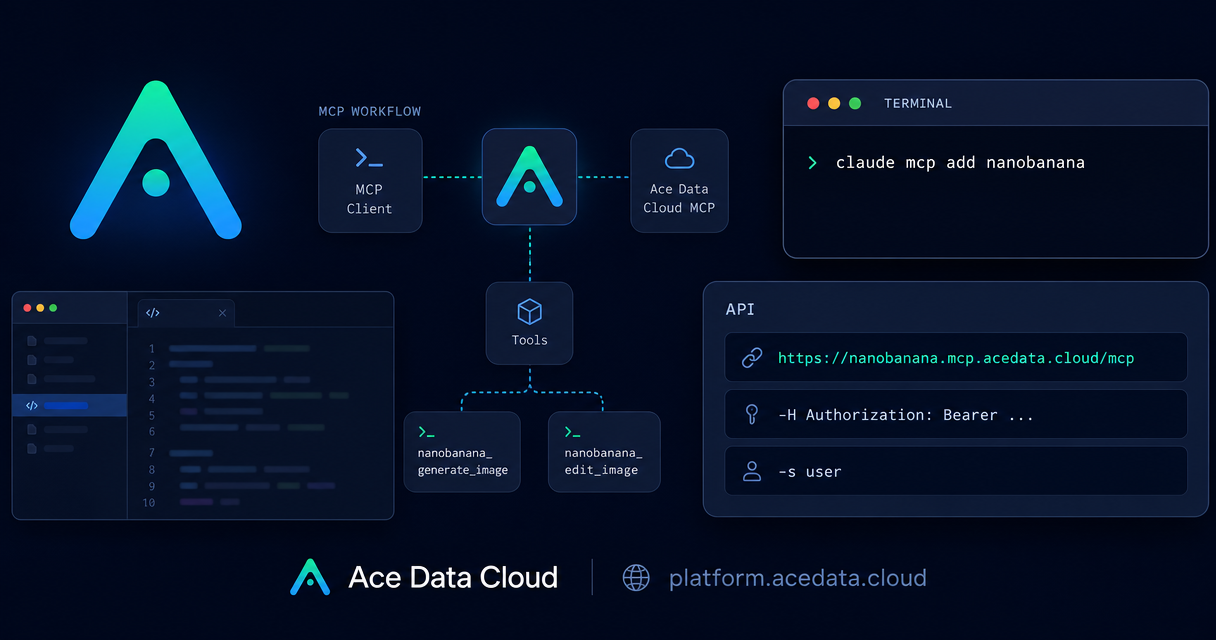
When an image workflow needs both generation and precise editing, switching between a terminal, a browser tool, and manual file handling can break your flow. The NanoBanana MCP setup for Claude Code gives you a more direct path: describe the image task in your coding session, let Claude Code call the MCP tool, and keep the result close to the project you are already working on.
What you can do
The source document describes NanoBanana as an image model workflow that understands image content, not only text prompts. In practice, that makes it useful for tasks where relationships between images matter. For example, you can provide two image URLs and ask the tool to place an object from the first image into the scene of the second image, while adjusting angle and lighting so the composite looks natural.
The documented MCP server exposes two tools:
nanobanana_generate_imagefor text-to-image generation.nanobanana_edit_imagefor image editing, including multiple image inputs.
That small tool surface is actually useful. It keeps the workflow simple: generate when you need a new visual asset, edit when you already have source material, and use natural language from Claude Code rather than building a custom UI around every image operation.
How it works
The integration is an HTTP MCP server. Claude Code connects to the MCP endpoint, sends tool calls through that connection, and includes an Ace Data Cloud API token in the Authorization header. The documented endpoint is:
https://nanobanana.mcp.acedata.cloud/mcpThe setup command uses Claude Code’s built-in MCP management command:
claude mcp add nanobanana --transport http https://nanobanana.mcp.acedata.cloud/mcp -H "Authorization: Bearer 3b78cc40dd3b43db806a4300...." -s userThe -H flag is important: it must be uppercase. In Claude Code, lowercase -h means --help, so using the wrong case will not configure the authorization header. The token value shown above is intentionally masked; do not paste a real token into public repositories, screenshots, issue threads, or chat transcripts.
Choose the right configuration scope
Claude Code lets you add this MCP server at three scopes. The right choice depends on how you work.
Local scope for a single project
Use -s local when you only want the configuration attached to the current project directory. The document notes that Claude Code writes the record into the local ~/.claude.json together with the current project path.
claude mcp add nanobanana --transport http https://nanobanana.mcp.acedata.cloud/mcp -H "Authorization: Bearer 3b78cc40dd3b43db806a4300...." -s localThis is a good fit when you are experimenting inside one repository and do not want the MCP server to appear everywhere.
User scope for repeated use
Use -s user if NanoBanana will be part of your normal Claude Code toolkit across multiple projects. Once configured, any project opened in Claude Code can see the MCP server.
claude mcp add nanobanana --transport http https://nanobanana.mcp.acedata.cloud/mcp -H "Authorization: Bearer 3b78cc40dd3b43db806a4300...." -s userThis is the scope I would pick for a personal design-and-development workflow: landing page images, docs illustrations, product mockups, and screenshot cleanup all become available from the terminal.
Project scope for teams
Use -s project when the configuration should live in the current project’s .mcp.json. The document recommends not committing a real token to a public repository. In a team setting, treat the token as a secret and replace it with an environment variable placeholder or have each teammate add their credential locally.
claude mcp add nanobanana --transport http https://nanobanana.mcp.acedata.cloud/mcp -H "Authorization: Bearer 3b78cc40dd3b43db806a4300...." -s projectWhen Claude Code reads a project-level configuration for the first time, it may show Pending approval. That is a normal trust prompt. Open a Claude Code session and approve the project configuration before expecting the server to be connected.
Verify the connection before using it
After adding the MCP server, check what Claude Code sees:
claude mcp listA successful connection should include output like this:
nanobanana: https://nanobanana.mcp.acedata.cloud/mcp (HTTP) - ✓ ConnectedIf you configured project scope and see Pending approval, run claude inside the project and approve the configuration. If you do not see the server at all, re-check the exact command, especially the endpoint URL, the uppercase -H, and the chosen scope.
Practical image workflows from the terminal
Once the MCP server is connected, the workflow becomes conversational. You can stay in Claude Code and ask for an image operation in plain English.
For composition, the documented example is to pass multiple image URLs and ask NanoBanana to understand the relationship between them:
Place the phone from the first image on the desktop of the second image, adjusting the angle and lighting to make it look natural.For cleanup, you can ask it to remove unwanted text from an image:
Edit this image to remove the text watermark in the lower right corner, filling it with the background.For product or documentation work, generation is also straightforward:
Generate an illustration of a small dinosaur squatting next to a crack in the ground looking down, to be used for a 404 page.The useful pattern is to treat image work like a normal development task. Keep the prompt specific, mention the role of each source image, and ask for edits that can be verified visually. When using multiple images, describe which image contributes the object and which one contributes the scene.
A few builder notes
- Use masked tokens in examples and screenshots. The document shows a masked token format such as
3b78cc40dd3b43db806a4300..... - Start with
-s localif you are testing, then move to-s useronce you know you want the server available everywhere. - Use
-s projectonly when the team benefits from shared MCP configuration, and keep real credentials out of source control. - Run
claude mcp listafter setup. It is the fastest way to catch a typo before debugging prompts.
NanoBanana MCP is most compelling when you stop treating AI image work as a separate app and start treating it as part of your build loop. If your project already lives in Claude Code, adding the MCP server gives you a practical way to generate, compose, and clean up visual assets without leaving the terminal. You can read the source setup guide in the Ace Data Cloud NanoBanana MCP documentation.


Comments
Post a Comment