How to Give Claude Code Live Google Search with Serp MCP
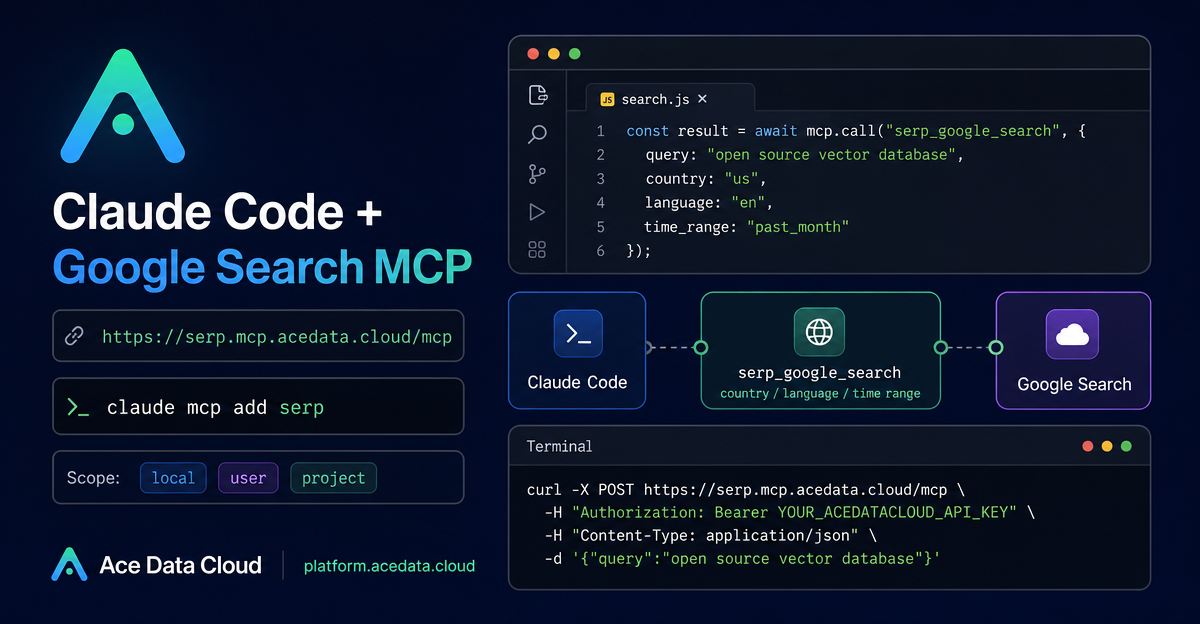
Debugging from a terminal often breaks down the moment you need fresh context: an unfamiliar kernel log, a changed framework behavior, or an official docs page you do not want to hunt for manually.
Claude Code is already useful for reading code, editing files, running commands, and explaining failures. The missing piece in many real workflows is live search from inside the same command-line session. The Serp MCP Server from Ace Data Cloud gives Claude Code a remote MCP endpoint for Google search, so you can ask for current web results without leaving the terminal.
What you can do
After connecting the server, Claude Code can call search-related MCP tools while staying in your project context. The documented tool set includes:
serp_google_searchfor Google web search, with support for specifying country, language, and time range.serp_google_imagesfor image search.serp_google_newsfor news search.serp_google_videosfor video search.serp_google_mapsandserp_google_placesfor maps and local business search.
The most practical starting point is web search. You can ask Claude Code to investigate a production error, compare technical options, or find official documentation for an API behavior, then use the returned results in the same reasoning flow where it is already looking at your files and logs.
How it works
The integration is configured as an HTTP MCP server. Claude Code connects to:
https://serp.mcp.acedata.cloud/mcpAuthentication is passed as an HTTP header using your Ace Data Cloud API token. The documentation uses the placeholder YOUR_ACEDATACLOUD_API_KEY, and that is the right pattern for tutorials, screenshots, and shared notes. Do not paste a real token into public repositories, issues, screenshots, or chat logs.
The only command details you need to pay close attention to are:
--transport http, because this is a remote HTTP MCP endpoint.-H "Authorization: Bearer YOUR_ACEDATACLOUD_API_KEY", with uppercase-H. Lowercase-his help.-s local,-s user, or-s project, depending on where you want Claude Code to store the MCP configuration.
Choose the right configuration scope
The documentation shows three supported scopes. I would treat them as workflow choices rather than preferences.
Use local for a trial in one project
If you just want to confirm the integration works, bind it to the current project directory:
claude mcp add serp --transport http https://serp.mcp.acedata.cloud/mcp -H "Authorization: Bearer YOUR_ACEDATACLOUD_API_KEY" -s localThis writes a record into your local ~/.claude.json associated with the current project path. It is a low-commitment way to test the handshake before making the server available elsewhere.
Use user when you want search everywhere
If live search is something you want in most Claude Code sessions, use the user-level scope:
claude mcp add serp --transport http https://serp.mcp.acedata.cloud/mcp -H "Authorization: Bearer YOUR_ACEDATACLOUD_API_KEY" -s userOnce configured this way, any project opened with Claude Code can see the server from the user-level configuration.
Use project for a team project
For a private team repository, you may want the project itself to describe the MCP dependency:
claude mcp add serp --transport http https://serp.mcp.acedata.cloud/mcp -H "Authorization: Bearer YOUR_ACEDATACLOUD_API_KEY" -s projectThis writes to .mcp.json in the project root. The important caveat is token handling: do not commit a real token to a public repository. Use a placeholder, an environment-variable pattern, or have each teammate add credentials locally. When Claude Code reads a project-level MCP configuration for the first time, it may show Pending approval; approving project trust is a normal security step.
Verify the connection before relying on it
Once the server is configured, run:
claude mcp listIf serp shows ✓ Connected, the handshake succeeded. If it fails, check the token, the server URL, and the selected scope. Avoid debugging based on old screenshots or assumptions about a fixed number of available tools; verify the current connection state directly.
Practical prompts to use inside Claude Code
The best use cases are the ones where search results improve a task Claude Code is already helping with.
For production debugging, ask for targeted help while keeping your logs nearby:
Search how to resolve nginx 502 bad gateway response header too largeFor technical selection work, include the freshness requirement in the prompt:
Search for the performance comparison of Python asynchronous ORM in 2025, SQLAlchemy 2.0 async vs Tortoise ORMFor API behavior, ask for official documentation instead of relying on memory:
Search for the official documentation of Kubernetes CronJob concurrencyPolicy, the difference between Forbid and ReplaceThat last pattern is especially useful. Claude Code can inspect your code, search for the official semantics, and then suggest a change with the context still loaded.
A small operational checklist
- Start with
-s localin one repository. - Run
claude mcp listand confirmserpis connected. - Try one debugging search and one official-docs search.
- If it becomes part of your daily workflow, move to
-s user. - If a team needs the same setup, consider
-s projectwith safe token handling.
The real value is not that search exists; it is that search can happen inside the same builder loop where code, logs, commands, and next steps already live. Read the source guide here: Claude Code with Google Search MCP.


Comments
Post a Comment