How to Generate and Edit Images with the Nano Banana Images API
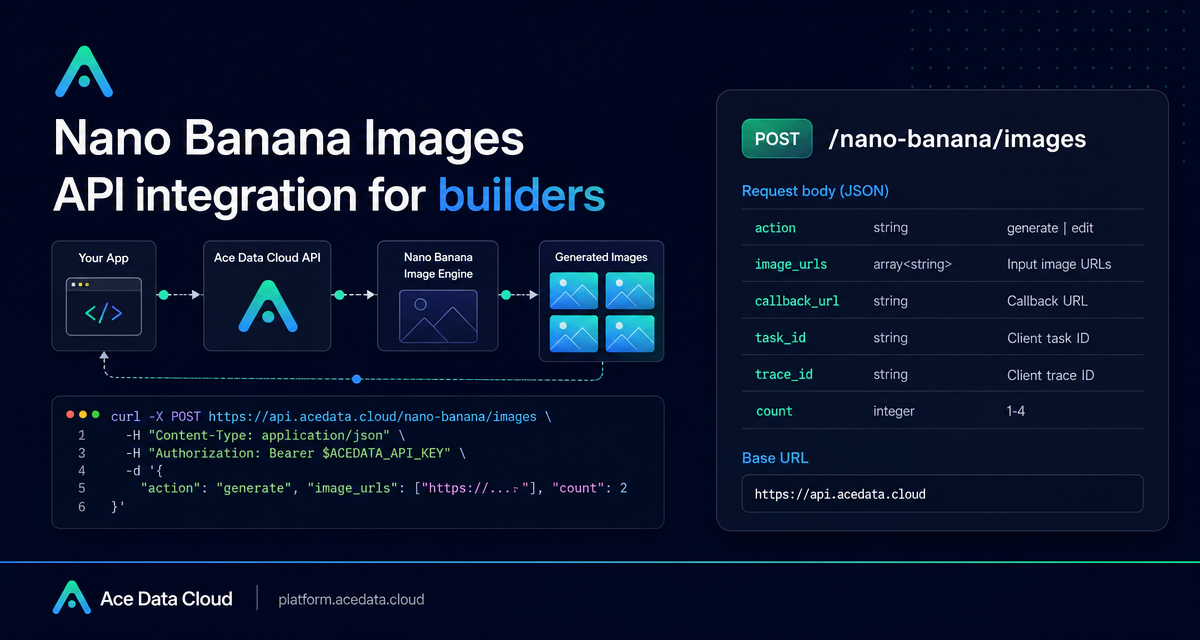
If your product needs generated visuals, image variations, or simple multi-image edits, the hard part is usually not the model call itself—it is designing a request shape your app can track, retry, and debug later.
What you can do
The Nano Banana Images API provides one endpoint for two common image workflows: text-to-image generation and prompt-guided image editing. Both use the same base URL, https://api.acedata.cloud, and the same endpoint, POST /nano-banana/images.
The core switch is the action field:
generate: create an image from a textprompt.edit: edit one or more existing images usingimage_urlsplus aprompt.
The API returns a success flag, a task_id, a trace_id, and a data array containing successful image results. Each result includes the echoed prompt and an image_url.
How it works
Every request is authenticated with an HTTP header: authorization: Bearer {token}. The recommended request headers are accept: application/json and content-type: application/json. The minimum required fields for generation are action and prompt.
You can optionally choose a model. The documented options include nano-banana as the default, nano-banana-2-lite, nano-banana-2, nano-banana-pro, and corresponding :official variants such as nano-banana-pro:official. The API also supports count for requesting 1 to 4 images, with a default of 1.
For production apps, keep both task_id and trace_id. The former helps associate a request with the final result. The latter is useful when you need to troubleshoot failures or contact support with a specific execution trace.
Generating an image from a prompt
A basic generation request is small. You set action to generate, pass a descriptive prompt, and optionally set model and count. Here is a minimal cURL example you can adapt:
curl -X POST 'https://api.acedata.cloud/nano-banana/images' \
  -H 'authorization: Bearer {token}' \
  -H 'accept: application/json' \
  -H 'content-type: application/json' \
  -d '{
    "action": "generate",
    "model": "nano-banana-pro",
    "prompt": "A photorealistic close-up portrait of an elderly Japanese ceramicist inspecting a freshly glazed tea bowl in a rustic, sun-drenched workshop. Soft golden hour light, 85mm portrait lens, shallow depth of field, serene and masterful mood.",
    "count": 1
  }'
A successful response follows this shape:
{
  "success": true,
  "task_id": "70e6931b-6e34-43db-9e36-8765e2809d04",
  "trace_id": "60df8d38-f265-4986-aec7-75c9220bced2",
  "data": [{"prompt": "A photorealistic close-up portrait...", "image_url": "https://cdn.acedata.cloud/assets/examples/nanobanana/example.png"}]
}
For builder workflows, I usually store the original prompt, selected model, task_id, trace_id, and returned image_url together. That makes it easier to show generation history, deduplicate user retries, or reproduce an issue later.
Editing images with one or more references
For editing, set action to edit. You also pass image_urls, an array containing at least one publicly accessible image URL. The documentation notes that the links can use HTTP or HTTPS, and the field can also accept a Base64-encoded image string such as a data:image/png;base64,... payload.
import requests

url = "https://api.acedata.cloud/nano-banana/images"
headers = {"authorization": "Bearer {token}", "accept": "application/json", "content-type": "application/json"}
payload = {
    "action": "edit",
    "prompt": "let this man wear on this T-shirt",
    "image_urls": ["https://cdn.acedata.cloud/v8073y.png", "https://cdn.acedata.cloud/44xlah.png"],
    "count": 1
}
resp = requests.post(url, json=payload, headers=headers)
print(resp.json())
This pattern is useful for product mockups, outfit previews, reference-based composition, and any workflow where the user brings source material rather than starting from an empty prompt.
Using callbacks for longer jobs
Image generation and editing can take time. Instead of holding a long client connection open, you can include callback_url in the request body. The callback endpoint must be publicly accessible and support POST JSON.
With a callback, the API can return a task_id quickly. When the job completes, Ace Data Cloud sends the final JSON payload to your callback_url. The callback payload uses the same structure as the synchronous successful response: success, task_id, trace_id, and data with image URLs.
In a web app, a practical pattern is: create a database row before the API call, store the task_id when you receive it, and update the row from your webhook handler when the callback arrives.
Error handling notes
The API returns standard error JSON with success: false, an error object, and a trace_id. Documented error codes include invalid_token for missing or failed authentication, too_many_requests for rate limits, api_error for server-side exceptions, and forbidden when the provider’s native security policy rejects the request or generated result.
For multi-image requests, count supports 1–4 images. The documentation notes that ordinary technical failures or provider safety rejections affect only the corresponding generation call. Successful images can still be returned and billed according to the actual number of successful images. If all calls are rejected by safety policy, the API returns 403.
Wrapping up
The main design choice is to treat image generation as a tracked workflow, not a one-off HTTP call. Keep task_id and trace_id, use callback_url when your app should avoid long connections, and validate that edit inputs in image_urls are publicly reachable before submitting the request.
For the full parameter reference and examples, see the Nano Banana Images API integration guide.


Comments
Post a Comment