How to Connect Claude Desktop to a Third-Party Inference Gateway
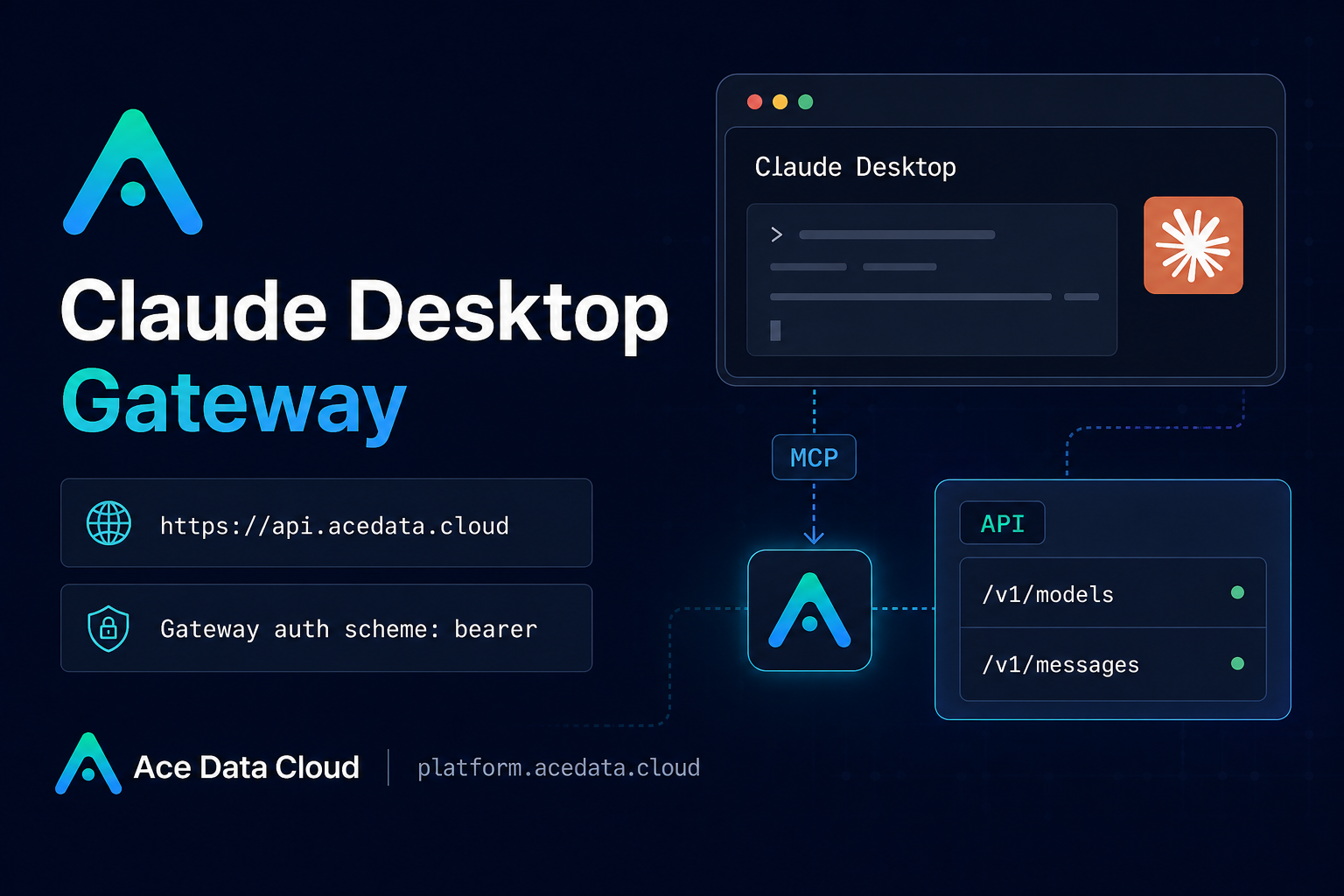
If you use Claude Desktop for real work, the useful question is not only which model you can chat with, but how reliably you can route requests, tools, and usage records through an infrastructure layer you control.
What you can do
The Claude Desktop Third-Party Inference Gateway configuration lets you point Claude Desktop at Ace Data Cloud as a gateway provider. In practice, that means Claude Desktop can use a gateway base URL, a static API key, and bearer authentication instead of relying only on the default built-in provider path.
This is useful when you want a desktop workflow that still has operational visibility. After configuration, you can verify a normal conversation, run a simple tool task, and inspect invocation records in Usage History. The documented gateway support includes /v1/models, bearer-authenticated streaming /v1/messages, tool calling, and tool_result continuation used by Claude Desktop.
How it works
Claude Desktop has a Third-Party Inference configuration surface. Once developer mode is enabled, you can choose a gateway provider and fill in a small set of fields:
Gateway base URL:https://api.acedata.cloudGateway API key: the API Key copied from an available Ace Data Cloud applicationGateway auth scheme:bearerCredential kind:Static API key
The important detail is that this guide is specifically about Claude Desktop Third-Party Inference Gateway configuration. It is not a Claude Code setup guide, and it is not the MCP Connector configuration inside Claude Desktop. Keeping those paths separate avoids a lot of confusing failures.
Step 1: Get an application API key
Start in the Ace Data Cloud application list. Open an available application and copy its API Key. Treat this key like any other production credential: do not paste it into screenshots, issue reports, shared prompts, or public logs.
You will use this value as the Gateway API key in Claude Desktop. The gateway auth scheme is bearer, so the desktop client should authenticate requests as bearer-authenticated gateway calls after the configuration is saved.
Step 2: Open the Claude Desktop gateway configuration
On the Claude Desktop login page, open Help → Troubleshooting → Enable Developer Mode. After developer mode is enabled, open Developer → Configure Third-Party Inference….
From there, select Gateway. Fill the gateway fields exactly rather than improvising endpoint paths. The base value is the base URL:
https://api.acedata.cloudDo not append /v1/models or /v1/messages into the base URL field. Those are supported gateway paths; they are not the base URL itself.
Step 3: Save, restart, and verify with a minimal prompt
After the fields are filled in, apply the changes, then choose Save & Restart. A full restart matters because model availability and provider configuration can remain stale until Claude Desktop reloads the gateway settings.
Once Claude Desktop is back, select an available model and create a new conversation. Use a tiny prompt first:
Reply only OKThis test is intentionally boring. It checks the route, authentication, selected model, and basic response path without adding ambiguity from a complex task. After that succeeds, run a simple tool task to verify that tool calling and tool_result continuation behave as expected.
A small curl check for the gateway path
If you want to reason about the gateway outside the UI, the documented model-listing path is /v1/models. With the same API key, the check looks like this:
export ACE_API_KEY="replace-with-your-application-api-key"

curl -sS "https://api.acedata.cloud/v1/models"   -H "Authorization: Bearer $ACE_API_KEY"
This does not replace the Claude Desktop setup, but it gives you a narrow diagnostic: can your key reach the gateway and list models through the documented base URL and bearer authentication pattern?
Troubleshooting notes that save time
- If you see a
401, first assume the API key is incorrect or not the one copied from the intended application. - If a model cannot be found, recheck the gateway configuration and fully restart Claude Desktop before debugging anything deeper.
- If you need to report an issue, provide the trace ID from invocation records. Do not provide the API key.
- Prompt caching fields may be retained by the gateway. Cache write and read values both being
0does not prove that a cache hit occurred.
Where this fits in a builder workflow
The practical value of this setup is not that it adds another configuration screen. It gives builders a cleaner boundary: Claude Desktop remains the local interface, while gateway traffic, model access, and usage inspection live behind Ace Data Cloud. That boundary is especially useful when you are testing tool workflows and want a traceable path from desktop prompt to gateway invocation.
For the exact field list and verification steps, read the Claude Desktop Third-Party Inference Gateway setup guide.


Comments
Post a Comment