How to Build a Stateful, Streaming AI Chat Endpoint with Ace Data Cloud
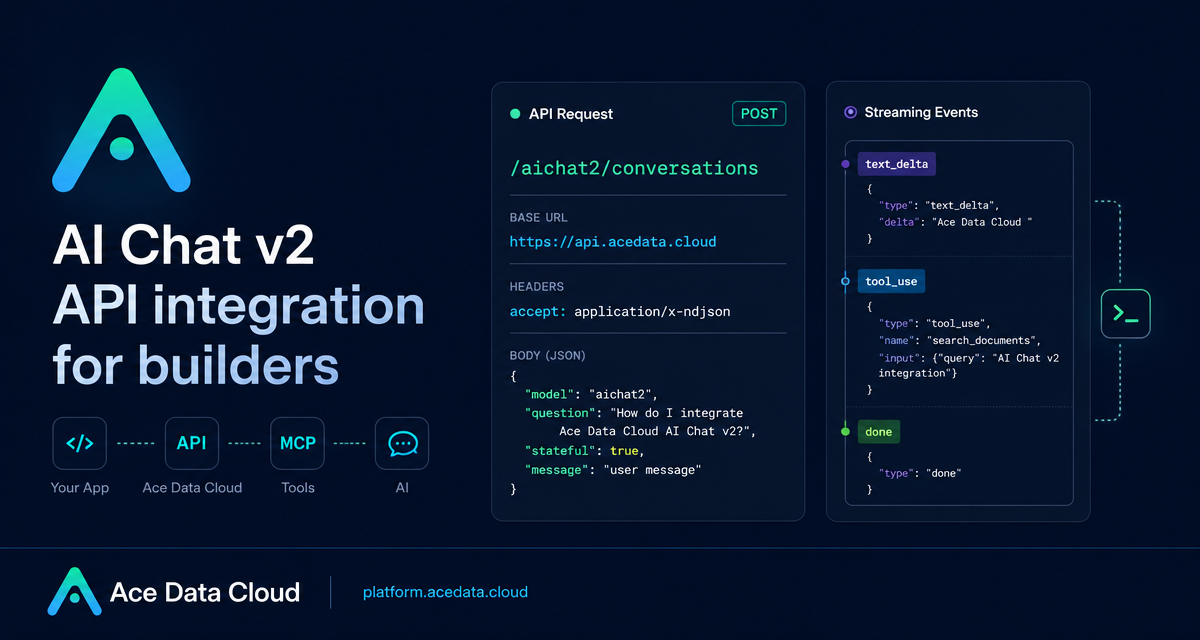
When you are building an assistant into a product, the hard part is rarely the first prompt. The hard part is keeping useful context, streaming partial output to the UI, accepting images or files, and giving the model enough room to call tools without turning your backend into a pile of one-off integrations.
The Ace Data Cloud AI Chat v2 API is designed for that middle layer: a single conversation endpoint that can behave like a simple chat API, but also supports stateful conversations, structured streaming events, multimodal input, tool-use events, async tasks, and conversation management actions. This guide walks through the practical integration path using only the fields and behavior documented for /aichat2/conversations.
What you can do
At its simplest, AI Chat v2 accepts a model and a question, then returns a JSON object with answer and id. That makes it easy to migrate from a basic chat flow without changing your entire client.
- Stateful conversations by passing
stateful: trueand reusing the returnedid. - Streaming output with
accept: text/event-streamfor SSE-style events oraccept: application/x-ndjsonfor one JSON event per line. - Multimodal input with a structured
messagearray containingtext,image_url, orfile_urlblocks. - Tool-aware UX by rendering or ignoring events such as
tool_use,tool_result,citation,card, andartifact. - Background execution by passing
async: trueand later retrieving the result byid, or receiving a callback atcallback_url.
How it works
The endpoint is:
POST https://api.acedata.cloud/aichat2/conversationsUse your Ace Data Cloud API token in the authorization header:
curl -X POST 'https://api.acedata.cloud/aichat2/conversations' \
  -H 'accept: application/json' \
  -H 'authorization: Bearer {token}' \
  -H 'content-type: application/json' \
  -d '{
    "model": "gpt-5.4",
    "question": "Summarize this API in one sentence."
  }'
The JSON response shape is intentionally small:
{
  "answer": "...",
  "id": "f2f4b3e8-0c0a-4d3a-aaa2-7ff80c0a1c44"
}
That returned id is the handle you use when you want the server to continue a stored conversation instead of sending the whole message history again.
Start with the boring path first
Before adding streaming or tools, make one normal JSON call. This keeps debugging simple: if the request fails, the problem is likely authentication, model selection, headers, or JSON structure. The minimum payload is just model plus question.
The documentation notes that stateful defaults to true. If you do not want Ace Data Cloud to save the turn, explicitly pass stateful: false. For product assistants, I usually keep the first implementation stateful and store the returned id in my own session table.
Continue a conversation without replaying messages
For multi-turn use, send the next request with the same id. You can keep the request body compact:
{
  "model": "gpt-5.4",
  "stateful": true,
  "id": "f2f4b3e8-0c0a-4d3a-aaa2-7ff80c0a1c44",
  "question": "What did I ask you to remember?"
}
This is useful when your frontend is stateless, when several workers may handle the same user over time, or when you simply do not want to keep reconstructing a long message array on every request.
Stream events your UI can understand
When you use accept: application/x-ndjson, each response line is a JSON event. A minimal Python client can concatenate text_delta events and inspect the final done event for usage:
import json
import requests

url = "https://api.acedata.cloud/aichat2/conversations"
headers = {
    "accept": "application/x-ndjson",
    "authorization": "Bearer {token}",
    "content-type": "application/json",
}
payload = {
    "model": "gpt-5.4",
    "stateful": True,
    "question": "Introduce Hangzhou in three sentences.",
}

with requests.post(url, json=payload, headers=headers, stream=True) as resp:
    answer = ""
    for line in resp.iter_lines():
        if not line:
            continue
        event = json.loads(line)
        if event.get("type") == "text_delta":
            answer += event["content"]
            print(event["delta_answer"], end="", flush=True)
        elif event.get("type") == "done":
            print("\nusage =", event.get("usage"))
The same endpoint can emit other event types, including thinking, tool_use, tool_result, card, citation, ask_user_question, artifact, system_message, compact, error, and done. If your app only needs final text, ignore the extra events and concatenate content from text_delta.
Add images or files when the prompt needs them
For multimodal input, use message instead of question. The order of blocks is preserved, which is helpful when text refers to a specific image or file:
{
  "model": "gpt-5.4",
  "stateful": true,
  "message": [
    { "type": "text", "text": "How many cats are in this image?" },
    { "type": "image_url", "image_url": { "url": "https://cdn.acedata.cloud/cats.jpg" } }
  ]
}
The supported block types are text with required text, image_url with required image_url.url, and file_url with required file_url.url. Older clients can still use references; image extensions such as jpg, jpeg, png, gif, bmp, webp, svg, heic, and heif are converted into image blocks, while other extensions become file blocks.
Use async mode for background work
If a request comes from a webhook, CI job, or monitoring system, pass async: true. The API immediately returns a task-style payload containing fields such as task_id, conversation_id, id, and status. Later, query the result with action: retrieve and id, or provide a callback_url. The callback URL must use http or https and cannot directly target localhost or a private IP literal address.
Where to go next
The clean path is: first make a JSON request, then add stateful continuation, then switch your UI to NDJSON or SSE streaming, and only after that render advanced events such as tool calls, cards, citations, and artifacts. That sequence gives you a working assistant early, while leaving room for richer workflows later.
For the full field list, streaming event definitions, resume flow, and async details, read the AI Chat v2 API documentation.


Comments
Post a Comment