How to Build Reliable Image Editing Workflows with GPT Image 2
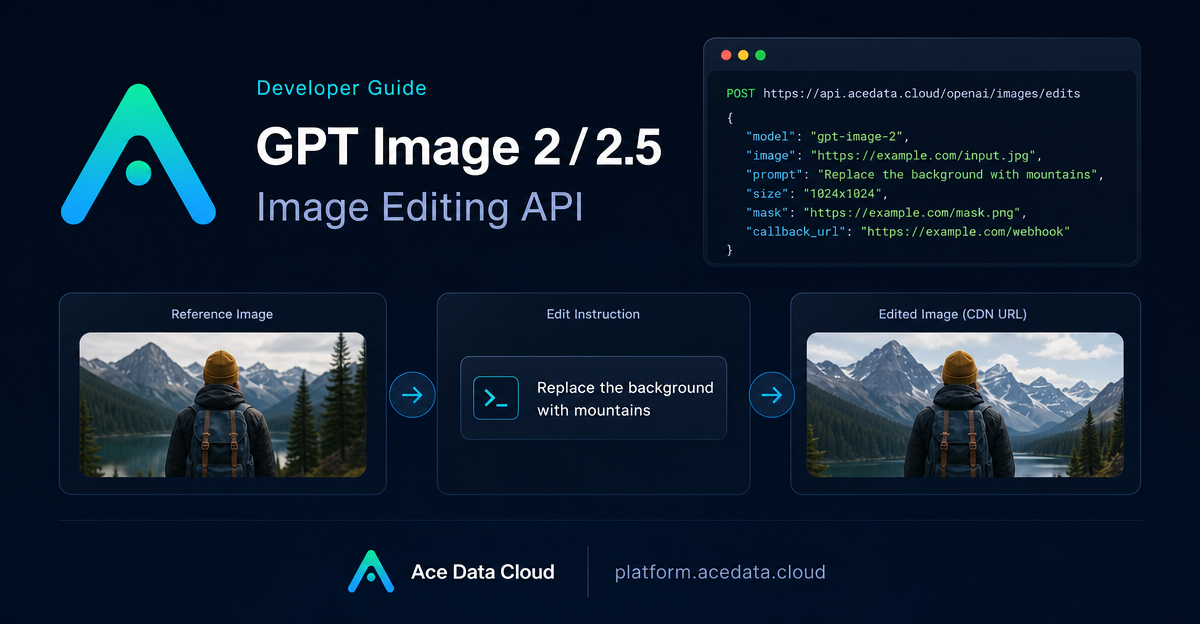
Most image editing APIs are easy to demo once, but harder to turn into a reliable workflow: you need predictable inputs, constrained edits, clear error handling, and a way to avoid blocking your app while a large edit runs.
This guide walks through a practical image editing flow using the Ace Data Cloud OpenAI Images Edits endpoint. The goal is not to generate random pictures from text. The goal is to take one or more existing images, describe a controlled edit, and receive a usable image result while keeping enough structure around the request to debug failures and scale the workflow later.
What you can do
The Images Edits API supports two main input styles:
- Edit from an image URL by sending JSON to
https://api.acedata.cloud/openai/images/edits. - Edit local images with
multipart/form-data, including optional mask-based local edits for supported:officialmodels.
The core fields are intentionally small: model, image, prompt, and optional controls such as size, n, response_format, mask, and callback_url. JSON requests can pass image as a single URL or an array of up to 16 URLs. Multipart requests can pass one or more image file fields.
For model choice, the documentation lists gpt-image-2, gpt-image-2:reverse, gpt-image-2:official, gpt-image-2.5-flare, gpt-image-2.5-flare:official, gpt-image-2.5-sunburst, and gpt-image-2.5-sunburst:official. In practice, I would start with gpt-image-2 for general edits, use gpt-image-2.5-flare when speed matters, and consider gpt-image-2.5-sunburst when fidelity and control are more important.
How it works
The endpoint accepts an editing instruction, not just a subject description. A good edit prompt says what should change and, just as importantly, what should remain unchanged. The example in the documentation keeps the mug, tabletop, camera angle, portrait layout, and soft shadow unchanged, while changing only the mug color and background color.
That distinction matters. If you are building a product workflow—catalog retouching, social media variants, app screenshots, or content localization—you usually want constrained edits. The prompt should name the stable elements: composition, lighting, objects outside the edited region, camera angle, aspect ratio, or brand assets.
Edit an image from a URL
For remote assets already hosted on a CDN, JSON is the simplest request format. Here is a direct curl example using the documented endpoint and fields:
curl https://api.acedata.cloud/openai/images/edits \
  -H "Authorization: Bearer YOUR_API_KEY" \
  -H "Content-Type: application/json" \
  -d '{
    "model": "gpt-image-2",
    "image": "https://cdn.acedata.cloud/assets/examples/gpt-image/d56455e2-e7f7-4bcd-b935-475b0a1e0948_0-18240dc44b9c.png",
    "prompt": "Keep the mug, tabletop, camera angle, portrait layout, and soft shadow unchanged. Change only the mug color from white to vivid orange and the pale cream background to solid dark navy blue. No text and no logo.",
    "size": "1024x1536"
  }'
A successful synchronous response includes success, task_id, trace_id, created, model, data, and usage. The edited image URL is returned under data[0].url. Keep the trace_id in logs; the documentation specifically recommends providing it when reporting issues, while never sharing the API key.
Upload local images with multipart
If the input image is local, send a multipart request instead of JSON:
curl https://api.acedata.cloud/openai/images/edits \
  -H "Authorization: Bearer YOUR_API_KEY" \
  -F "model=gpt-image-2" \
  -F "image=@input.png" \
  -F "prompt=Replace the background with a bright modern studio"
This format is also what you need when working with a mask. Do not mix a URL original image with a local mask file. The documentation says the original image and mask must be uploaded separately in the same multipart request through image=@input.png and mask=@mask.png.
Constrain local edits with a mask
For local editing, :official models follow the official Images Edit multipart contract. The mask must be a PNG with an Alpha channel, must not exceed 4MB, and must match the dimensions of the first image. Transparent pixels with Alpha value 0 mark areas allowed to be edited; non-transparent pixels mark areas that should be retained.
Here is the documented pattern for creating a simple transparent rectangle in the center of an image:
from PIL import Image, ImageDraw

source = Image.open("input.png").convert("RGBA")
mask = Image.new("RGBA", source.size, (0, 0, 0, 255))
draw = ImageDraw.Draw(mask)
width, height = source.size
draw.rectangle(
    (width // 4, height // 4, width * 3 // 4, height * 3 // 4),
    fill=(0, 0, 0, 0),
)
mask.save("mask.png")
Then submit the image and mask together:
curl https://api.acedata.cloud/openai/images/edits \
  -H "Authorization: Bearer YOUR_API_KEY" \
  -F "model=gpt-image-2:official" \
  -F "image=@input.png" \
  -F "mask=@mask.png" \
  -F "prompt=Keep the composition, lighting, and all objects outside the transparent mask unchanged. Inside the masked area, replace the empty tabletop with a small blue ceramic vase."
When strict boundaries matter, use clear Alpha edges and repeat in the prompt which content must remain unchanged. The mask constrains the editing area, but the model may still blend edges naturally.
Handle size, callbacks, and failures
The size field can be auto or a compliant WIDTHxHEIGHT. Width and height must be multiples of 16, the longer side must not exceed 3840, total pixels must be 655,360–8,294,400, and the aspect ratio must not exceed 3:1. If size is omitted or set to auto, the model selects the canvas based on the prompt and first reference image.
For long-running edits, add a callback_url:
{
  "callback_url": "https://example.com/webhooks/images"
}
With asynchronous callbacks, the initial 200 response is {"task_id":"..."}, and the final result is returned to the callback after completion. For failures, start with the documented checks: 400 usually means image format, quantity, parameter combination, size format, or mask constraints; 401 points to the API key and Bearer header; 429 indicates request frequency; and 504 is a good reason to switch to callbacks.
Closing notes
A solid image editing workflow is mostly about discipline: keep the request shape simple, make prompts explicit about unchanged regions, use masks only when you need local control, log task_id and trace_id, and move slow jobs behind callback_url. That is enough to turn a one-off visual edit into something a builder can safely wire into a real product flow.
For the full parameter reference and examples, read the OpenAI Images Edits API Integration Guide.


Comments
Post a Comment