How to Build a Reliable Image Editing Workflow with GPT Image 2
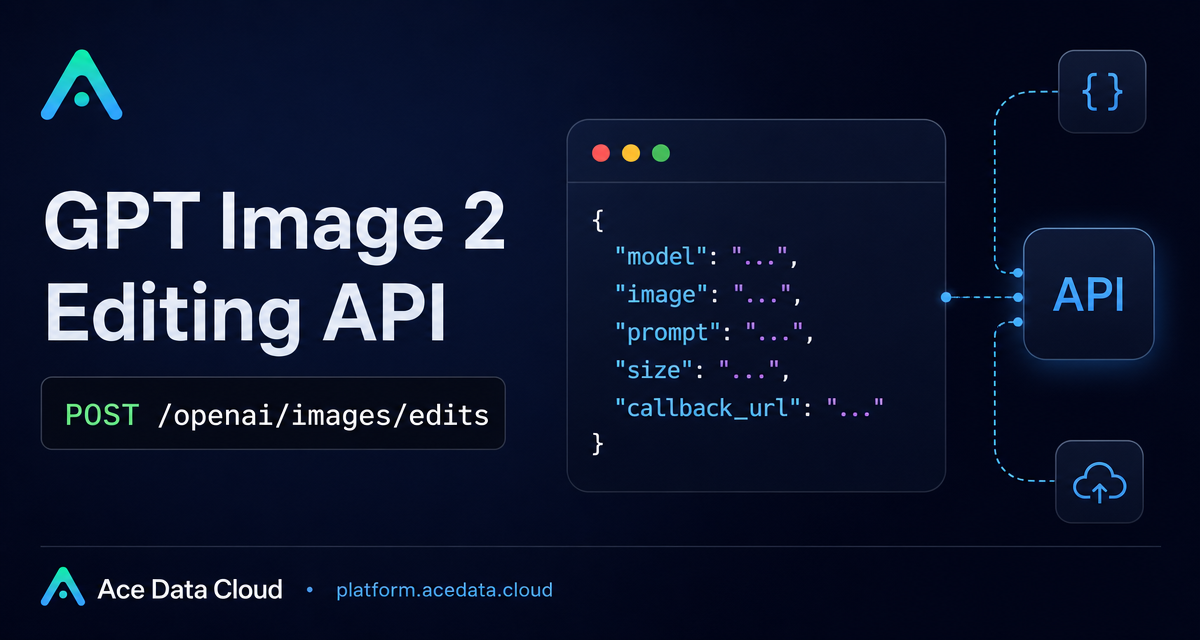
Image editing APIs are most useful when they behave like a predictable production step: take a reference image, apply a focused instruction, return an edited asset, and give you enough metadata to debug failures. This guide walks through a practical workflow for using Ace Data Cloud’s GPT Image 2 / 2.5 image editing API without treating it like a black box.
What you can do
The editing endpoint is designed for cases where you already have one or more source images and want to transform them with natural-language instructions. The documented endpoint is https://api.acedata.cloud/openai/images/edits, and the basic JSON flow accepts a remote image URL, a model such as gpt-image-2, a prompt, and an optional size.
In practice, this fits a lot of builder workflows:
- Change one product attribute while keeping the composition stable, such as recoloring an object while preserving the camera angle and shadow.
- Generate blog, documentation, or marketplace visuals from an existing brand image.
- Use multiple reference images when a design depends on more than one visual source.
- Move long-running jobs to an asynchronous callback instead of waiting on a single request.
How it works
The API exposes an image editing request shape rather than a chat-style interface. You send the edit to /openai/images/edits with an authorization bearer token. For JSON requests, image can be a single URL or an array of URLs. For local files, the documented approach is multipart/form-data, using one or more image file fields.
The most important habit is to write the prompt as a change request, not as a vague description of the final picture. If you need only the background replaced, say what must remain unchanged. If you need a layout preserved, include the objects, camera angle, orientation, and shadow behavior that should stay stable.
Start with a URL-based edit
A URL-based request is the easiest path to automate because your application does not need to stream a file upload. The documented example uses gpt-image-2, a remote image URL, a tightly scoped prompt, and a portrait size.
curl https://api.acedata.cloud/openai/images/edits   -H "Authorization: Bearer your API Key"   -H "Content-Type: application/json"   -d '{
    "model": "gpt-image-2",
    "image": "https://platform2.cdn.acedata.cloud/gpt-image/d56455e2-e7f7-4bcd-b935-475b0a1e0948_0.png",
    "prompt": "Keep the mug, tabletop, camera angle, portrait layout, and soft shadow unchanged. Change only the mug color from white to vivid orange and the pale cream background to solid dark navy blue. No text and no logo.",
    "size": "1024x1536"
  }'
A successful synchronous response includes success, task_id, trace_id, created, model, data with an output url, and usage fields such as input_tokens, output_tokens, and total_tokens. Store the task_id and trace_id alongside the generated asset. The output URL is what your pipeline can pass to a CMS, asset store, or review queue.
Use local files when the image is not public
If the source image lives on disk, use the multipart form flow. This is useful for internal design assets, screenshots, or generated files that have not been uploaded to a CDN yet.
curl https://api.acedata.cloud/openai/images/edits -H "Authorization: Bearer your API Key" -F "model=gpt-image-2" -F "image=@input.png" -F "prompt=Replace the background with a bright modern studio"The same mental model applies: be explicit about what should change and what should stay fixed. For product and documentation images, that usually means preserving object identity, framing, and layout while changing only the part the request calls out.
Choose parameters deliberately
The common fields are small enough to keep the first integration simple:
model: documented options includegpt-image-2,gpt-image-2.5-flare,gpt-image-2.5-sunburst,gpt-image-2:official, andgpt-image-2:reverse.image: a single URL or an array of up to 16 URLs in JSON; one or moreimagefields in multipart.prompt: the natural-language editing instructions.size:autoor a compliantWIDTHxHEIGHT.n: 1–10, with only 1 supported whenresponse_format=b64_json.response_format:urlorb64_json.callback_url: an optional asynchronous callback address.
For explicit sizes, the documented rules are: width and height must be multiples of 16, the long side must not exceed 3840, total pixels must be between 655,360 and 8,294,400, and the aspect ratio must not exceed 3:1. If size is omitted or set to auto, the model chooses the aspect ratio from the prompt and the first reference image.
Handle longer jobs with callbacks
When an edit may take longer than your request timeout budget, include a callback_url. The documented asynchronous shape is intentionally minimal:
{
  "callback_url": "https://example.com/webhooks/images"
}
An asynchronous 200 response returns a task_id, and the final result is delivered to the callback when complete. This is the safer approach for batch pipelines, scheduled content jobs, or any user-facing workflow where a 504 would otherwise create uncertainty.
Debug the boring failures first
Most integration problems are not creative-model problems. The documentation calls out a few checks: 400 usually points to image format or quantity, parameter combinations, or size format; 401 points to the API key and bearer header; 429 indicates request frequency; and 504 is a signal to switch to asynchronous callback. Error responses include a trace_id, which is the value to share when reporting issues. Do not share the API key.
That is the useful baseline: keep edits narrow, persist task_id and trace_id, validate size before sending, and use callback_url when synchronous waiting is too fragile. For the full field list and current model enumeration, read the OpenAI Images Edits API integration guide.


Comments
Post a Comment