How to Build a Practical Image Editing Pipeline with gpt-image-2
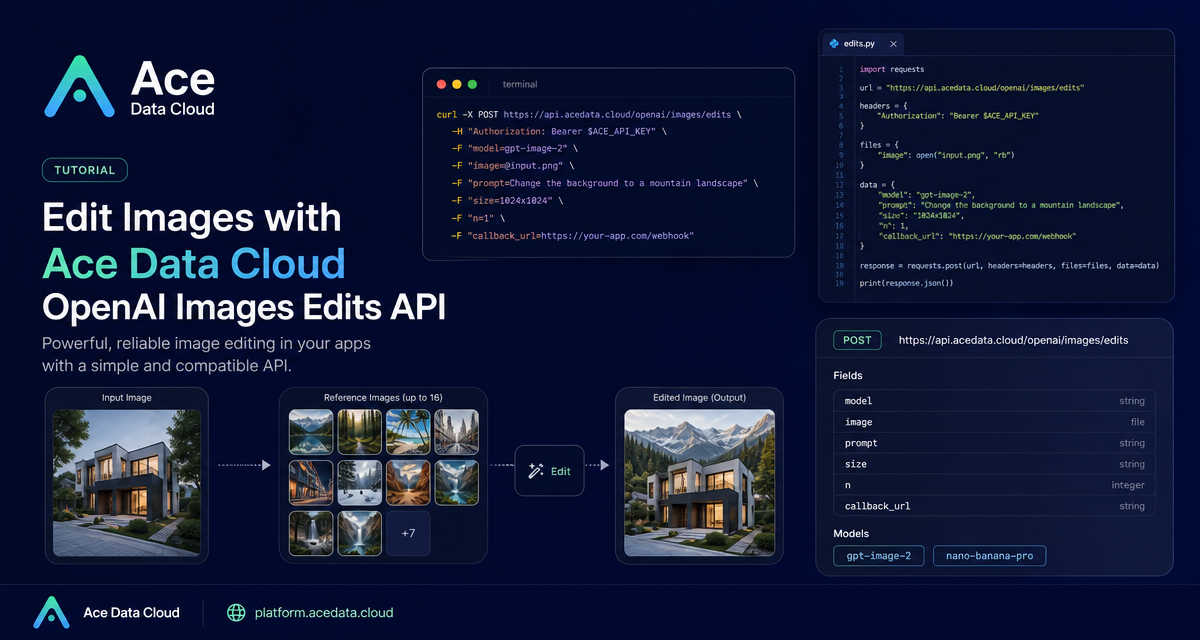
Image editing becomes much easier to automate when you can send an existing image, describe the exact change, and get a production-ready result back from an API.
This guide walks through a practical workflow for using the Ace Data Cloud OpenAI Images Edits API with gpt-image-2. The goal is not to generate random artwork from scratch, but to build repeatable edits: dark-mode conversions, layout-preserving redesigns, product composites, and multi-reference transformations that can run inside a backend job or creative tooling pipeline.
What you can do
The image edits endpoint accepts one or more reference images plus a natural-language instruction. With gpt-image-2, the documented editing flow is useful when you need to:
- Change the visual style of an existing asset while keeping the original layout stable.
- Preserve readable text in image-heavy content such as infographics, menus, or posters.
- Use direct image URLs in JSON, so your server does not need to download and re-upload files.
- Pass base64 image data for local files that you do not want to host first.
- Use multiple reference images, up to 16 at once, when the output should combine or compare several inputs.
The same interface also supports the nano-banana, nano-banana-2-lite, nano-banana-2, and nano-banana-pro models, but their supported parameter range is narrower. We will focus on the gpt-image-2 path first, then call out the differences.
How it works
The main endpoint is:
POST https://api.acedata.cloud/openai/images/editsFor the recommended JSON workflow, send Content-Type: application/json and include at least:
model: for example,gpt-image-2.image: an image URL, a base64 image string, or an array of images.prompt: the edit instruction.
You can also include size when you need explicit output dimensions. For gpt-image-2, size may be auto, omitted, or a WIDTHxHEIGHT value. Custom dimensions must use width and height values that are multiples of 16; the long edge must be no more than 3840, and total pixels must be no more than 8,294,400. If you omit size, the model reads any size intent from the prompt and otherwise falls back toward the first reference image.
A minimal JSON request
Here is a direct URL-based call that converts an infographic-style image into a dark-mode variant while asking the model to preserve the structure:
curl -X POST "https://api.acedata.cloud/openai/images/edits" \
  -H "Authorization: Bearer {token}" \
  -H "Content-Type: application/json" \
  -d '{
    "model": "gpt-image-2",
    "image": "https://platform.cdn.acedata.cloud/gpt-image/5c9fa635-8794-4c6d-88f8-584d7f4716c6_0.png",
    "prompt": "Convert this infographic to dark mode: dark navy background, light cream text, deep gray rounded module cards with soft shadows. Keep all layout, structure, and module arrangement identical — only invert the color scheme.",
    "size": "1024x1536"
  }'
The documented response shape includes success, task_id, trace_id, created, data, and elapsed. The edited image URL is returned under data[].url, and data[].revised_prompt may contain the prompt used by the model.
{
  "success": true,
  "task_id": "cb104e35-af1f-45be-9fac-b62e2b256753",
  "trace_id": "3e5c77c6-6c2e-4bba-a42d-98ea049b58a8",
  "created": 1777048863,
  "data": [
    {
      "revised_prompt": "Convert this infographic to dark mode...",
      "url": "https://platform.cdn.acedata.cloud/gpt-image/cb104e35-af1f-45be-9fac-b62e2b256753_0.png"
    }
  ],
  "elapsed": 83.859
}
Using multiple reference images
For product, ecommerce, or design-composition workflows, image can be an array. The GPT Image series supports up to 16 reference images. A typical pattern is to pass several item photos and ask for one combined scene:
import requests

url = "https://api.acedata.cloud/openai/images/edits"
headers = {
    "authorization": "Bearer {token}",
    "content-type": "application/json"
}
payload = {
    "model": "gpt-image-2",
    "image": [
        "https://example.com/item1.png",
        "https://example.com/item2.png",
        "https://example.com/item3.png"
    ],
    "prompt": "Combine all the items above into a single 'Relax & Unwind' gift basket on a clean white background, photorealistic, soft natural lighting.",
    "size": "1024x1024"
}

response = requests.post(url, json=payload, headers=headers)
print(response.text)
If you are uploading files with multipart/form-data, the documented file path also supports repeated image[] fields such as image[]=@a.png and image[]=@b.png. In that mode, GPT Image series reference files may be png, webp, or jpg, with each file not exceeding 50MB.
Choosing size, count, and output format
Use explicit size when your downstream system expects a fixed canvas. The documented recommended sizes include 1024x1024, 1536x1024, 1024x1536, 1792x1024, and 1024x1792 for 1K-style outputs, with larger 2K and 4K options as long as the custom-size limits are respected.
The n parameter can request multiple editing results in one call, from 1 to 10. One important implementation detail: response_format=b64_json only supports n=1. If you request more than one image, use the default URL return path.
When to use Nano Banana models
The Nano Banana series also connects to /openai/images/edits. The tradeoff is parameter support. For these models, the documented supported parameters are only model, prompt, image, and n. Parameters such as mask, size, and response_format are ignored. The response still follows the OpenAI-style data[].url shape, but created is fixed at 0, b64_json is not returned, and revised_prompt equals the original prompt.
That makes gpt-image-2 the better default when you need explicit size control, URL or base64 JSON input, and predictable integration behavior. Nano Banana can still be useful for simpler edits where only prompt, image, and result count matter.
SDK-compatible usage
If you already use the OpenAI Python SDK, the documented integration keeps the familiar image editing call. Set the base URL and API key first:
export OPENAI_BASE_URL=https://api.acedata.cloud/openai
export OPENAI_API_KEY={token}
Then call client.images.edit with model="gpt-image-2" and your image file:
import base64
from openai import OpenAI

client = OpenAI()

result = client.images.edit(
    model="gpt-image-2",
    image=[open("test.png", "rb")],
    prompt="Convert this image to dark mode while keeping the layout intact."
)

image_base64 = result.data[0].b64_json
image_bytes = base64.b64decode(image_base64)
with open("edited.png", "wb") as f:
    f.write(image_bytes)
For production systems, I would start with the JSON URL flow because it is simple to run from a job queue, avoids temporary file handling, and makes your edit instruction easy to log alongside task_id and trace_id. Once the edit pattern is stable, add validation around image count, file type, size dimensions, and n so bad requests fail before they reach the API.
Read the full reference in the OpenAI Images Edits API documentation.


Comments
Post a Comment