How to Add Ace Data Cloud MCP Servers to Claude Code
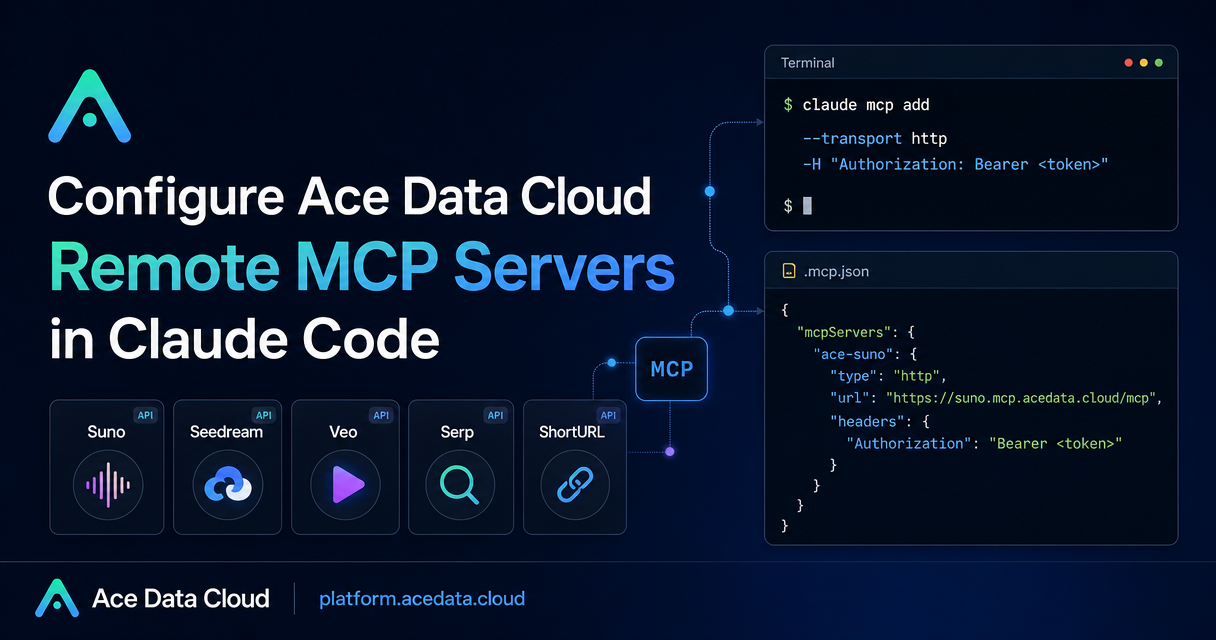
If you already use Claude Code for everyday programming, the next friction point is usually not code generation itself. It is everything around the code: creating a quick product image, finding current references, making short release assets, or preparing media while you are still inside the terminal. The Ace Data Cloud Claude Code MCP guide describes a practical way to connect managed remote MCP servers so those tasks can happen without leaving your coding flow.
What you can do
The source guide focuses on connecting Ace Data Cloud remote MCP servers to Claude Code through HTTP MCP endpoints. Once configured, Claude Code can call tools for several adjacent builder tasks while you continue working in the terminal or IDE.
- Use music tooling through
Sunofor text-to-song, lyrics, covers, continuation, vocal separation, and Persona workflows. - Use image tooling through
Midjourney,Flux,Seedream, andNanoBananafor image generation, image mixing, editing, product-background replacement, and related visual work. - Use video tooling through
Luma,Veo, andSeedancefor video generation workflows such as start/end frame control, native audio, motion generation, and dubbing. - Use
Serpfor multilingual Google search workflows andShortURLfor shortening links from release notes or generated materials.
The useful part is not that these services exist somewhere else. It is that Claude Code can sequence them from the same conversation where you are editing files, writing documentation, or planning a release.
How it works
Claude Code supports adding MCP servers. In the Ace Data Cloud setup, each capability is exposed as a managed remote MCP server with an HTTP transport URL. The configuration has three important pieces:
- a server name such as
suno,seedream,veo,serp, orshorturl; - a remote MCP URL such as
https://suno.mcp.acedata.cloud/mcp; - an authorization header in the form
Authorization: Bearer <your token>.
The guide also notes a few operational details that matter in real projects: -H must be uppercase in the command-line form, because lowercase -h is help; without a scope flag, the default scope is local to the current directory; and if you modify configuration, you should restart Claude Code.
Option 1: add servers from the terminal
The fastest path is to add only the servers you need with claude mcp add. Here is a minimal version using two documented endpoints from the guide:
# Music
claude mcp add suno --transport http https://suno.mcp.acedata.cloud/mcp   -H "Authorization: Bearer <your token>"

# Search
claude mcp add serp --transport http https://serp.mcp.acedata.cloud/mcp   -H "Authorization: Bearer <your token>"

# Confirm configured MCP servers
claude mcp list
Use this when you are experimenting, when the setup is personal, or when each project needs a slightly different toolset. If you want the configuration to apply across projects, the guide says you can add -s user. If you want a project-level configuration, use a committed configuration pattern carefully, as described below.
Option 2: use a project .mcp.json
For a repository where the team should share the same MCP server definitions, the guide shows a .mcp.json file in the project root. The important shape is mcpServers, with each server declaring type, url, and headers.
{
  "mcpServers": {
    "suno": {
      "type": "http",
      "url": "https://suno.mcp.acedata.cloud/mcp",
      "headers": {
        "Authorization": "Bearer <your token>"
      }
    },
    "seedream": {
      "type": "http",
      "url": "https://seedream.mcp.acedata.cloud/mcp",
      "headers": {
        "Authorization": "Bearer <your token>"
      }
    },
    "shorturl": {
      "type": "http",
      "url": "https://shorturl.mcp.acedata.cloud/mcp",
      "headers": {
        "Authorization": "Bearer <your token>"
      }
    }
  }
}
This is convenient, but it creates a security decision. The source guide is explicit: do not commit real tokens to public repositories. A safer team pattern is to add .mcp.json to .gitignore and let each developer fill in their own token locally, or use environment-variable placeholders if your client workflow supports them.
Practical workflow: research while writing docs
A realistic builder workflow is technical writing. Suppose you are drafting a README, release note, or blog post from inside Claude Code. With the documented server set, you can ask Claude Code to search for current references with Serp, outline the post, generate an illustration through an image MCP server such as Flux or Seedream, and shorten the final reference links with ShortURL.
The value here is sequencing. You do not need to manually copy prompts between a browser, an image tool, and a link shortener. Claude Code can keep the context of the task and call the configured MCP servers as needed.
Practical workflow: product media from the terminal
The guide also describes a media-production style workflow: generate a short upbeat background track with Suno, create product showcase images with Midjourney, then combine images into a product video with Luma. Even if you only use a subset of that flow, the pattern is useful: start with the artifact you need, let Claude Code call the right MCP server, then continue working with the returned links or files.
Common checks before debugging
If a server does not appear to work, start with the boring checks. Run claude mcp list to confirm that Claude Code sees the configured HTTP servers. If you changed configuration, restart Claude Code. If a single server is broken, remove and re-add that server using the same documented claude mcp add pattern. The guide also calls out balance checks as part of troubleshooting.
For me, the cleanest mental model is this: keep Claude Code focused on code, but give it narrow, explicit tools for the supporting work that normally breaks concentration. Start with one or two MCP servers, verify them with claude mcp list, and only expand the set when a workflow actually needs it. The full source guide is here: Claude Code with Ace Data Cloud MCP.


Comments
Post a Comment