Getting Started with Veo MCP in Codex CLI
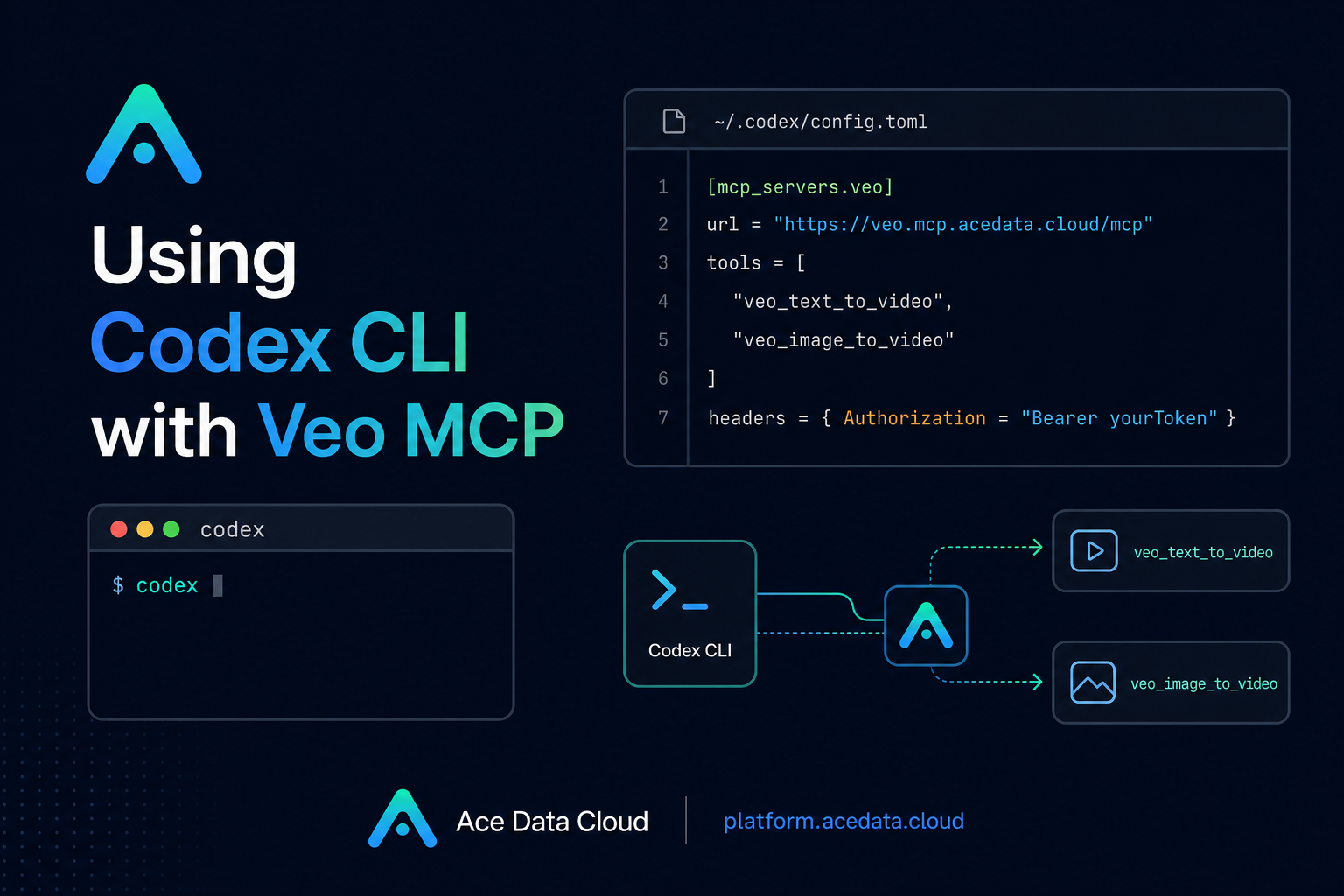
If you already use Codex CLI to reason about code, the awkward part of making short AI videos is not the prompt itself—it is leaving the terminal, opening another interface, copying assets around, and then trying to keep the result connected to the work you were doing.
The Codex CLI Integration with Veo MCP document describes a small but useful setup: add the Veo MCP server to Codex so video generation becomes a tool you can call from the same conversation where you are planning a demo, writing release notes, or preparing a product walkthrough.
What you can do
With the Veo MCP server configured in Codex CLI, you can ask for video generation directly inside a Codex session. The documented capabilities are intentionally focused:
- Generate text-to-video with
veo_text_to_video. - Generate image-to-video with
veo_image_to_video. - Use Google DeepMind Veo 2, Veo 3, or Veo 3.1 from the same MCP integration.
- Work with options described by the documentation such as
1080Pand native audio.
The practical benefit is not that your editor becomes a video editor. It is that your coding assistant can help you produce the kind of short visual assets builders often need: a product demo clip, a motion version of a UI mockup, or an atmospheric video for a launch page draft.
How it works
Codex CLI can load remote MCP servers from its configuration file. For Veo, the documented remote MCP endpoint is:
https://veo.mcp.acedata.cloud/mcpThe authentication model is also simple: pass an Ace Data Cloud API token through the Authorization header. The document notes that one token is sufficient to use the MCP servers, so you do not need a separate token just for the Veo integration.
Once the configuration is saved, the tool is loaded during the next codex session startup. From there, you interact with it naturally in the conversation, while the actual capability is exposed as MCP tools.
Configure Codex CLI
Open the Codex CLI configuration file at ~/.codex/config.toml and add the Veo server block exactly in the shape described by the documentation:
[mcp_servers.veo]
url = "https://veo.mcp.acedata.cloud/mcp"
type = "http"

http_headers = { "Authorization" = "Bearer yourToken" }
Replace yourToken with your Ace Data Cloud API token. Keep the value private: it belongs in your local config, environment management, or secret storage workflow—not in source control, screenshots, or shared prompts.
After saving the file, start a new Codex session. The important detail is that this is not a per-command flag. It is a persistent MCP server configuration, so the server becomes available when Codex loads your config.
Understand the tool surface
The Veo MCP document lists two tools:
veo_text_to_video: text-to-video for Veo 2, Veo 3, and Veo 3.1.veo_image_to_video: image-to-video generation.
A helpful way to think about the integration is this JSON summary. It is not a REST request body; it is a compact map of the documented configuration and available tool names:
{
  "config_file": "~/.codex/config.toml",
  "mcp_server": "veo",
  "url": "https://veo.mcp.acedata.cloud/mcp",
  "type": "http",
  "auth_header": "Authorization: Bearer yourToken",
  "tools": ["veo_text_to_video", "veo_image_to_video"]
}
This distinction matters because MCP is the integration layer. You are not manually building a video API request in your terminal. You are giving Codex access to a remote capability, then asking Codex to call the right tool when the conversation calls for it.
Use it for short builder workflows
The document gives three usage patterns that are easy to adapt.
1. Generate a short video from a prompt
For a pure text-to-video workflow, ask Codex for something like:
Generate an 8-second video with Veo 3: a morning in the mountains, clouds rolling, with natural ambient sound.This is useful when you need ambient motion, a background clip, or a simple scene that does not depend on an existing design asset.
2. Animate a first frame
If you already have an image, use the image-to-video direction:
Use this image as the first frame to generate an 8-second panning video.This is often a better fit for product work because you can keep visual continuity: a UI mockup, product render, or hero illustration can become the first frame of the clip instead of being reimagined from scratch.
3. Make a product demo clip
For a faster demo-oriented workflow, the document suggests asking for a product demonstration video with Veo 3.1 fast and 1080P. A builder-friendly prompt might be:
Quickly generate a product demonstration video with Veo 3.1 fast, 1080P.In practice, I would add only the details that matter: what the product does, what screen or object should be visible, and what motion would help explain it. Keep the prompt concrete; let the tool handle generation rather than turning the request into a marketing script.
Where this fits
The best use case is not replacing a full video pipeline. It is removing friction from small visual tasks that happen while building: a README demo, a landing page motion concept, a quick social preview, or a visual test for a product idea. Codex stays the working surface, while Ace Data Cloud provides the remote Veo MCP capability behind it.
If you want the original setup notes and tool names, read the Ace Data Cloud document: Codex CLI Integration with Veo MCP.


Comments
Post a Comment