Getting Started with NanoBanana MCP in Claude Code
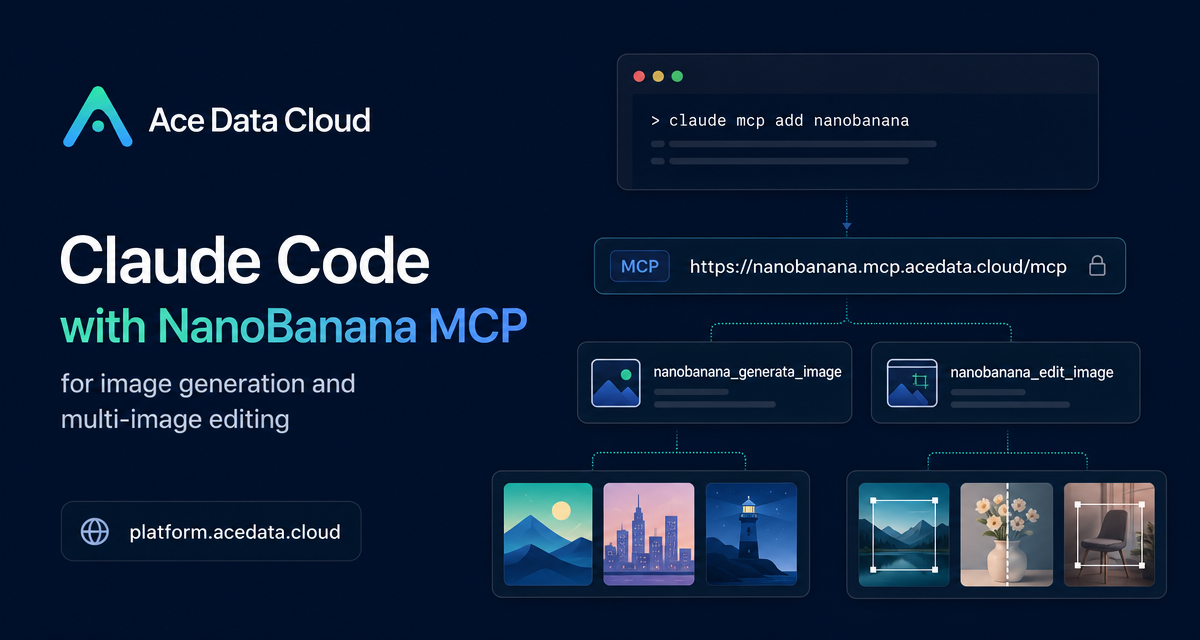
Moving image work into a terminal sounds small until you are building docs, release notes, product mockups, or UI examples and keep losing context to browser tabs. NanoBanana MCP gives Claude Code a practical way to generate and edit images from the same project session where you already inspect files, write copy, and run commands.
This guide walks through the setup described in the Ace Data Cloud documentation and shows how to think about NanoBanana as a developer workflow tool rather than a standalone image app.
What you can do
NanoBanana is useful when the image task depends on understanding existing visual content. The documentation highlights three common jobs:
- Image composition: pass multiple image URLs and ask the model to combine objects and scenes naturally.
- Image cleanup: remove unwanted text, such as a watermark or annotation, and fill the area with the surrounding background.
- Page illustration: generate small product or documentation illustrations directly from a text brief.
The two tools exposed by the MCP server are nanobanana_generate_image for text-to-image generation and nanobanana_edit_image for image editing with support for multiple image inputs.
How it works
Claude Code can connect to remote tools through MCP. In this setup, Ace Data Cloud hosts the NanoBanana MCP endpoint at https://nanobanana.mcp.acedata.cloud/mcp. You add that endpoint to Claude Code with an HTTP transport and an Authorization header containing your Ace Data Cloud API token.
The underlying NanoBanana capability is described as using Google Gemini at its core, with strong image comprehension. In practice, that means the prompts can refer to relationships between images rather than treating each input as a flat bitmap. For example, a request can say: place the phone from the first image onto the desk in the second image, then adjust the angle and lighting.
Step 1: Get an API token
Before configuring Claude Code, prepare an Ace Data Cloud API token from the application list in the console. The same token can be used across Ace Data Cloud MCP servers; there is no separate NanoBanana token to request.
Keep the token out of public repositories, screenshots, issues, and shared chat logs. In examples, use a placeholder such as YOUR_ACEDATACLOUD_API_KEY rather than a real secret.
Step 2: Add NanoBanana to Claude Code
The key command is claude mcp add. The documentation notes one easy-to-miss detail: -H must be uppercase because lowercase -h is help.
For a first test inside the current project, use the local scope:
claude mcp add nanobanana --transport http https://nanobanana.mcp.acedata.cloud/mcp -H "Authorization: Bearer YOUR_ACEDATACLOUD_API_KEY" -s localThis writes the record into your local ~/.claude.json with the current project path. It is a good default when you want to confirm the connection before making the tool available everywhere.
If you expect to use NanoBanana across many projects, switch the scope to user:
claude mcp add nanobanana --transport http https://nanobanana.mcp.acedata.cloud/mcp -H "Authorization: Bearer YOUR_ACEDATACLOUD_API_KEY" -s userFor a team project, use project scope. This writes configuration to .mcp.json in the current project root:
claude mcp add nanobanana --transport http https://nanobanana.mcp.acedata.cloud/mcp -H "Authorization: Bearer YOUR_ACEDATACLOUD_API_KEY" -s projectIf you commit a project-level configuration, do not commit the real token. Use an environment-variable placeholder or have each teammate add their own local secret.
Step 3: Verify the connection
After adding the MCP server, list configured servers:
claude mcp listA successful handshake shows nanobanana with ✓ Connected. If it fails, check the token, service URL, and configuration scope. For project-level configuration, Claude Code may show Pending approval the first time it reads the file; approve the trusted project configuration inside the Claude Code session.
Step 4: Use natural-language image workflows
Once connected, the useful part is not memorizing tool calls. You can stay in Claude Code and describe the image job in ordinary language. A few patterns map well to builder workflows:
Compose product visuals
When you have a product image and a target scene, ask Claude Code to call nanobanana_edit_image with both image URLs. A prompt can specify which object comes from which image and what needs to be adjusted:
Place the phone from the first image onto the desk in the second image, adjusting the angle and lighting to make it look natural.Clean screenshots for documentation
For documentation images, you may need to remove an accidental label or watermark before publishing. The documented pattern is direct:
Edit this image to remove the text watermark in the lower right corner, filling it with the background.Create empty-state or error-page art
For lightweight product illustrations, use nanobanana_generate_image. The documentation gives a 404-page-style example:
Generate an illustration of a small dinosaur squatting next to a crack in the ground looking down, to be used for a 404 page.Choosing the right scope
Use local when you are testing, user when this becomes part of your regular personal workflow, and project when the team should share the same MCP server definition. That separation keeps experiments isolated while still letting you standardize image workflows for repositories that need them.
Wrapping up
NanoBanana MCP is most valuable when image generation is part of a broader development task: writing docs, preparing release materials, building page illustrations, or editing assets while Claude Code already understands the project context. Start with the local scope, verify with claude mcp list, then move to user or project only after the workflow proves useful.
For the exact setup commands and the original reference, read the Claude Code with NanoBanana MCP documentation.


Comments
Post a Comment