Getting Started with Nano Banana MCP for AI Image Workflows
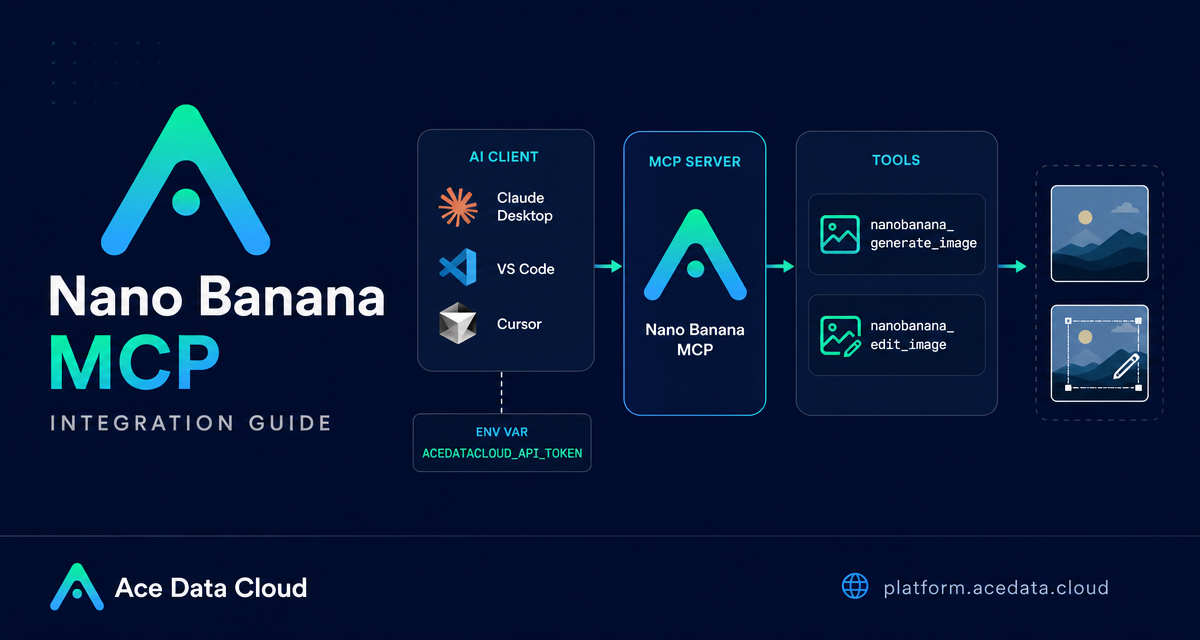
If your design or content workflow already lives inside an AI coding assistant, switching tabs to generate or edit images can break your flow. Nano Banana MCP is a practical way to bring image generation and editing into clients such as Claude Desktop, VS Code, and Cursor through the Model Context Protocol.
What you can do
The Nano Banana MCP Server from Ace Data Cloud exposes image tools directly to an MCP-compatible AI client. According to the integration guide, the server supports:
- Image generation from text prompts.
- Image editing for modifying existing images or combining multiple images.
- Virtual try-on, such as dressing clothing on photos of people.
- Product placement, such as placing a product into a real scene.
- Multi-model use with
nano-banana,nano-banana-2, andnano-banana-pro. - Task querying to monitor generation progress and retrieve results.
The nice part is that you do not need to build a custom UI before trying these workflows. Once the MCP server is configured, the AI client can call the tools while you describe the image task in natural language.
How it works
MCP, or Model Context Protocol, gives AI models a standardized way to call external tools. In this setup, your AI client launches the Nano Banana MCP server as a local command. The server receives tool calls from the client, uses your Ace Data Cloud API token, and returns task information or image results back into the conversation.
The documented environment variable is ACEDATACLOUD_API_TOKEN. You obtain the token from the Ace Data Cloud platform after going to the Nano Banana Images API page and acquiring access. Keep this token out of source control and avoid pasting it into shared project files.
Install the server
The recommended installation path is the PyPI package mcp-nanobanana-pro:
pip install mcp-nanobanana-proAfter installation, the server can be started with the mcp-nanobanana-pro command. If you prefer working from source, the guide also documents cloning the repository and installing it in editable mode:
git clone https://github.com/AceDataCloud/NanoBananaMCP.git
cd NanoBananaMCP
pip install -e .
For most builders, the PyPI path is simpler. Source installation is useful when you want to inspect the implementation, debug a local environment, or contribute changes.
Configure Claude Desktop
Claude Desktop reads MCP server definitions from a JSON configuration file. On macOS, the documented path is ~/Library/Application Support/Claude/claude_desktop_config.json. On Windows, it is %APPDATA%\Claude\claude_desktop_config.json.
Add a server named nanobanana and provide the command plus the token environment variable:
{
  "mcpServers": {
    "nanobanana": {
      "command": "mcp-nanobanana-pro",
      "env": {
        "ACEDATACLOUD_API_TOKEN": "Your API Token"
      }
    }
  }
}
If you use uvx, you can avoid installing the package in advance and let the client run it directly:
{
  "mcpServers": {
    "nanobanana": {
      "command": "uvx",
      "args": ["mcp-nanobanana-pro"],
      "env": {
        "ACEDATACLOUD_API_TOKEN": "Your API Token"
      }
    }
  }
}
After saving the file, restart Claude Desktop so it can discover the server.
Configure VS Code or Cursor
For editor-based workflows, create .vscode/mcp.json in the project root. This keeps the image workflow close to the repository where prompts, product mockups, or content assets are being developed.
{
  "servers": {
    "nanobanana": {
      "command": "mcp-nanobanana-pro",
      "env": {
        "ACEDATACLOUD_API_TOKEN": "Your API Token"
      }
    }
  }
}
The documented uvx option works in this format as well:
{
  "servers": {
    "nanobanana": {
      "command": "uvx",
      "args": ["mcp-nanobanana-pro"],
      "env": {
        "ACEDATACLOUD_API_TOKEN": "Your API Token"
      }
    }
  }
}
This is a good fit for teams that already use Cursor or VS Code to draft landing pages, product descriptions, internal docs, or design prompts. The MCP server becomes another project tool instead of a separate web console.
Use the available tools intentionally
The guide lists four tools exposed by the server:
nanobanana_generate_image— generate images from text prompts.nanobanana_edit_image— edit or combine existing images.nanobanana_get_task— query the status of a single task.nanobanana_get_tasks_batch— query multiple task statuses in batch.
In practice, start with narrow prompts. For generation, describe the medium, subject, layout, and constraints. For editing, describe what should change and what should remain stable. For product placement or try-on tasks, provide the source images your client supports and ask for a specific scene or composition.
Example natural-language requests from the guide include generating a watercolor landscape, placing a product in a café scene, photoshopping clothing onto a person, or generating a high-quality portrait with the nano-banana-pro model. Those are useful starting patterns because they map directly to the documented capabilities rather than asking the model to infer an unsupported workflow.
A simple builder workflow
- Install
mcp-nanobanana-proor use the documenteduvxconfiguration. - Add
ACEDATACLOUD_API_TOKENto the MCP server configuration. - Restart Claude Desktop, VS Code, or Cursor.
- Ask the client to generate or edit an image using one of the documented Nano Banana tools.
- Use
nanobanana_get_taskornanobanana_get_tasks_batchwhen you need to check progress and retrieve results.
The main design choice is where you want the workflow to live. Claude Desktop is comfortable for conversational exploration. VS Code or Cursor is better when prompts, documentation, and generated assets are part of a project repository.
Closing thoughts
Nano Banana MCP is most useful when image work is part of a broader builder loop: writing copy, testing visual directions, editing product imagery, or preparing examples for docs. Instead of treating image generation as a separate destination, you can expose it as a callable tool inside the assistant you already use.
For the exact setup instructions and the current tool list, see the Nano Banana MCP Integration Guide.


Comments
Post a Comment