How to Build Audio Transcription into Your App with Ace Data Cloud
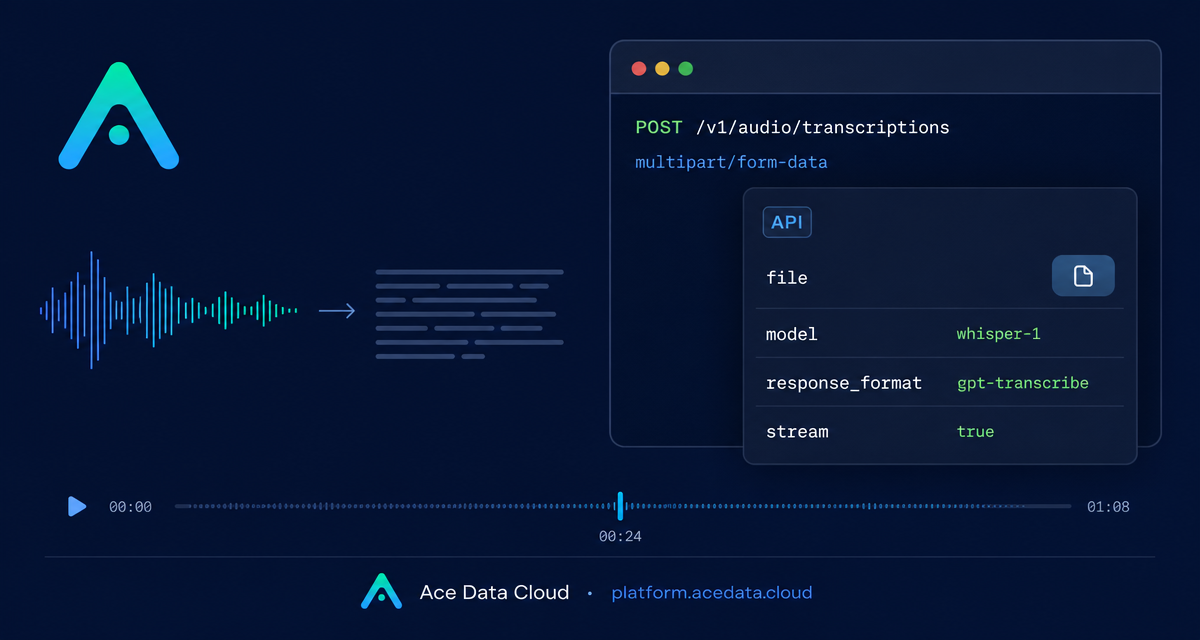
If your product accepts meetings, voice notes, podcasts, support calls, or short video clips, transcription is often the first useful step: turn audio into text, then index it, summarize it, subtitle it, or trigger downstream automation.
What you can do
Ace Data Cloud exposes an OpenAI-compatible speech recognition endpoint at POST https://api.acedata.cloud/v1/audio/transcriptions, with an alias at POST /openai/audio/transcriptions. The request uses multipart/form-data and authenticates with Authorization: Bearer {token}.
You can return a normal JSON transcript, plain text, subtitles, verbose JSON with timestamps, or streaming text events depending on the model and parameters you choose.
- Upload an audio file with
file. - Choose
whisper-1orgpt-transcribewithmodel. - Guide recognition with
language,prompt,languages[], orkeywords[]where supported. - Ask for
json,text,srt,verbose_json, orvttthroughresponse_format, depending on the model. - Use
stream=truewithgpt-transcribefor incremental server-sent events.
How it works
The endpoint accepts a single uploaded audio file. The file is required, must be no larger than 25 MB, and may be one of flac, mp3, mp4, mpeg, mpga, m4a, ogg, wav, or webm. Billing is based on audio duration and is rounded up to the nearest second; the documented maximum duration for one request is 1 hour.
The key design choice is the model. Use whisper-1 when you need subtitle formats or word-level timestamps. Use gpt-transcribe when you want stronger handling of brand names and proper nouns, candidate language hints, keyword hints, or SSE streaming.
For long-running calls, use a generous client timeout. The documentation recommends no less than 300 seconds, which is a sensible default for production workers processing longer recordings.
Start with the simplest transcript
For a first integration, send a file and let the endpoint return the default JSON response. The only required field is file; model is optional, with whisper-1 as the default.
curl -X POST 'https://api.acedata.cloud/v1/audio/transcriptions' \
  -H 'authorization: Bearer {token}' \
  -F file=@audio.mp3 \
  -F model=whisper-1
A successful JSON response includes the recognized text:
{
  "text": "Ace Data Cloud Platform is testing the speech recognition endpoint. The quick brown fox jumps over the lazy dog."
}
If you already know the spoken language, pass language as an ISO-639-1 code such as en or zh. This can improve both accuracy and speed. If you do not know it, leave the field blank and let the model detect it.
Generate subtitles for video workflows
When your downstream job is video publishing, subtitles are usually more useful than plain text. With whisper-1, request response_format=srt or response_format=vtt and write the response directly to a file.
curl -X POST 'https://api.acedata.cloud/v1/audio/transcriptions' \
  -H 'authorization: Bearer {token}' \
  -F file=@audio.mp3 \
  -F model=whisper-1 \
  -F response_format=srt \
  -o subtitle.srt
The response is returned as text/plain. That makes it straightforward to attach the generated .srt file to a rendering pipeline, a CMS upload step, or a review UI where an editor can fix timing and wording.
Use timestamps when text needs to map back to audio
If you are building search over recordings, quote playback, or a transcript editor, word timing is valuable. With whisper-1, request verbose_json and pair it with timestamp_granularities[]=word. The timestamp granularity parameter must be used with response_format=verbose_json.
curl -X POST 'https://api.acedata.cloud/v1/audio/transcriptions' \
  -H 'authorization: Bearer {token}' \
  -F file=@audio.mp3 \
  -F model=whisper-1 \
  -F response_format=verbose_json \
  -F 'timestamp_granularities[]=word'
The response can include fields such as task, language, duration, text, and a words array containing objects like { "word": "Ace", "start": 0.0, "end": 0.32 }.
Stream transcription for interactive UX
For interfaces where users should see text while the upload is still being processed, use gpt-transcribe with stream=true. This returns Content-Type: text/event-stream. Incremental text arrives in transcript.text.delta events, and normal completion is indicated by transcript.text.done.
curl -N -X POST 'https://api.acedata.cloud/v1/audio/transcriptions' \
  -H 'authorization: Bearer {token}' \
  -F file=@audio.mp3 \
  -F model=gpt-transcribe \
  -F stream=true
For gpt-transcribe, you can also send languages[] as candidate ISO-639-1 language codes or keywords[] as proper noun and term hints. Do not send languages[] together with language; the two are mutually exclusive.
Use the official Python SDK
Because the API is compatible with the OpenAI transcription interface, a Python client only needs a different base_url and token:
from openai import OpenAI

client = OpenAI(base_url="https://api.acedata.cloud/v1", api_key="{token}")

with open("audio.mp3", "rb") as f:
    result = client.audio.transcriptions.create(
        model="whisper-1",
        file=f,
    )

print(result.text)
Production notes
Validate unsupported combinations before sending requests. gpt-transcribe only supports json and text response formats, while srt, vtt, and word-level timestamps belong to whisper-1. The documented API returns 400 bad_request for invalid parameters, 401 authentication_failed for an invalid token, 403 used_up for insufficient balance, 413 request_too_large when the file exceeds 25 MB, 429 too_many_requests for rate pressure, and 500 api_error for internal errors.
A good first production design is a background worker that receives uploaded media, compresses or segments audio when needed, calls the transcription endpoint with a 300-second timeout, stores the transcript and metadata, then lets the rest of your app handle search, summaries, subtitles, or review.
For the full parameter matrix and model-specific behavior, read the OpenAI Transcriptions API integration guide.


Comments
Post a Comment