A Practical Guide to Using Ace Data Cloud MCP Servers in Codex CLI
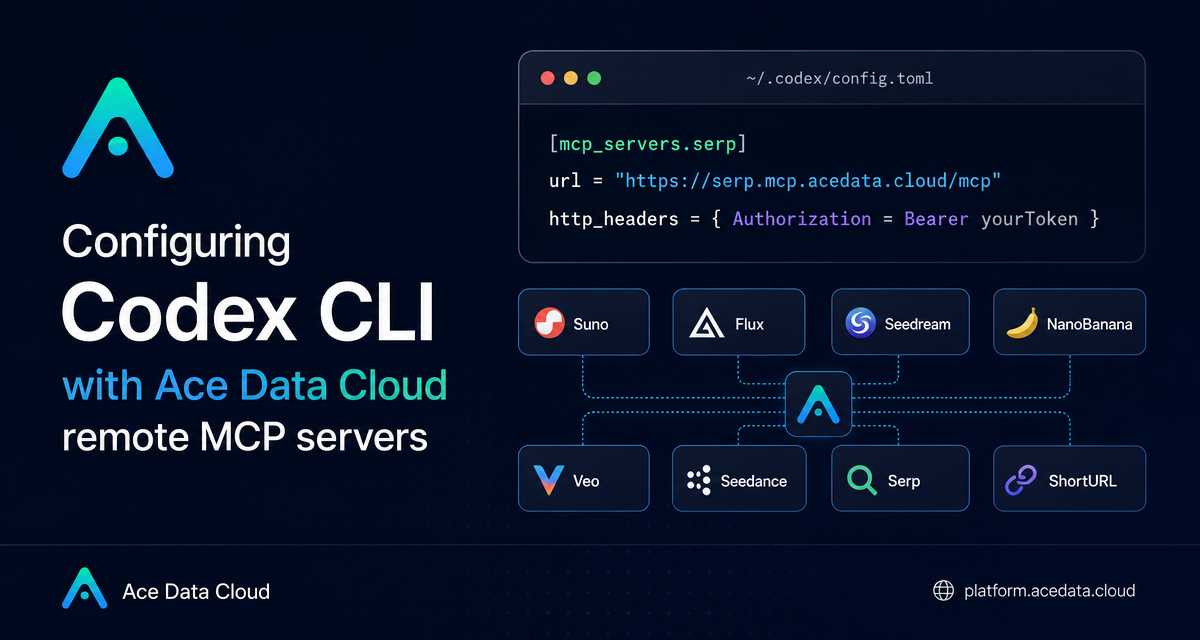
If you use Codex CLI as a terminal coding assistant, MCP is the part that lets it reach beyond local code edits and call purpose-built tools for search, images, music, video, and utility workflows.
What you can do
The Ace Data Cloud MCP documentation describes a set of managed remote MCP servers that can be connected to Codex CLI through its TOML configuration file. The practical value is simple: keep Codex in your shell, but let it delegate specialized tasks to external tools when the conversation calls for them.
The documented remote servers cover several common builder workflows:
- Search:
Serpfor Google web, image, and news search. - Images:
FluxandSeedreamfor image generation and editing, plusNanoBananafor Gemini-driven image work, virtual fitting, and product scene changes. - Video:
Luma,Veo, andSeedancefor video workflows such as start/end frame control, native audio, 1080p super resolution, action generation, and dubbing. - Music:
Sunofor text-to-song, lyrics, covers, continuations, vocal separation, and Persona. - Links:
ShortURLfor single and batch short links.
That mix is useful when a coding session spills into adjacent work: making a pull request cover, checking current references while writing docs, preparing a short demo video, or creating background music for a walkthrough.
How it works
Codex CLI reads MCP server definitions from ~/.codex/config.toml. Each server entry needs two things from the documentation: a remote MCP url and an http_headers table containing Authorization with a bearer token.
The pattern is the same for every server:
[mcp_servers.serp]
url = "https://serp.mcp.acedata.cloud/mcp"
http_headers = { "Authorization" = "Bearer yourToken" }
Replace yourToken with your Ace Data Cloud API token, save the file, and restart Codex so it reloads the MCP configuration. You can add every documented server, or only the ones you actually want available in your terminal.
Start with a small MCP surface
Although the overview shows many servers, I prefer starting with two or three. For a writing-heavy engineering workflow, serp, shorturl, and one image server are usually enough. For a content or demo workflow, add veo, seedance, or suno as needed.
A minimal configuration might look like this:
cat >> ~/.codex/config.toml <<'EOF'
[mcp_servers.serp]
url = "https://serp.mcp.acedata.cloud/mcp"
http_headers = { "Authorization" = "Bearer yourToken" }

[mcp_servers.shorturl]
url = "https://shorturl.mcp.acedata.cloud/mcp"
http_headers = { "Authorization" = "Bearer yourToken" }

[mcp_servers.seedream]
url = "https://seedream.mcp.acedata.cloud/mcp"
http_headers = { "Authorization" = "Bearer yourToken" }
EOF
This example only uses server names, URLs, and header fields from the documentation. The point is not to make Codex “do everything”; it is to give it a few reliable tools that match your daily loop.
Use case: research while writing technical docs
One documented example is using Serp to search for current articles while writing a technical blog. In practice, that means you can stay in Codex and ask for a focused query such as:
Use Serp to search for "OpenAI Codex CLI tutorial 2026" for the top 5 latest articles.That is especially helpful when you are editing README files, changelogs, migration notes, or tutorials and want current external context without breaking your terminal flow.
Use case: assets around a pull request
The overview also gives an image workflow: generating a GitHub pull request cover with a specific theme and size. A builder-friendly prompt can be direct:
Use Flux to generate a GitHub PR cover image with the theme "Open Source Collaboration", 1280x640.The useful habit is to keep prompts tied to concrete deliverables: a cover image, a product scene, a demo thumbnail, or a short internal visual. This makes MCP calls easier to review and less likely to become vague experimentation.
Use case: audio for a demo
For demo videos, the documented Suno server can be used for music tasks such as a short calm piano piece for tutorial background music. A narrow prompt works better than an abstract one:
Use Suno to write a 45-second calm piano piece for developer tutorial BGM.Because this runs through MCP from the same Codex session, you can move from code changes, to notes, to supporting media without changing tools.
Keep the configuration maintainable
A few practical rules help:
- Use clear server names under
[mcp_servers.*], matching the service you expect to call. - Do not add servers you will not use; a smaller tool list is easier to reason about.
- Restart Codex after editing
~/.codex/config.toml. - Keep the bearer token out of screenshots, shared dotfiles, and public repositories.
The main idea is to treat MCP as part of your development environment: explicit, reviewable, and scoped to real workflows. If you want the full list of documented remote URLs and examples, read the Codex with Ace Data Cloud MCP guide.


Comments
Post a Comment