How to Build an Image Editing Pipeline with gpt-image-2
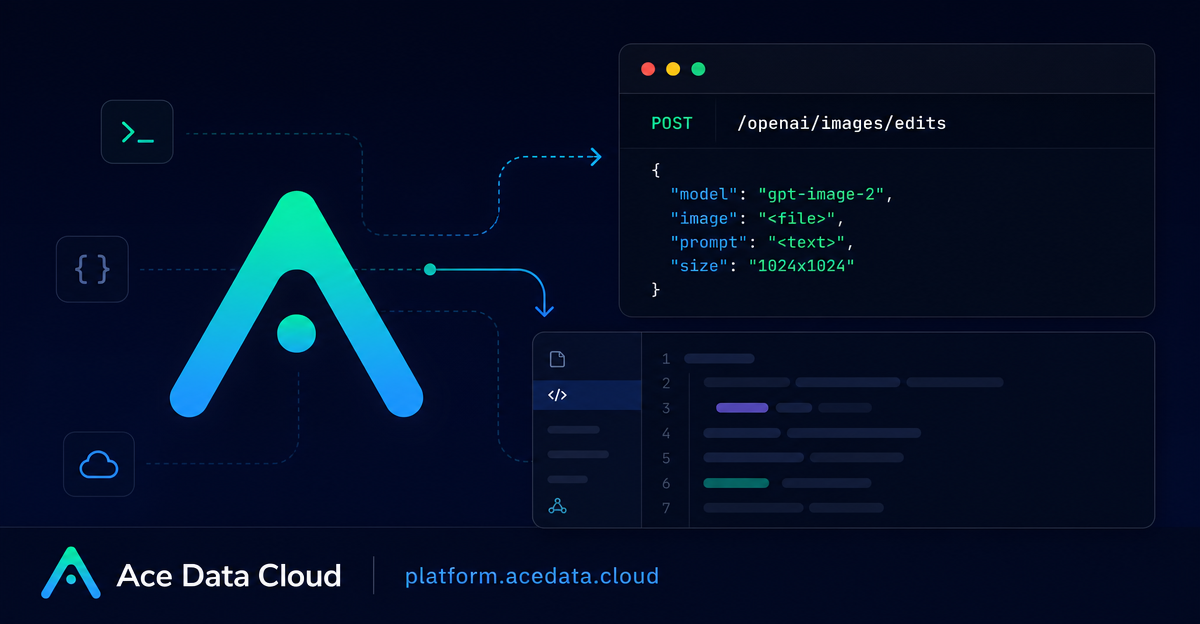
Image editing becomes much easier to automate when your application can send a source image, describe the change, and receive a new image URL without building a custom design workflow around every use case. This guide walks through a practical way to use Ace Data Cloud's OpenAI Images Edits API with gpt-image-2 for structure-preserving edits, multi-image references, and server-side pipelines.
What you can do
The Images Edits API lets you submit one or more reference images together with a natural-language instruction. The same endpoint supports GPT Image models including gpt-image-1 and gpt-image-2, plus the nano-banana family through the same editing interface.
- Convert an existing design or infographic to another visual style while keeping the layout intact.
- Use up to 16 reference images with GPT Image models for composed outputs or product-style workflows.
- Pass images as URLs in JSON for backend automation, or pass base64 data when the input is local.
- Request explicit output dimensions with
size, including 1K, 2K, 4K, and valid custom dimensions.
How it works
The main endpoint is POST https://api.acedata.cloud/openai/images/edits. A minimal JSON request contains model, image, prompt, and optionally size. For gpt-image-2, the image field can be a URL string, a base64 string such as data:image/png;base64,..., or an array of image references.
The image gives the model the structure and visual context, while the prompt describes the edit. If you care about preserving layout, say so explicitly. If you care about changing the aspect ratio, specify size explicitly instead of relying on auto.
Calling the API with JSON image URLs
For server-side systems, JSON plus image URL input is often the cleanest option because you do not need to download and re-upload files. The request below changes an existing image into a dark-mode version while asking the model to preserve the composition.
curl -X POST "https://api.acedata.cloud/openai/images/edits" \
  -H "Authorization: Bearer {token}" \
  -H "Content-Type: application/json" \
  -d '{
    "model": "gpt-image-2",
    "image": "https://platform.cdn.acedata.cloud/gpt-image/5c9fa635-8794-4c6d-88f8-584d7f4716c6_0.png",
    "prompt": "Convert this infographic to dark mode: dark navy background, light cream text, deep gray rounded module cards with soft shadows. Keep all layout, structure, and module arrangement identical — only invert the color scheme.",
    "size": "1024x1536"
  }'
A successful response includes fields such as success, task_id, trace_id, created, data, and elapsed. The generated image URL is returned at data[0].url.
Using Python in an application
The same request maps directly to a small Python function. In production, keep the token in your secret manager rather than hard-coding it.
import requests

url = "https://api.acedata.cloud/openai/images/edits"

headers = {
    "accept": "application/json",
    "authorization": "Bearer {token}",
    "content-type": "application/json"
}

payload = {
    "model": "gpt-image-2",
    "image": "https://platform.cdn.acedata.cloud/gpt-image/5c9fa635-8794-4c6d-88f8-584d7f4716c6_0.png",
    "prompt": "Convert this infographic to dark mode while keeping the layout intact.",
    "size": "1024x1536"
}

response = requests.post(url, json=payload, headers=headers)
print(response.text)
Choosing size and preserving aspect ratio
The size parameter must be auto, empty, or in WIDTHxHEIGHT format. Custom sizes must have both width and height as multiples of 16, the long side must be no more than 3840, and total pixels must be no more than 8,294,400. Invalid values return a 400-class error.
When size is auto or omitted, the output keeps the reference image's aspect ratio. That is useful for “edit this asset in place” workflows. If you are turning a square concept into a blog header or a vertical poster, pass the target dimensions explicitly.
Working with multiple references
For product compositions, moodboards, or layout-aware edits, image can be an array. GPT Image series models support up to 16 reference images. The prompt should describe the role of the references and the final composition you want.
payload = {
    "model": "gpt-image-2",
    "image": [
        "https://example.com/item1.png",
        "https://example.com/item2.png",
        "https://example.com/item3.png"
    ],
    "prompt": "Combine all the items above into a single 'Relax & Unwind' gift basket on a clean white background, photorealistic, soft natural lighting.",
    "size": "1024x1024"
}
When to use callbacks
Image edits can take time. If you do not want a client request to stay open, the API supports an asynchronous callback flow with callback_url. In that mode, the initial response returns a task_id, and the finished result is later posted to the callback URL as JSON so your system can associate the result with the original job.
A few practical guardrails
- Use precise preservation language such as “keep the layout, structure, and arrangement identical” when editing diagrams, posters, or UI screenshots.
- Use
nfrom 1 to 10 when you want multiple variants. If you needresponse_format=b64_json, keepn=1. - For
nano-bananamodels on this endpoint, stick tomodel,prompt,image, andn; parameters such asmask,size, andresponse_formatare ignored.
The useful part of this API is not that it makes one-off edits possible; it is that it makes repeatable image editing workflows scriptable. Once your app can pass a URL, a prompt, and a target size, you can build tools for asset localization, style variants, product compositions, or design-system experiments without leaving your normal backend flow.
For the complete reference and additional examples, read the OpenAI Images Edits API Integration Guide.


Comments
Post a Comment