How to Build a Reliable Image Editing Pipeline with the OpenAI Images Edits API
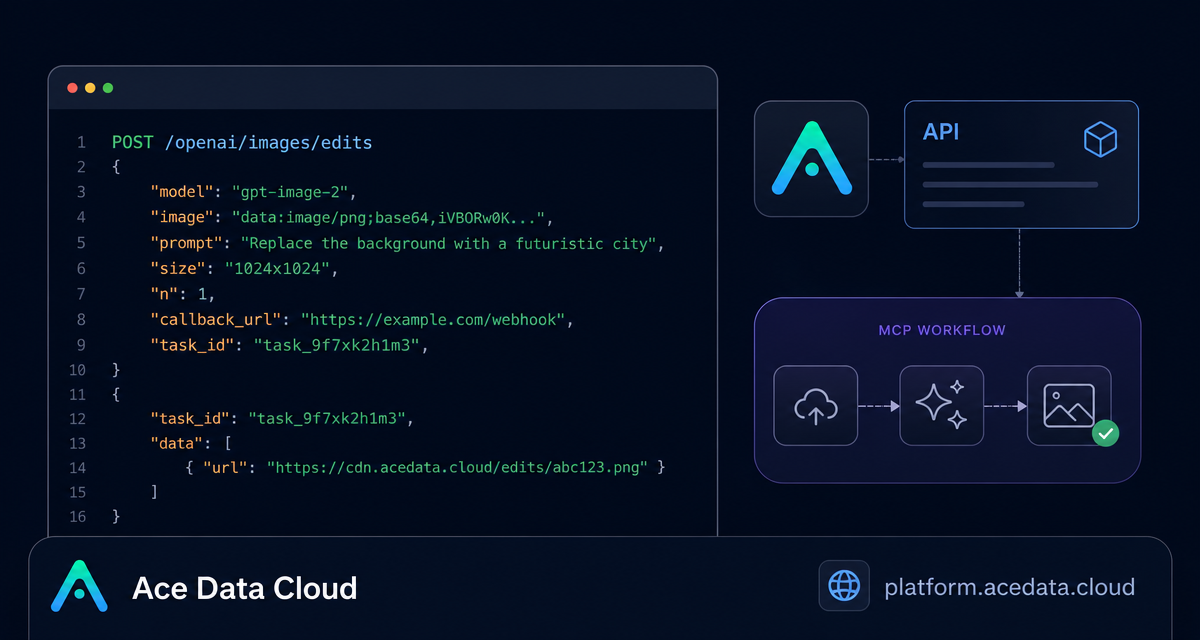
Image editing gets messy when a product flow has to preserve structure, reuse existing assets, and still let a model redraw details. The OpenAI Images Edits API on Ace Data Cloud is useful for exactly that kind of pipeline: send one or more reference images, describe the edit, and receive an edited image through an OpenAI-style interface.
What you can do
The edits interface is designed for changing an existing image rather than generating from a blank prompt. According to the documentation, the same endpoint supports gpt-image-1, gpt-image-2, and the nano-banana model family. For a builder, that means you can keep one integration shape while choosing a model that fits the job.
- Restyle an infographic while keeping the same layout and readable text.
- Replace part of a scene while preserving object counts or arrangement.
- Combine several product or reference images into a single composed result.
- Run server-side image edits using image URLs instead of downloading files first.
The important mental model is simple: image provides the visual source material, and prompt describes what should change and what must remain stable.
How it works
The primary endpoint in the guide is:
POST https://api.acedata.cloud/openai/images/editsFor gpt-image-2, the API can accept the image field as a direct URL in a JSON request. It can also accept base64 data, including data:image/png;base64,..., and the GPT Image series can use up to 16 reference images. The request is authenticated with an Authorization: Bearer {token} header.
The core fields you will usually start with are:
model: for example,gpt-image-2.image: a URL, base64 string, or an array of reference images.prompt: the editing instruction.size:autoor aWIDTHxHEIGHTvalue.n: number of edited results, from 1 to 10.
Start with JSON and an image URL
If your image already lives in object storage or a CDN, the JSON path is the cleanest integration. You do not need to stream a local file through your backend. Here is a minimal curl call based on the documented format:
curl -X POST "https://api.acedata.cloud/openai/images/edits"   -H "Authorization: Bearer {token}"   -H "Content-Type: application/json"   -d '{
    "model": "gpt-image-2",
    "image": "https://platform.cdn.acedata.cloud/gpt-image/5c9fa635-8794-4c6d-88f8-584d7f4716c6_0.png",
    "prompt": "Convert this infographic to dark mode: dark navy background, light cream text, deep gray rounded module cards with soft shadows. Keep all layout, structure, and module arrangement identical — only invert the color scheme.",
    "size": "1024x1536"
  }'
A successful response follows the OpenAI-style shape and includes data[].url. The documentation example also shows success, task_id, trace_id, created, data[].revised_prompt, and elapsed.
Choose size deliberately
gpt-image-2 accepts auto, an empty value, or a WIDTHxHEIGHT string for size. Custom dimensions must use width and height that are multiples of 16, with the long side no larger than 3840 and the total pixel count no larger than 8,294,400. If the format or bounds are invalid, the API returns a 4xx error.
Use auto when you want to retain the reference image aspect ratio. Use an explicit value such as 1024x1024, 2048x1152, or 3840x2160 when the output must fit a known product surface.
Use multiple references when the edit needs context
The image field may also be an array. This is helpful when the final output needs to borrow objects, layout, or style from more than one source image.
import requests

url = "https://api.acedata.cloud/openai/images/edits"
headers = {
    "authorization": "Bearer {token}",
    "content-type": "application/json"
}
payload = {
    "model": "gpt-image-2",
    "image": [
        "https://example.com/item1.png",
        "https://example.com/item2.png",
        "https://example.com/item3.png"
    ],
    "prompt": "Combine all the items above into a single 'Relax & Unwind' gift basket on a clean white background, photorealistic, soft natural lighting.",
    "size": "1024x1024"
}

response = requests.post(url, json=payload, headers=headers)
print(response.text)
For local files, the guide also documents multipart/form-data and OpenAI SDK usage. In that mode, configure OPENAI_BASE_URL as https://api.acedata.cloud/openai and OPENAI_API_KEY as your Ace Data Cloud token before calling client.images.edit(...).
Plan for async work
Image edits can take long enough that a synchronous HTTP request may hold resources open. The documented async pattern is to include a callback_url. The API returns a task_id, then posts the completed result back to the callback URL as JSON. In production, store the task_id with your job record so the callback can safely reconcile the edited asset with the original request.
A note on Nano Banana models
The Nano Banana series also connects through /openai/images/edits, but the supported parameter range is narrower: model, prompt, image, and n. The documentation notes that parameters such as mask, size, and response_format are not supported for Nano Banana and will be ignored.
Wrap-up
A reliable image editing integration is mostly about being explicit: tell the model what to change, what to preserve, what output size you need, and whether the request should run synchronously or through a callback. If you want the full parameter notes and examples, read the OpenAI Images Edits API Integration Guide.


Comments
Post a Comment