How to Use NanoBanana MCP in Claude Code for Terminal-Based Image Editing
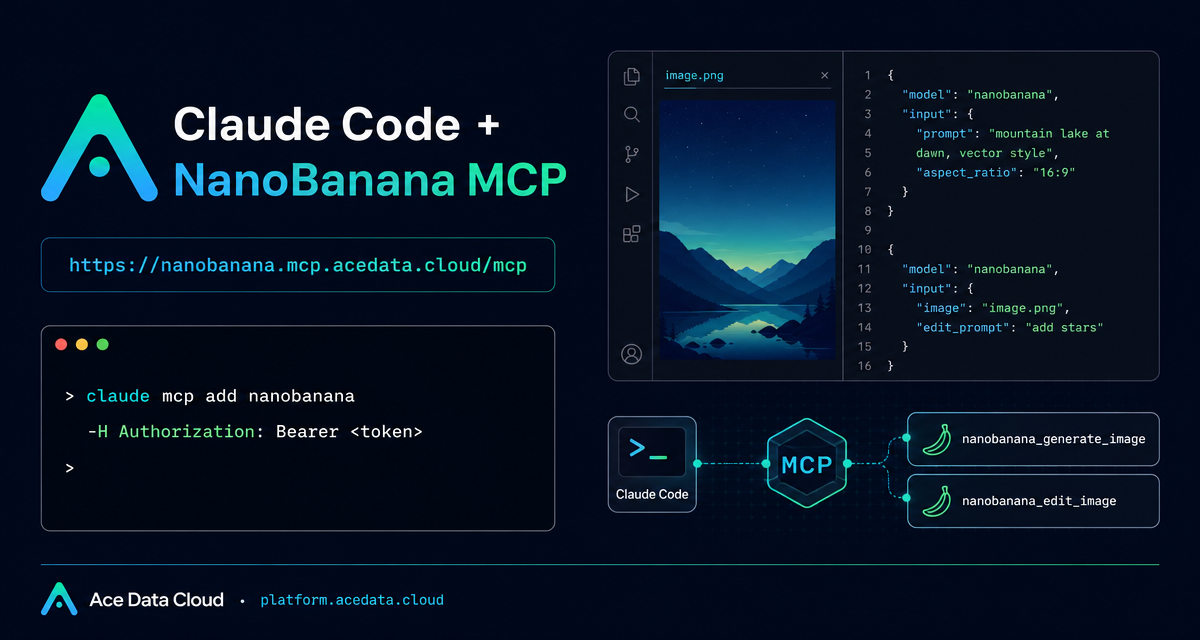
When you are working inside a terminal, switching to a browser-based image tool can break the flow: you copy a prompt, upload references, wait for a result, download it, and then come back to your project. The NanoBanana MCP workflow for Claude Code is useful because it brings image generation and image editing into the same command-line environment where you already plan, write, and ship.
What you can do
The documented integration connects Claude Code to the NanoBanana MCP server. Once configured, you can ask Claude Code to generate an image from text, edit an existing image, or combine multiple image inputs using natural language. The underlying examples focus on practical builder tasks rather than abstract demos:
- Create page illustrations, such as an image for a 404 page.
- Edit an existing image by removing unwanted text or a watermark area and filling the background.
- Compose multiple images, for example placing an object from one image into the scene of another while adjusting angle and lighting.
The tool list in the document is intentionally small: nanobanana_generate_image for text-to-image generation, and nanobanana_edit_image for image editing with multi-image input support. That small surface area makes it easier to add image workflows to a terminal-first development process without learning a large API.
How it works
Claude Code talks to NanoBanana through MCP, using an HTTP transport endpoint:
https://nanobanana.mcp.acedata.cloud/mcpAuthentication is passed as an HTTP header. The guide calls out a tiny but important CLI detail: the header flag must be uppercase -H. In Claude Code, lowercase -h means help, not header. If you are debugging a configuration that looks correct but never connects, check this first.
The basic command is:
claude mcp add nanobanana --transport http https://nanobanana.mcp.acedata.cloud/mcp -H "Authorization: Bearer YOUR_TOKEN"Use your own Ace Data Cloud API token in place of YOUR_TOKEN. Do not paste real tokens into public repositories, issue trackers, or shared screenshots.
Choose the right Claude Code scope
The documentation explains three configuration scopes. This matters because MCP setup is often either personal, project-specific, or team-shared.
local: the default when you omit-s, stored in~/.claude.json, and effective only in the current project directory.user: selected with-s user, also stored in~/.claude.json, and available across all projects.project: selected with-s project, stored as.mcp.jsonin the project root, and suitable for committing a shared configuration to a team repository.
For a solo experiment, local is usually enough. For repeated personal use, user is more convenient. For a team workflow, project is the most explicit option, but the token handling needs care.
claude mcp add nanobanana -s project --transport http https://nanobanana.mcp.acedata.cloud/mcp -H "Authorization: Bearer $ACEDATA_CLOUD_TOKEN"The guide recommends using environment-variable placeholders rather than committing real tokens. That keeps the shared .mcp.json useful while avoiding accidental credential exposure.
Verify the connection before prompting
After adding the server, verify that Claude Code can see it:
claude mcp listThe expected result is that nanobanana appears as connected. This small check saves time: if the MCP server is not connected, natural-language prompts for image generation will fail for configuration reasons rather than creative or model reasons.
Build a practical image editing workflow
Once connected, you can stay inside Claude Code and describe the edit you want. The documentation’s multi-image example is a good pattern for product, marketing, and UI work: provide two image URLs, then ask Claude Code to move the object from the first image into the scene of the second image while matching angle and lighting.
A useful prompt shape is:
Use nanobanana_edit_image with these two image URLs.
Place the phone from the first image onto the desk in the second image.
Adjust the angle and lighting so it looks natural.
For screenshot cleanup, the prompt can be more direct:
Edit this image to remove the text watermark in the bottom right corner,
filling the background naturally.
For generation, ask for an illustration that fits the context where it will be used:
Generate an illustration of a small dinosaur crouching next to a crack
in the ground looking down, for use on a 404 page.
Where this fits in a builder workflow
The strongest use case is not replacing design judgment; it is reducing the friction around small visual tasks that happen while building software. You can create a placeholder illustration, test a landing-page visual, clean a screenshot, or compose a reference image without leaving the terminal session where the surrounding work is already happening.
If you want to reproduce the setup exactly, read the source documentation for the Claude Code and NanoBanana MCP integration here: Claude Code integration with NanoBanana MCP.


Comments
Post a Comment