How to Use NanoBanana MCP in Claude Code for Terminal-Based Image Editing
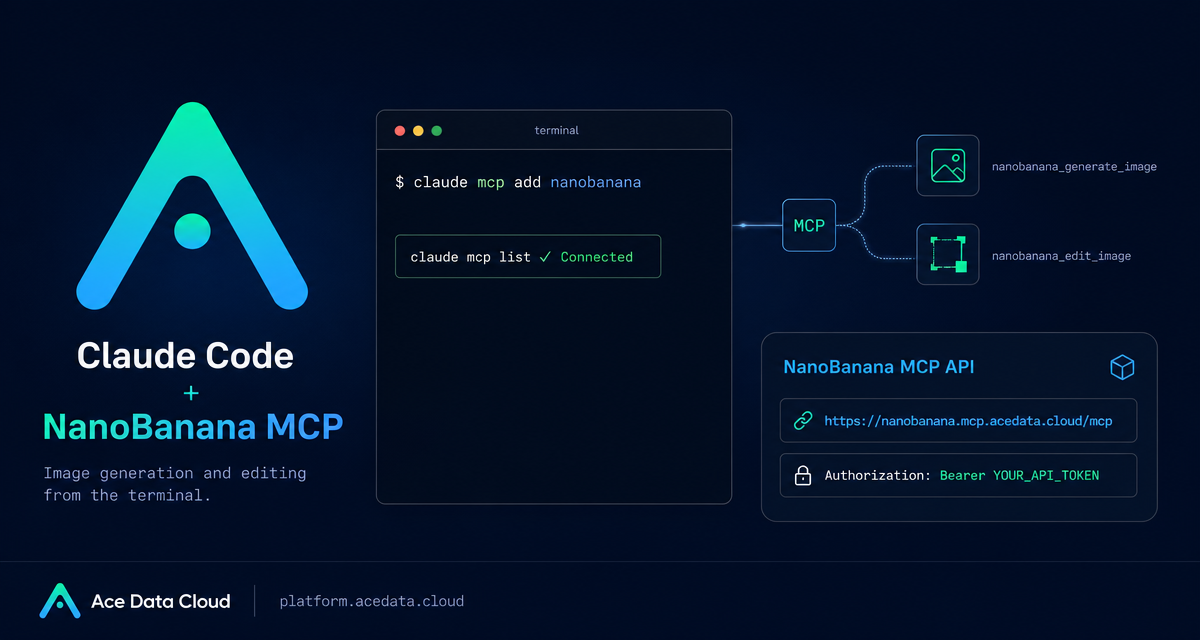
If your image workflow still means jumping between a browser, a prompt box, a download folder, and your code editor, the context switching becomes the real bottleneck. The NanoBanana MCP setup for Claude Code gives you a cleaner path: call image generation and editing tools from the same terminal session where you are already building.
What you can do
The documented integration connects Claude Code to the NanoBanana MCP server at https://nanobanana.mcp.acedata.cloud/mcp. Once configured, Claude Code can invoke two tools exposed by the server:
nanobanana_generate_imagefor text-to-image generation.nanobanana_edit_imagefor image editing, including workflows that use multiple image URLs as input.
The interesting part is not only that you can generate an image. It is that you can describe practical edits in natural language while Claude Code handles the MCP tool call. The source documentation highlights scenarios such as putting an object from one image into the scene of another image, removing unwanted text from an image, and creating an illustration for a page such as a 404 screen.
How it works
Claude Code supports adding an MCP server over HTTP. For NanoBanana, the configuration command registers a server named nanobanana, points it at the Ace Data Cloud MCP endpoint, and passes an authorization header. After that, Claude Code can list the MCP connection and make the server’s tools available inside your session.
The integration uses the standard pattern shown in the documentation: an HTTP transport, the MCP endpoint URL, and an Authorization header containing your API token. The docs also call out a small but important CLI detail: -H must be uppercase because lowercase -h is interpreted as help, not as a header parameter.
Configure the MCP server
Start in the terminal where you use Claude Code. Replace YOUR_API_TOKEN with the token from your Ace Data Cloud account. The command from the documentation is:
claude mcp add nanobanana --transport http https://nanobanana.mcp.acedata.cloud/mcp -H "Authorization: Bearer YOUR_API_TOKEN"By default, if you do not pass -s, the scope is local. That means the server is effective only in the project directory where you ran the command. The documentation lists three scopes:
local: the default behavior, stored in~/.claude.json, effective only in the current project directory.user: selected with-s user, stored in~/.claude.json, available across projects.project: selected with-s project, stored in.mcp.jsonin the project root, so the configuration can be shared with the team.
If you choose project scope, the docs recommend using an environment-variable placeholder such as ${ENV_VAR} rather than committing a real token. That keeps the shared configuration useful without exposing credentials in a repository.
Verify the connection
After adding the server, check whether Claude Code can see it:
claude mcp listThe expected result is that nanobanana appears as ✓ Connected. This quick check is worth doing before you start writing prompts, because it separates configuration problems from prompt or image-input problems.
Use it for real image tasks
Once connected, the workflow becomes conversational inside Claude Code. For a multi-image composition, you can ask Claude Code to use NanoBanana to place an object from one image into a scene from another image. The documented example is:
Put the phone from the first image onto the desk in the second image, adjusting angle and lighting to make it look naturalFor cleanup work, the docs show a prompt for removing unwanted text:
Edit this image to remove the text watermark in the bottom right corner, filling the backgroundFor product or web UI work, you can also generate page art directly from a brief:
Generate an illustration of a small dinosaur crouching next to a crack in the ground looking down, for use on a 404 pageThese are small examples, but they map well to everyday builder tasks: replacing a hero image, cleaning up a screenshot before adding it to docs, producing a quick empty-state illustration, or combining reference assets while staying in the same terminal workflow.
A practical workflow pattern
- Add the MCP server with
claude mcp add nanobanana. - Verify it with
claude mcp list. - Keep image URLs close to the task description when using
nanobanana_edit_image. - Describe the edit in terms of objects, scene, lighting, and the desired final use.
- Save the final image into your project assets, docs, or blog pipeline.
The main advantage is continuity. Claude Code already knows what you are building, so the image task can be part of the same implementation conversation instead of a separate design detour.
If you want the exact setup details and related examples, read the Ace Data Cloud documentation for Claude Code integration with NanoBanana MCP.


Comments
Post a Comment