How to Use NanoBanana MCP in Claude Code for Terminal-Based Image Editing
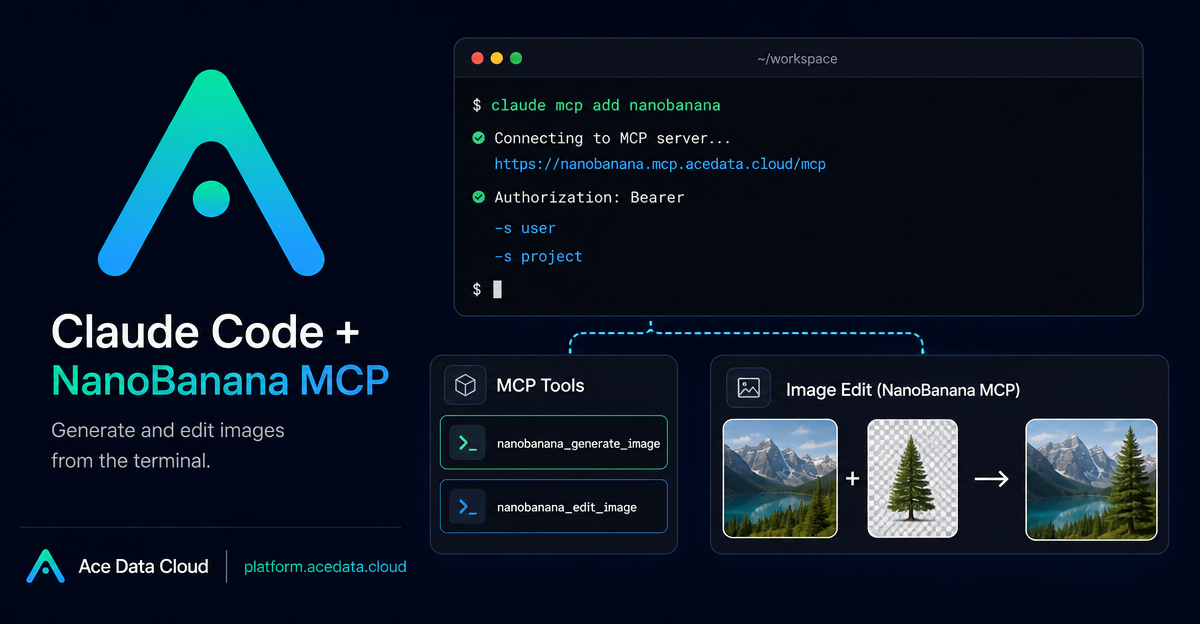
If your image workflow already starts in the terminal, switching to a browser just to generate or edit visuals breaks your flow. NanoBanana MCP gives Claude Code a direct way to create and edit images from a command-line session, so you can describe the change you want, keep the context in your project, and receive an image-oriented result without leaving the tool you are already using.
What you can do
The NanoBanana MCP integration is useful when the task is not just “make an image,” but “understand these inputs and make a coherent visual change.” The source documentation highlights that NanoBanana is built around Gemini image understanding, which makes it suitable for workflows such as taking an object from one image and placing it naturally into another scene.
- Generate an image from a text prompt using
nanobanana_generate_image. - Edit an existing image using
nanobanana_edit_image. - Use multiple image URLs as input for composition tasks.
- Ask Claude Code to remove unwanted text or watermarks and fill the background.
- Create small product, documentation, or error-page illustrations from natural language.
How it works
Claude Code talks to NanoBanana through an MCP server. In practice, you add a named MCP server called nanobanana, point it at the Ace Data Cloud MCP endpoint, and pass your Ace Data Cloud API token as an authorization header. Once connected, Claude Code can expose NanoBanana tools inside your coding session.
The MCP endpoint used by the document is:
https://nanobanana.mcp.acedata.cloud/mcpThe two tools documented for this server are:
nanobanana_generate_imagefor text-to-image generation.nanobanana_edit_imagefor image editing, including multi-image input.
Configure NanoBanana MCP in Claude Code
After you have an Ace Data Cloud API token, run the following command in the project where you want Claude Code to use NanoBanana. Replace YOUR_API_TOKEN with your token.
claude mcp add nanobanana --transport http https://nanobanana.mcp.acedata.cloud/mcp \
  -H "Authorization: Bearer YOUR_API_TOKEN"
One small detail matters: the header flag must be uppercase -H. Lowercase -h is interpreted as help, not as a request header.
Without an explicit scope, Claude Code uses the local scope. That is fine for a one-off experiment, but for real work it is worth choosing the scope deliberately:
local: the default. It applies only in the current project directory and is stored in~/.claude.json.user: use-s userto make the server available globally across projects. It is also stored in~/.claude.json.project: use-s projectto write the configuration to.mcp.jsonin the project root, which can be shared with a team.
For a personal workstation, I usually prefer -s user. For a repository where the team should share the same MCP setup, -s project is more transparent, but do not commit real tokens to a public repository. Use local secret placeholders instead.
Verify the connection
Once the server is added, run:
claude mcp listThe expected result is that nanobanana appears as connected. The documentation describes this as ✓ Connected. If it does not show up, first check the endpoint URL, the uppercase -H flag, and whether the authorization header is present.
Use case 1: compose two images
The most interesting part of NanoBanana MCP is multi-image editing. Instead of describing everything from scratch, you can provide two image URLs and tell Claude Code how the relationship should work. For example:
Put the phone from the first image onto the desk in the second image, adjusting angle and lighting to make it look natural.This is the kind of task where image understanding matters. You are not asking for a generic phone on a generic desk; you are asking the model to preserve the object from one source and integrate it into another scene.
Use case 2: clean up a screenshot
Another practical workflow is removing unwanted text from an image. The source document gives a direct example: remove a text watermark in the bottom-right corner and fill the background. In a Claude Code session, that can be phrased naturally:
Edit this image to remove the text watermark in the bottom right corner, filling the background.This is useful for internal docs, mockups, and screenshots where the visual concept is right but one distracting element needs to go away.
Use case 3: generate a small page illustration
NanoBanana MCP can also generate an illustration from a prompt. The document’s example is a 404-page visual:
Generate an illustration of a small dinosaur crouching next to a crack in the ground looking down, for use on a 404 page.That fits well into a builder workflow: create a placeholder illustration, drop it into a page, then iterate from the terminal while the implementation context is still nearby.
A practical setup pattern
For a small team, a clean pattern is to commit a project-level MCP configuration using placeholders, then have each developer provide their token locally. The important boundary is that the endpoint and server name can be shared, while credentials should stay outside the repository.
claude mcp add nanobanana -s project --transport http https://nanobanana.mcp.acedata.cloud/mcp \
  -H "Authorization: Bearer YOUR_LOCAL_TOKEN_PLACEHOLDER"
After that, each developer can replace YOUR_LOCAL_TOKEN_PLACEHOLDER with their own token in a local setup. This keeps the workflow reproducible without putting secrets into .mcp.json.
Wrapping up
NanoBanana MCP is a good fit when you want image generation and editing to live inside the same terminal workflow as the rest of your project. The key pieces are simple: add the nanobanana MCP server, use the documented endpoint, pass the authorization header correctly, verify it with claude mcp list, and then call image generation or editing through Claude Code in natural language.
For the original setup notes and tool list, read the Claude Code integration with NanoBanana MCP documentation.


Comments
Post a Comment