How to Use NanoBanana MCP in Claude Code for Terminal-Based Image Workflows
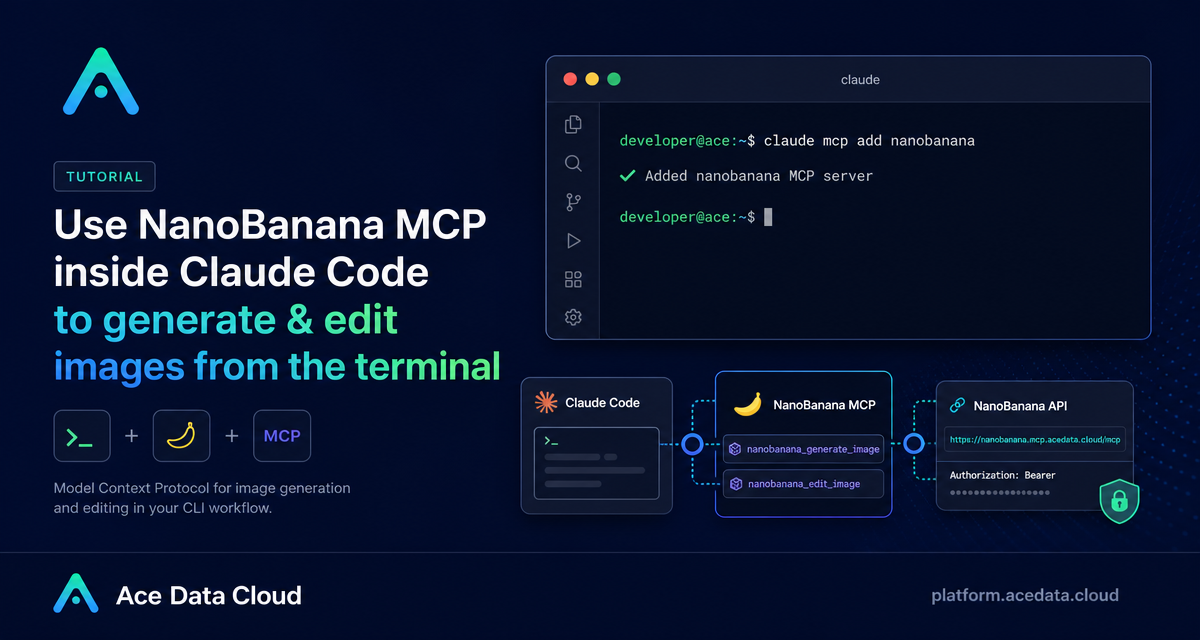
When you are building a product, a docs site, or a small internal tool, image work often breaks your flow: you leave the terminal, open a browser, upload references, rewrite a prompt, download the result, and then come back to your editor. NanoBanana MCP in Claude Code is useful because it moves that loop into the same terminal session where you are already working.
What you can do
The NanoBanana MCP integration described in the Ace Data Cloud documentation gives Claude Code two practical image capabilities:
nanobanana_generate_imagefor text-to-image generation.nanobanana_edit_imagefor image editing, including workflows with multiple image URLs as input.
The interesting part is not only image generation. The documentation highlights that NanoBanana can understand image content well enough to combine references: for example, taking an object from one image and placing it into the scene of another, while adapting angle and lighting. That makes it a good fit for builder workflows where you need fast product mockups, page illustrations, screenshot cleanup, or visual variations without leaving Claude Code.
How it works
Ace Data Cloud exposes NanoBanana as a remote MCP server. Claude Code connects to that server over HTTP, and your Ace Data Cloud API token is passed through an authorization header. Once connected, the MCP tools appear inside Claude Code, so you can ask for image generation or editing in natural language instead of writing a separate image script.
The real MCP server URL from the documentation is:
https://nanobanana.mcp.acedata.cloud/mcpThe real Claude Code setup command is:
claude mcp add nanobanana --transport http https://nanobanana.mcp.acedata.cloud/mcp -H "Authorization: Bearer YOUR_TOKEN"Two details matter here. First, the header flag must be uppercase -H; lowercase -h is interpreted as help, not as an HTTP header option. Second, if you do not specify a scope with -s, Claude Code uses the default local scope, which applies only to the current project directory.
Choose the right Claude Code scope
The documentation describes three scopes for the MCP configuration:
local: the default when you omit-s, effective only in the current project directory and stored via~/.claude.json.user: enabled with-s user, available across all projects and stored via~/.claude.json.project: enabled with-s project, written to.mcp.jsonin the project root and suitable for team sharing.
For a solo experiment, local is fine. For a daily personal tool, user is more convenient. For a team project, project is the most reproducible option, but the docs are clear about one security rule: do not commit real tokens to public repositories. Use environment-variable placeholders and keep secrets outside git.
Verify the connection before asking for images
After adding the MCP server, verify that Claude Code can see it:
claude mcp listYou should see nanobanana marked as ✓ Connected. This small check saves time. If image prompts fail later, you will know whether the issue is the prompt itself or the MCP connection.
Use it for real builder tasks
Once the server is connected, you can stay in the Claude Code session and ask for concrete visual work. The docs show three patterns that map well to everyday product building.
1. Compose two reference images
Because nanobanana_edit_image supports multiple image URLs, you can describe how the references should relate to each other:
Put the phone from the first image onto the desk in the second image, adjusting angle and lighting to make it look natural.This is useful for mockups: place a device, object, or UI screenshot into a realistic environment without preparing a manual Photoshop composition.
2. Clean up screenshots or visual assets
The docs also describe removing unwanted text from an image:
Edit this image to remove the text watermark in the bottom right corner, filling the background.Use this pattern for internal screenshots, draft assets, or documentation images where a small distracting element needs to be removed. As with any edit workflow, give the model a precise location and explain what should replace the removed content.
3. Generate page illustrations from the terminal
For lightweight web UI work, you can ask for a focused illustration:
Generate an illustration of a small dinosaur crouching next to a crack in the ground looking down, for use on a 404 page.This is the kind of task that benefits from being inside Claude Code. You can iterate while working on the page, then wire the selected image into your app or docs without switching tools.
A practical setup checklist
- Copy your Ace Data Cloud API token from the platform.
- Add the NanoBanana MCP server with
claude mcp add nanobanana. - Use the documented MCP URL:
https://nanobanana.mcp.acedata.cloud/mcp. - Pass the token with
-H "Authorization: Bearer YOUR_TOKEN". - Pick a scope:
local,user, orproject. - Run
claude mcp listand confirm✓ Connected. - Use
nanobanana_generate_imagefor new images andnanobanana_edit_imagefor edits or multi-image composition.
Closing thoughts
The best part of this workflow is not novelty; it is reduced context switching. If you already use Claude Code as a development companion, NanoBanana MCP turns image generation and editing into another terminal-native capability. Start with one narrow task, such as a 404 illustration or a two-image product mockup, verify the MCP connection, and keep your prompt specific about inputs, placement, lighting, and intended use.
Read the original Ace Data Cloud documentation here: Claude Code integration with NanoBanana MCP.


Comments
Post a Comment