How to Use Ace Data Cloud Models in Cursor with BYOK
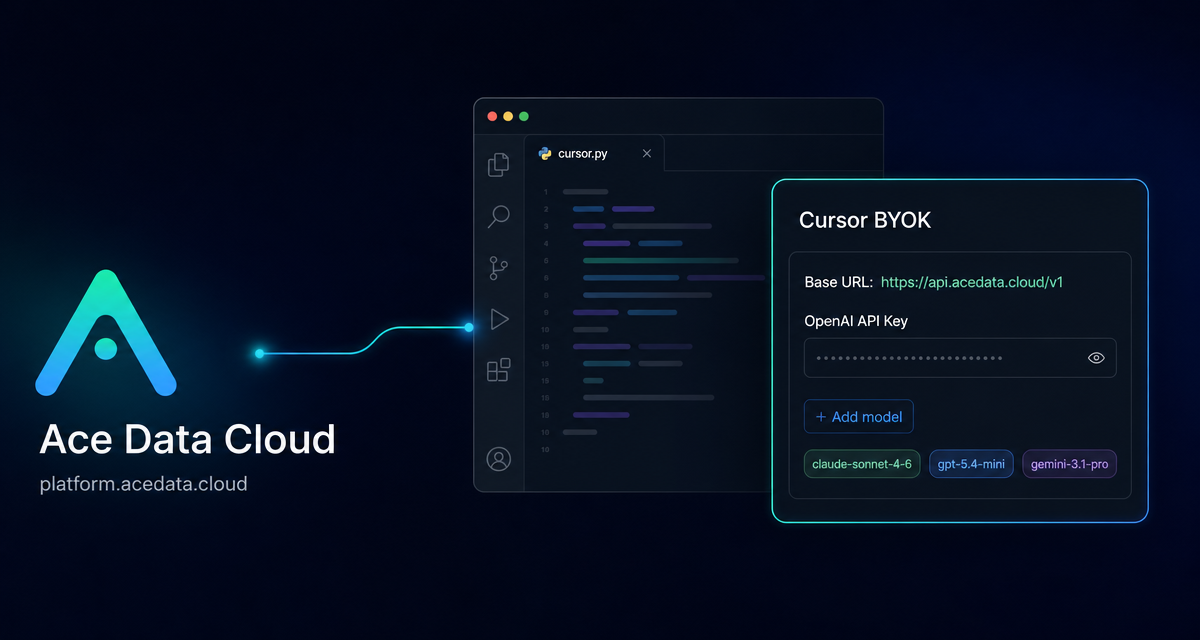
If your coding workflow depends on Cursor Agent mode, but your model access is scattered across different providers, the practical problem is not intelligence—it is configuration drift: too many keys, too many model names, and too many places to check usage.
Ace Data Cloud can be connected to Cursor through Cursor's Bring Your Own API Key flow. The setup uses Cursor's OpenAI provider slot, but points it at Ace Data Cloud's OpenAI-compatible base URL. Once configured, Cursor requests are routed through Ace Data Cloud for compatible chat and inference models.
What you can do
With the documented Cursor setup, you can use one Ace Data Cloud API Token inside Cursor and add verified model IDs manually in Cursor's model settings. The documented Base URL is:
https://api.acedata.cloud/v1The guide lists these verified model IDs as examples that can be added through Cursor's + Add model flow:
claude-opus-4-8claude-sonnet-4-6claude-haiku-4-5-20251001gpt-5.2-progpt-5.4-minigemini-3.1-progrok-4
That makes the workflow useful for builders who want to switch between model families while staying inside the same editor surface. For example, you might use a Claude model for a multi-file refactor, a GPT model for OpenAI-style tool workflows, or another compatible model for everyday iteration.
How it works
Cursor supports BYOK by letting you provide an API key and override the OpenAI Base URL. Ace Data Cloud exposes a compatible interface at https://api.acedata.cloud, and the Cursor-specific configuration must use the /v1 suffix:
https://api.acedata.cloud/v1This suffix matters. The documentation notes that the Base URL must end with /v1; otherwise Cursor may construct an incorrect path when requesting chat/completions.
In practice, the flow is:
- Create or retrieve an Ace Data Cloud API Token from the console.
- Paste that token into Cursor's
OpenAI API Keyfield. - Enable
Override OpenAI Base URL. - Set the Base URL to
https://api.acedata.cloud/v1. - Verify the key in Cursor.
- Add exact model IDs in Cursor's model list.
Configure Cursor step by step
Open Cursor settings with the gear icon or Cmd/Ctrl + ,. Go to Models, expand API Keys, and turn on the OpenAI API Key switch. Paste your Ace Data Cloud API Token into that field.
Next, turn on Override OpenAI Base URL and enter:
https://api.acedata.cloud/v1Click Verify. If verification passes, return to the Models section and use + Add model to add the model IDs you plan to use. Model IDs must match exactly. Avoid adding extra prefixes, whitespace, or renamed aliases unless they appear in the supported model list.
A compact way to think about the configuration is:
{
  "cursor_section": "Models / API Keys",
  "provider_slot": "OpenAI",
  "openai_api_key": "YOUR_API_TOKEN",
  "override_openai_base_url": true,
  "base_url": "https://api.acedata.cloud/v1",
  "models_to_add": [
    "claude-sonnet-4-6",
    "gpt-5.4-mini",
    "gemini-3.1-pro"
  ]
}
This is not a file you need to paste somewhere; it is a checklist that maps directly to the documented Cursor UI fields.
Validate model availability before debugging Cursor
If a model fails in Cursor, first separate two possible problems: your endpoint/key configuration, and the model name. The broader Ace Data Cloud coding setup documentation says to request the live model directory with:
curl -sS -H "Authorization: Bearer YOUR_API_TOKEN" "https://api.acedata.cloud/v1/models"Use the live directory as the authority for model names. Then compare it with the model ID you typed into Cursor. This is especially important because Cursor requires the manually added model ID to match the supported name exactly.
Use the right Cursor features
The integration is most useful for Cursor Chat and Agent workflows that can use the configured BYOK model. There are a few important limitations to remember:
- Tab completion is not affected by BYOK. Cursor's Tab completion uses Cursor's built-in models.
- Auto, Composer, and other editing modes may vary. The documentation notes that some modes may not fully use the configured Base URL.
- Only OpenAI-compatible models are supported through this slot. The model must work through Ace Data Cloud's OpenAI-compatible interface.
This distinction prevents a common troubleshooting trap: changing the Base URL and expecting every Cursor feature to route through it. Start by testing Chat or Agent with one exact model ID you added manually.
Troubleshooting checklist
Cursor says "Invalid API key"
Check that the value in OpenAI API Key is an Ace Data Cloud API Token, not an official OpenAI key. Also confirm the token is still available in the Ace Data Cloud console.
Cursor says the model was not found
Check the model ID character by character. The documented examples include IDs such as claude-sonnet-4-6 and gpt-5.4-mini. Extra spaces, prefixes, or an unsupported alias can cause the lookup to fail.
The Base URL does not seem to apply
Confirm that Override OpenAI Base URL is enabled, and that the URL ends with /v1. After changing settings, fully restart Cursor before retesting.
Where this fits in a builder workflow
The setup is intentionally small: one token, one Base URL, and exact model IDs. That makes it a good fit for developers who want to keep Cursor as the daily interface while routing compatible model calls through a single Ace Data Cloud account. Start with one model, verify it in Chat or Agent, then add more only when you have a real use case for switching.
For the source setup guide, see Using Ace Data Cloud in Cursor.


Comments
Post a Comment