How to Run Claude Code from Your Terminal with Ace Data Cloud
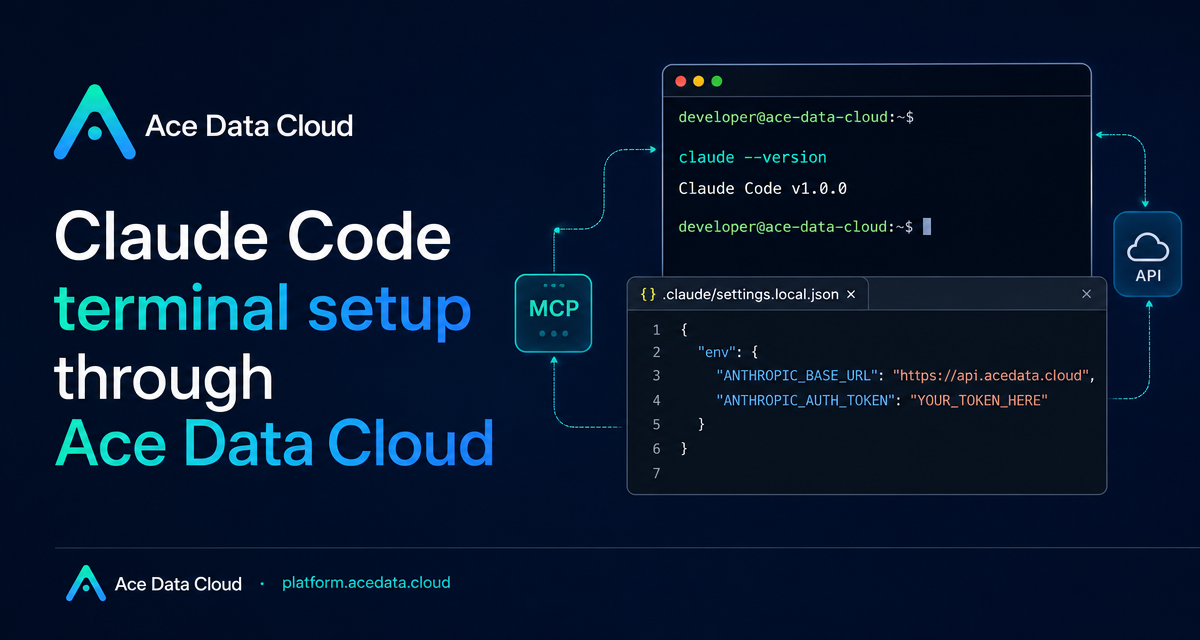
If your coding workflow already lives in a terminal, the fastest way to bring an agent into the loop is not another dashboard. It is a command you can run inside the project you are already editing.
Claude Code gives you that terminal-first interface: you can start claude in a repository, ask it to read files, explain errors, inspect diffs, and help with implementation work. The useful part of the Ace Data Cloud setup is that you keep the native Claude Code CLI experience while pointing its Anthropic-compatible requests at https://api.acedata.cloud.
What you can do
Once the CLI is installed and configured, you can use Claude Code from any project directory for practical development tasks:
- Ask it to explain the structure of an unfamiliar repository.
- Have it review a recent Git diff for likely bugs.
- Use a one-shot command to summarize a file and exit.
- Keep credentials local to one project with
.claude/settings.local.json. - Check the active connection from inside Claude Code with
/status.
The key is that Claude Code already understands the Anthropic Messages API protocol. Ace Data Cloud exposes a compatible endpoint, so the CLI can route through Ace Data Cloud without a local proxy program or a custom plugin.
How it works
The setup is mostly environment configuration. Claude Code reads ANTHROPIC_BASE_URL and ANTHROPIC_AUTH_TOKEN from your shell environment or from a project-level settings file. When ANTHROPIC_BASE_URL is set to https://api.acedata.cloud, Claude Code sends requests there. Ace Data Cloud authenticates the request with your API token, checks quota, forwards the request to an available Claude Code service channel, and records usage after the request completes.
That means your command line does not change. You still run claude. The underlying API target changes.
Install the CLI
Claude Code supports macOS, Linux, Windows, and WSL. The native installer is the recommended path in the source guide because it installs the claude command and handles future updates.
macOS, Linux, or WSL
curl -fsSL https://claude.ai/install.sh | bashWindows PowerShell
irm https://claude.ai/install.ps1 | iexWindows CMD
curl -fsSL https://claude.ai/install.cmd -o install.cmd && install.cmd && del install.cmdIf you prefer npm and already have Node.js 18 or higher installed, the guide also supports this installation path:
npm install -g @anthropic-ai/claude-codeAfter installation, reopen your terminal and verify that the command is on your PATH:
claude --versionIf you see command not found, the current shell probably has not loaded the updated PATH. Reopen the terminal or check the path notes printed by the installer.
Configure Claude Code globally in your shell
If you want every project on your machine to use Ace Data Cloud by default, put the configuration in your shell profile, such as ~/.zshrc, ~/.bashrc, or ~/.bash_profile.
export ACEDATACLOUD_API_TOKEN="{token}"
export ANTHROPIC_BASE_URL="https://api.acedata.cloud"
export ANTHROPIC_AUTH_TOKEN="$ACEDATACLOUD_API_TOKEN"
export CLAUDE_CODE_AUTO_COMPACT_WINDOW="850000"
Replace {token} with the API token from your Ace Data Cloud console. The CLAUDE_CODE_AUTO_COMPACT_WINDOW value sets the automatic compression trigger window to about 850,000 tokens. It reserves space for tool results and final answers, but it does not change the model context limit.
Reload the shell configuration after saving it:
source ~/.zshrcConfigure only one project
For team repositories, I prefer project-local configuration because it avoids changing behavior globally. Create .claude/settings.local.json in the project root:
{
  "env": {
    "ANTHROPIC_AUTH_TOKEN": "{token}",
    "ANTHROPIC_BASE_URL": "https://api.acedata.cloud",
    "CLAUDE_CODE_AUTO_COMPACT_WINDOW": "850000"
  }
}
Keep the real token out of shared files. The source guide specifically recommends using the ignored .claude/settings.local.json file or local environment variables, not a team-shared .claude/settings.json. Add the local settings file to .gitignore if needed.
If your current environment still has an old ANTHROPIC_API_KEY, unset it in the same shell where you start Claude Code or VS Code:
unset ANTHROPIC_API_KEYThe guide notes that this should be a real unset, not an empty string in configuration. After cleaning it up, restart Claude Code. If you use the VS Code extension against the same project, reload the VS Code window too.
Start a session and verify the route
Move into a project and start Claude Code:
cd /path/to/your/project
claude
From the interactive interface, try a simple repository question:
Explain the directory structure of this projectFor one-off work, pass the task directly:
claude "Help me check the recent git diff for possible bugs"If you want Claude Code to print the result and exit, use -p:
claude -p "Summarize the purpose of README.md"Finally, confirm that Claude Code is using the intended base URL. Inside Claude Code, run:
/statusYou should see values similar to:
Auth token: ANTHROPIC_AUTH_TOKEN
Anthropic base URL: https://api.acedata.cloud
If the base URL is not https://api.acedata.cloud, the active terminal has not read the expected configuration. Check the shell profile or project settings file, then restart the terminal.
Optional: choose default models
Claude Code can choose model levels based on task type, but the guide also documents environment variables for explicit defaults:
export ANTHROPIC_DEFAULT_OPUS_MODEL="claude-opus-4-8"
export ANTHROPIC_DEFAULT_SONNET_MODEL="claude-sonnet-4-6"
export ANTHROPIC_DEFAULT_HAIKU_MODEL="claude-haiku-4-5-20251001"
export CLAUDE_CODE_SUBAGENT_MODEL="claude-sonnet-4-6"
Use ANTHROPIC_DEFAULT_OPUS_MODEL for complex reasoning and difficult coding tasks, ANTHROPIC_DEFAULT_SONNET_MODEL for everyday coding and routine modifications, ANTHROPIC_DEFAULT_HAIKU_MODEL for faster lightweight tasks, and CLAUDE_CODE_SUBAGENT_MODEL for sub-agents created by Claude Code. If you are not sure, skip these variables and let Claude Code use its default selection.
A practical stopping point
A good first test is small: open a repository, ask Claude Code to explain the layout, then ask it to review the current diff. If the /status output shows https://api.acedata.cloud, your terminal setup is doing exactly what it should: preserving the native claude workflow while routing the API layer through Ace Data Cloud.
For the full source guide, including the same terminal and project-level configuration paths, see the Claude Code Terminal Setup Guide.


Comments
Post a Comment