How to Generate and Edit Images from Claude Code with NanoBanana MCP
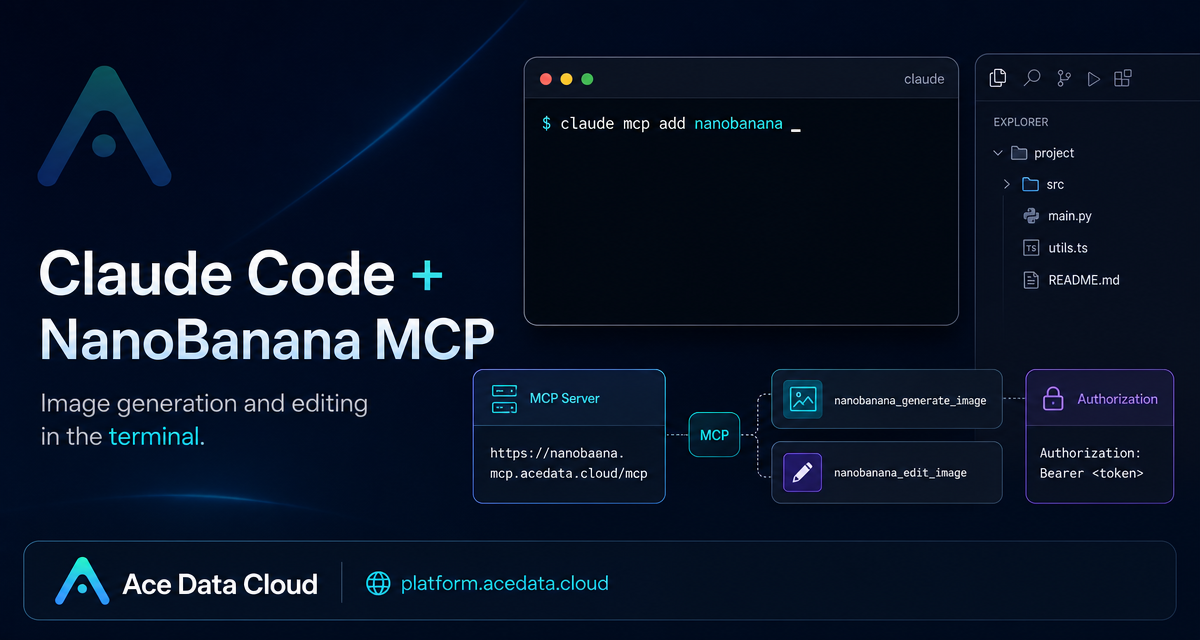
When you are working in the terminal, even a small visual task can break your flow: you leave Claude Code, open an image tool, upload references, copy results back, and then return to the project. NanoBanana MCP gives Claude Code a cleaner path: ask for an image generation or edit in natural language, and let the MCP server handle the visual operation from inside the same terminal session.
What you can do
The Ace Data Cloud NanoBanana MCP server exposes two practical capabilities to Claude Code:
nanobanana_generate_imagefor text-to-image generation.nanobanana_edit_imagefor image editing, including multi-image input.
The interesting part is not just that it can create images. The documentation highlights NanoBanana's ability to understand image content: for example, you can provide two images and ask it to place an object from image A into the scene of image B while adjusting angle and lighting. That makes it useful for builder workflows where the task is closer to composition than simple prompt-to-image generation.
How it works
Claude Code talks to external tools through MCP. In this setup, you register the NanoBanana MCP endpoint as an HTTP transport, pass an Ace Data Cloud API token as an authorization header, and then use Claude Code normally. Once the server is connected, your prompt can request an image task, and Claude Code can route the request to the right MCP tool.
The endpoint used by the documentation is:
https://nanobanana.mcp.acedata.cloud/mcpThe server is added with a bearer token header. The document is explicit about one small but easy-to-miss detail: the header flag must be uppercase -H; lowercase -h is interpreted as help.
Set up NanoBanana MCP in Claude Code
After you have an Ace Data Cloud API token, add the MCP server from your terminal. Replace YOUR_TOKEN with your actual token; do not commit it to a public repository.
claude mcp add nanobanana --transport http https://nanobanana.mcp.acedata.cloud/mcp -H "Authorization: Bearer YOUR_TOKEN"By default, if you do not pass a scope, Claude Code uses the local scope. The documentation describes three scopes:
local: the default; effective only in the current project directory and stored in~/.claude.json.user: global across projects; enabled with-s userand stored in~/.claude.json.project: project-level configuration; enabled with-s projectand written to.mcp.jsonin the project root.
For a personal setup, -s user is convenient. For a team project, -s project can make the MCP configuration shareable, but the doc warns not to commit real tokens to public repositories. Use environment-variable placeholders plus environment variables instead.
Verify the connection before using it
Once the server is registered, check that Claude Code can see it:
claude mcp listYou should see nanobanana marked as ✓ Connected. If it is not connected, the first things to check are the endpoint URL, the uppercase -H flag, and whether the authorization header was copied correctly.
Use case 1: multi-image composition
Multi-image composition is the workflow that best explains why this MCP is useful. Instead of describing every pixel from scratch, you can give Claude Code a task that depends on reference images:
Put the phone from the first image onto the desk in the second image, adjusting angle and lighting to make it look natural.That kind of request maps to nanobanana_edit_image, because the tool supports multiple image URLs as input. In practice, this is useful for product mockups, landing-page visuals, documentation screenshots, or quick internal design drafts where the source objects already exist.
Use case 2: clean up screenshots or generated assets
The docs also describe using image editing to remove unwanted text from an image. For example:
Edit this image to remove the text watermark in the bottom right corner, filling the background.This is a good fit for developer content workflows. You may have a screenshot, diagram, or generated asset that is almost usable but has a distracting label or watermark-like text. Keeping the edit inside Claude Code means you can iterate while you are still writing the page, README, or issue comment that needs the image.
Use case 3: generate illustrations for product pages
For simple illustration work, use the generation tool directly:
Generate an illustration of a small dinosaur crouching next to a crack in the ground looking down, for use on a 404 page.This maps to nanobanana_generate_image. The key is to describe the target surface, not only the subject. A prompt that says “for use on a 404 page” gives the model layout context: it should be readable as an illustration, not a cinematic poster or a dense concept-art scene.
A practical workflow for builders
- Add the NanoBanana MCP server with
claude mcp add. - Confirm it appears as connected with
claude mcp list. - Start with a concrete output surface: README diagram, 404 illustration, product mockup, blog cover, or screenshot cleanup.
- Use
nanobanana_generate_imagewhen the asset starts from text. - Use
nanobanana_edit_imagewhen you have one or more reference images to preserve, combine, or clean up.
The biggest benefit is not avoiding a few clicks. It is keeping visual iteration close to the code and writing work that triggered it. If your team already uses Claude Code as a development cockpit, adding NanoBanana MCP makes image generation and editing feel like another terminal-native tool rather than a separate creative pipeline.
Read the source documentation here: Claude Code integration with NanoBanana MCP.


Comments
Post a Comment