How to Generate and Edit Images from Claude Code with NanoBanana MCP
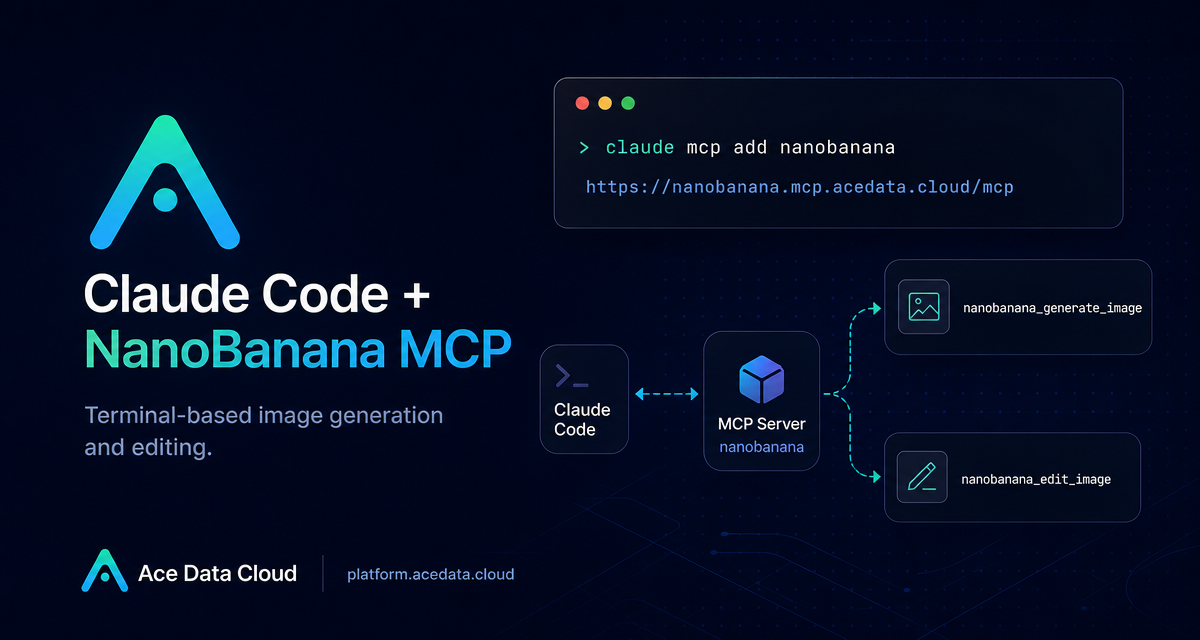
Image work often starts inside a code task: you need a 404 illustration, a cleaned-up screenshot, or a quick composition for a product mockup, but switching from your terminal to a separate image tool breaks the flow. NanoBanana MCP gives Claude Code a small, practical image workspace directly in the terminal.
What you can do
The Ace Data Cloud NanoBanana MCP integration exposes two tools inside Claude Code:
nanobanana_generate_imagefor text-to-image generation.nanobanana_edit_imagefor image editing, including multi-image input.
The useful part is not only that Claude can ask for an image. It is that you can describe the edit in the same working context where you are writing code, reviewing UI states, or preparing assets. The source document highlights workflows such as placing an object from one image into the scene of another, removing unwanted text from an image, and generating a page illustration for a 404 screen.
How it works
NanoBanana is exposed as a remote MCP server. Claude Code connects to that server over HTTP, and your Ace Data Cloud API token is passed as an authorization header. Once connected, Claude Code can call the MCP tools during a normal terminal session.
The server URL from the documentation is:
https://nanobanana.mcp.acedata.cloud/mcpThe important detail is that this is not a separate SDK you need to wire into your app. You are registering an MCP server with Claude Code, then letting Claude call the available tools when your prompt asks for image generation or editing.
Configure Claude Code
After you have an Ace Data Cloud API token, add the NanoBanana MCP server from your terminal:
claude mcp add nanobanana --transport http https://nanobanana.mcp.acedata.cloud/mcp \
  -H "Authorization: Bearer YOUR_TOKEN"
The documentation calls out one small but easy-to-miss CLI detail: -H must be uppercase. In Claude Code, lowercase -h means --help, not a header parameter.
When you omit -s, Claude Code uses the default local scope. That means the server configuration only applies to the directory where you ran the command. For day-to-day usage, choose the scope deliberately:
local: no-sor-s local; written to~/.claude.json; effective only in the current project directory.user:-s user; written to~/.claude.json; available across all projects.project:-s project; written to.mcp.jsonin the project root; useful when the configuration should be shared with a team.
If you use -s project, be careful with secrets. The document recommends using environment-variable placeholders such as ${ENV_VAR} instead of committing real tokens to a public repository.
Verify the connection
Before asking Claude to create assets, check that the MCP server is actually connected:
claude mcp listYou should see nanobanana marked as ✓ Connected. If it is not connected, re-check the transport URL, the uppercase -H header, and the token value you supplied.
Use it for real image tasks
Once connected, you can stay inside a Claude Code session and describe what you need in natural language. For example, a multi-image composition prompt can be as direct as:
Put the phone from the first image onto the desk in the second image, adjusting angle and lighting to make it look natural.That kind of prompt maps naturally to nanobanana_edit_image, because the documented tool supports multiple image URLs as input and is intended for edits where the model needs to understand relationships between images.
For cleanup work, the same tool can be used with a prompt like:
Edit this image to remove the text watermark in the bottom right corner, filling the background.For a generated asset, you can use a product-context prompt:
Generate an illustration of a small dinosaur crouching next to a crack in the ground looking down, for use on a 404 page.This is where the workflow feels builder-friendly: you can ask for a missing UI illustration, review the result, then immediately continue implementing the page that uses it.
A small team setup pattern
For a solo project, -s user is usually the least friction because the MCP server is available everywhere. For a team repo, -s project makes the dependency visible: the project root gets a .mcp.json configuration that teammates can share. Keep the configuration, but keep the token outside git by using an environment variable placeholder.
A practical setup is:
claude mcp add nanobanana -s project --transport http https://nanobanana.mcp.acedata.cloud/mcp \
  -H "Authorization: Bearer ${ACEDATA_API_TOKEN}"
Then each developer only needs to provide ACEDATA_API_TOKEN locally. The shared project still documents that image generation and image editing are part of the development workflow, without exposing credentials.
Where to go next
If your work regularly includes screenshots, mockups, empty states, or product illustrations, NanoBanana MCP is a pragmatic way to keep those edits close to the code. Start with one narrow task, verify nanobanana is connected, and use nanobanana_generate_image or nanobanana_edit_image only when the image operation is part of the build flow you are already in.
Read the source documentation here: Claude Code integration with NanoBanana MCP.


Comments
Post a Comment