How to Generate and Edit Images from Claude Code with NanoBanana MCP
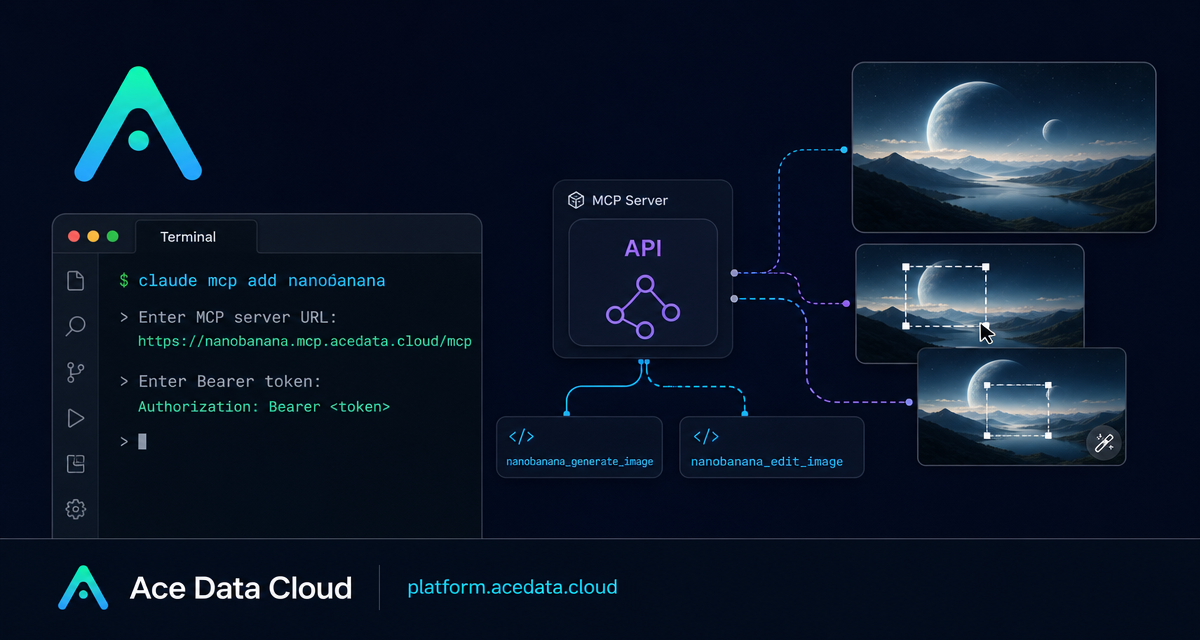
If your design workflow already starts in a terminal, switching to a separate image tool just to generate an illustration or clean up a screenshot can feel like unnecessary context switching. NanoBanana MCP gives Claude Code a small, focused image workflow: generate an image from text, or edit one or more existing images, without leaving the project where you are writing code.
What you can do
The Ace Data Cloud NanoBanana MCP integration for Claude Code exposes two tools:
nanobanana_generate_imagefor text-to-image generation.nanobanana_edit_imagefor image editing, including multi-image input.
The practical value is not only “make me a picture.” The source guide describes NanoBanana as image-aware: you can provide multiple images and ask it to understand the relationship between them. For example, it can take an object from one image and place it into the scene of another, while adjusting angle and lighting so the result feels natural.
How it works
Claude Code can connect to remote MCP servers over HTTP. For NanoBanana, the server endpoint in the documentation is:
https://nanobanana.mcp.acedata.cloud/mcpYou add that server to Claude Code with an authorization header. Once connected, Claude Code can call the NanoBanana tools from a normal coding session. That means you can ask for a 404 illustration while building a web app, remove unwanted text from a screenshot while preparing docs, or combine two product images while drafting a landing page.
The documented setup command is:
claude mcp add nanobanana --transport http https://nanobanana.mcp.acedata.cloud/mcp -H "Authorization: Bearer YOUR_TOKEN"One important detail from the guide: -H must be uppercase. In Claude Code, lowercase -h is interpreted as help, not as a header flag.
Choose the right scope
Claude Code supports different MCP configuration scopes. The default behavior without -s is local, which applies only to the directory where you run the command. The guide recommends being explicit because the scope affects whether the server is available only in the current project, across your user account, or in a project configuration file.
local: default; effective only in the current project directory and stored in~/.claude.json.user: configured with-s user; available globally in all projects and stored in~/.claude.json.project: configured with-s project; written to.mcp.jsonin the project root so the configuration can be shared with the team.
For a personal setup, -s user is usually convenient. For a team repository, -s project can make sense, but do not commit real tokens to a public repository. The documentation suggests using environment-variable placeholders such as ${ENV_VAR} instead.
Verify the connection
After adding the server, check that Claude Code can see it:
claude mcp listThe expected result is that nanobanana appears as connected. At that point, you do not need to memorize a separate API shape for everyday use. You can describe the intended edit or generation goal in natural language, and Claude Code can route the request to the MCP tool.
Three useful workflows
1. Compose two images
Multi-image editing is the most interesting capability in the guide. A request can describe how two inputs should relate to each other:
Put the phone from the first image onto the desk in the second image, adjusting angle and lighting to make it look natural.This is useful for product mockups, internal demos, and UI storytelling where you already have source assets but need a coherent scene.
2. Clean up screenshots
The guide also gives a screenshot cleanup use case: remove unwanted text or a watermark-like element from a corner and fill the background. A prompt can stay direct:
Edit this image to remove the text watermark in the bottom right corner, filling the background.For technical writing, this is handy when a screenshot contains a temporary annotation, placeholder text, or a small visual distraction that does not belong in the final documentation.
3. Generate small product illustrations
For frontend projects, a small illustration can make an empty state or error page feel more intentional. The documented example is:
Generate an illustration of a small dinosaur crouching next to a crack in the ground looking down, for use on a 404 page.Because this runs inside Claude Code, the request can sit next to the implementation task: build the page, create the illustration, then wire the asset into the app.
A practical setup pattern
For a project-level workflow, I would keep the MCP server configuration close to the repository but keep secrets outside git. The operational pattern is:
- Add the NanoBanana MCP server with the documented HTTP endpoint.
- Use an authorization header with a token value stored outside the committed config.
- Run
claude mcp listbefore relying on the tool in a work session. - Use
nanobanana_generate_imagefor new assets andnanobanana_edit_imagewhen existing images need to be transformed or combined.
That gives you a simple builder-friendly loop: stay in the terminal, describe the image task in the same place you describe code changes, and keep the resulting asset work attached to the project context.
Read the full setup notes in the Claude Code integration with NanoBanana MCP documentation.


Comments
Post a Comment