How to Generate and Edit Images from Claude Code with NanoBanana MCP
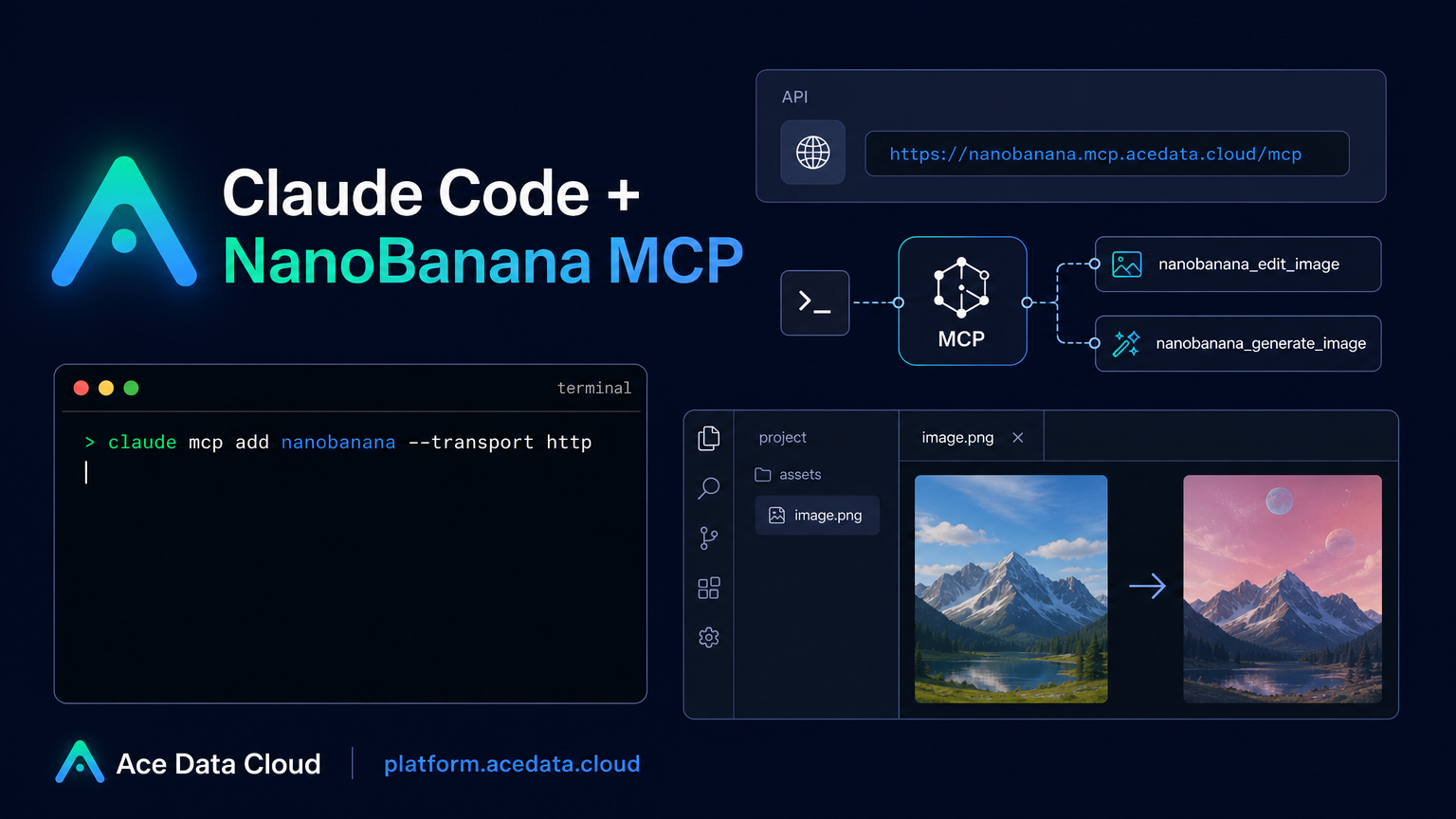
If you already live in the terminal, switching to a separate image tool just to generate a mockup, clean up a screenshot, or combine reference images breaks your flow. NanoBanana MCP gives Claude Code a small, focused image toolkit so you can ask for image generation or editing without leaving the project you are working in.
What you can do
The NanoBanana MCP integration described in the Ace Data Cloud documentation is built around Google Gemini image capabilities and is designed for Claude Code sessions. Once connected, Claude Code can use NanoBanana for three practical builder tasks:
- Generate an image from a prompt, such as an illustration for a 404 page.
- Edit an existing image, for example removing unwanted text or a watermark area and filling the background.
- Compose multiple images, such as placing an object from one image into the scene of another image while adapting angle and lighting.
The documented tools are intentionally simple: nanobanana_generate_image for text-to-image generation and nanobanana_edit_image for image editing with support for multiple image URLs as input.
How it works
Claude Code connects to NanoBanana through a remote MCP server. The documented server endpoint is https://nanobanana.mcp.acedata.cloud/mcp. You add that server to Claude Code, pass an Ace Data Cloud API token as a bearer token, and then use natural language inside a Claude Code session.
The important detail is that you are not writing a custom image pipeline. Claude Code remains the interface. MCP supplies the tool boundary. NanoBanana supplies the image generation and editing capability. That makes the setup useful for small product tasks where you want an image artifact but do not want to leave the terminal.
Configure NanoBanana MCP in Claude Code
The core setup command from the documentation is:
claude mcp add nanobanana --transport http https://nanobanana.mcp.acedata.cloud/mcp -H "Authorization: Bearer YOUR_TOKEN"Replace YOUR_TOKEN with your Ace Data Cloud API token. Keep the header flag uppercase: the documentation calls out that -H must be uppercase because lowercase -h is interpreted as help, not as a header parameter.
After adding the server, verify the connection with:
claude mcp listWhen the setup is working, the nanobanana server should appear as connected.
Choose the right Claude Code scope
Claude Code MCP configuration can be local, user-level, or project-level. The default behavior without -s is local, which applies only to the directory where the command is run. That is fine for a quick experiment, but it is worth choosing the scope deliberately:
local: no-sflag or-s local. It is effective only in the current project directory.user:-s user. It is available globally across projects.project:-s project. It writes configuration into.mcp.jsonin the project root, which can be shared with a team.
If you choose project, do not commit a real token to a public repository. The documentation recommends using an environment-variable placeholder such as ${ENV_VAR} and supplying the real token through your environment instead.
Use case 1: create a product illustration from the terminal
One of the fastest wins is generating a lightweight illustration while working on UI copy, docs, or a prototype. In a Claude Code session, you can ask for something like:
Generate an illustration of a small dinosaur crouching next to a crack in the ground looking down, for use on a 404 pageClaude Code can route that request to nanobanana_generate_image. The useful part is contextual: you can describe the image in the same place where you are editing the page, reviewing component names, or writing the empty-state copy.
Use case 2: edit a screenshot without opening a design app
Image editing is where the MCP workflow becomes especially handy. The documentation gives the example of removing unwanted text from an image. A practical prompt can be as direct as:
Edit this image to remove the text watermark in the bottom right corner, filling the backgroundBecause the editing tool is exposed as nanobanana_edit_image, the task can stay inside your Claude Code flow. That is useful for documentation screenshots, internal demos, or quick mockups where the goal is to produce a clean visual asset rather than start a full design process.
Use case 3: compose multiple reference images
NanoBanana MCP also supports multi-image input for editing. The documented example is to take an object from one image and place it into the scene of another image while adjusting angle and lighting. A prompt can look like this:
Put the phone from the first image onto the desk in the second image, adjusting angle and lighting to make it look naturalThis is a good fit for product storytelling: combining a device shot with a workspace scene, testing variations of a hero image, or creating a more realistic visual from separate source images.
A minimal setup checklist
- Copy your Ace Data Cloud API token.
- Add the MCP server with
claude mcp add nanobanana --transport http https://nanobanana.mcp.acedata.cloud/mcp. - Pass the authorization header with uppercase
-H. - Pick a scope:
local,user, orproject. - Run
claude mcp listand confirmnanobananais connected. - Ask Claude Code to generate, edit, or compose images using natural language.
Wrapping up
The value of NanoBanana MCP is not that it replaces a design team or a dedicated image workflow. It is that it gives builders a compact image tool directly inside Claude Code, with two clear actions: generate an image or edit one. For small UI assets, documentation visuals, screenshot cleanup, and multi-image composition, that is often enough to keep momentum without context switching.
For the exact setup command, tool names, and examples, read the Ace Data Cloud documentation: Claude Code integration with NanoBanana MCP.


Comments
Post a Comment