How to Generate and Edit Images from Claude Code with NanoBanana MCP
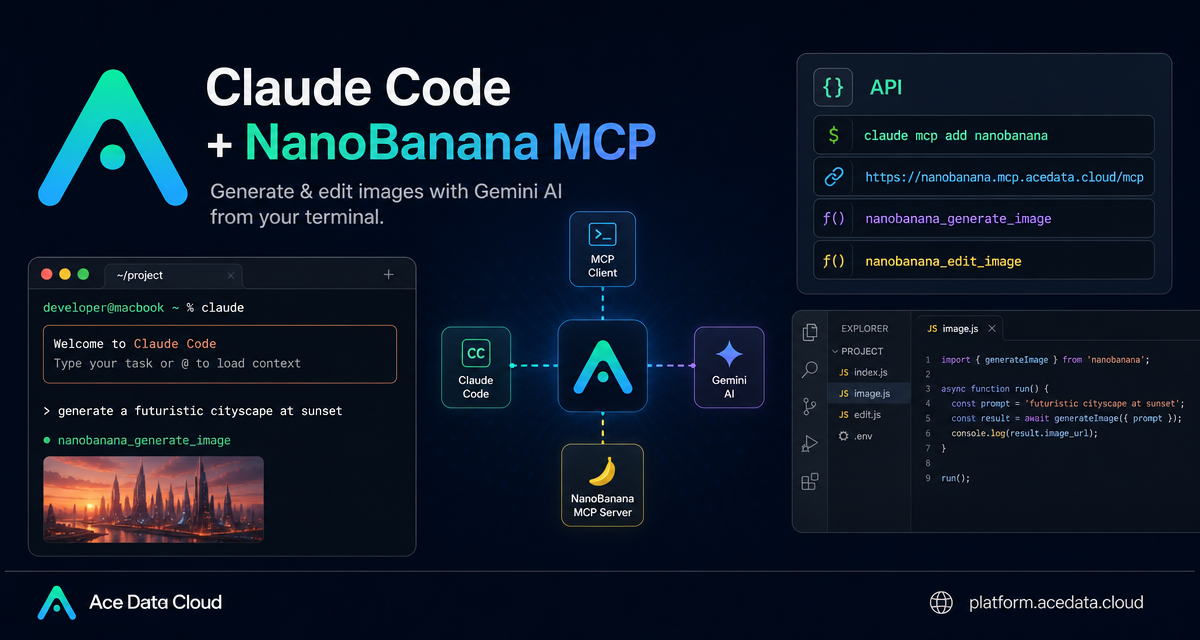
When you are deep in a terminal workflow, switching to a browser just to make or fix an image can break your rhythm. The NanoBanana MCP setup for Claude Code gives you a practical way to ask for image generation and image editing directly from the same place where you are already building.
What you can do
The documented NanoBanana MCP integration is focused on two concrete jobs: generating images from text and editing existing images. In Claude Code, those capabilities appear as MCP tools that can be called through natural language:
nanobanana_generate_imagefor text-to-image generation.nanobanana_edit_imagefor image editing, including multi-image input.
The interesting part is not only that it creates images. The underlying model is described as Google Gemini, and the documentation emphasizes its image understanding: you can give it multiple images and ask it to move an object from one image into the scene of another, while adjusting angle and lighting so the result feels coherent.
How it works
Claude Code talks to NanoBanana through an MCP server hosted by Ace Data Cloud. The server URL is:
https://nanobanana.mcp.acedata.cloud/mcpYou add that server to Claude Code with an HTTP transport and an authorization header. The documented command looks like this:
claude mcp add nanobanana --transport http https://nanobanana.mcp.acedata.cloud/mcp \
  -H "Authorization: Bearer YOUR_TOKEN"
One small but important detail: the header flag must be uppercase -H. Lowercase -h means help, not an HTTP header, so the server will not receive your bearer token.
Choosing the right Claude Code scope
The setup command can be local, user-level, or project-level. If you do not pass -s, Claude Code uses the default local scope, which only applies in the directory where the command is run.
local: no-sor-s local; stored in~/.claude.json; effective only in the current project directory.user:-s user; stored in~/.claude.json; available across projects.project:-s project; stored in.mcp.jsonin the project root; useful when a team wants to share the MCP configuration.
For a solo experiment, local scope is fine. For a reusable personal workflow, user scope is more convenient:
claude mcp add nanobanana -s user --transport http https://nanobanana.mcp.acedata.cloud/mcp \
  -H "Authorization: Bearer YOUR_TOKEN"
For a team project, project scope can be useful, but do not commit a real token to a public repository. Use an environment-variable placeholder and keep the secret outside git.
Verifying the connection
After adding the server, verify it before you rely on it in a real workflow:
claude mcp listThe documented success state is that nanobanana appears as connected. If it does not, check the server URL, the uppercase -H flag, and whether the token was passed in the header.
Practical workflows
1. Compose two images
A common builder task is combining product or UI assets without opening a separate design tool. Because nanobanana_edit_image supports multiple image URLs, you can ask Claude Code for a composition such as:
Put the phone from the first image onto the desk in the second image, adjusting angle and lighting to make it look natural.This is useful for mockups, landing-page visuals, and internal prototypes where the goal is to communicate an idea quickly.
2. Clean up screenshots
The docs also describe removing unwanted text from an image. For example, if a screenshot has an extra watermark or label, you can ask:
Edit this image to remove the text watermark in the bottom right corner, filling the background.That gives you a direct terminal-to-image cleanup loop: describe the edit, inspect the output, and iterate.
3. Generate illustrations for product states
For empty states, error pages, and small product moments, text-to-image generation can save time. The documented example is an illustration for a 404 page:
Generate an illustration of a small dinosaur crouching next to a crack in the ground looking down, for use on a 404 page.In practice, I would treat this as a first draft: generate a few directions, pick the one that fits your UI, then use editing prompts to align it with the page context.
A minimal setup checklist
- Get an Ace Data Cloud API token.
- Add the MCP server with
claude mcp add nanobanana --transport http https://nanobanana.mcp.acedata.cloud/mcp. - Pass authorization with uppercase
-H "Authorization: Bearer YOUR_TOKEN". - Choose
local,user, orprojectscope intentionally. - Run
claude mcp listand confirmnanobananais connected. - Use
nanobanana_generate_imagefor new images andnanobanana_edit_imagefor edits or multi-image composition.
Wrapping up
The most useful thing about this workflow is that it keeps image work close to the code and product context. You can stay in Claude Code, describe the asset you need, and keep iterating without opening a separate creative tool for every small visual task. If you want the original setup details, read the Claude Code + NanoBanana MCP documentation.


Comments
Post a Comment