How to Edit Images with gpt-image-2 Using the OpenAI Images Edits API
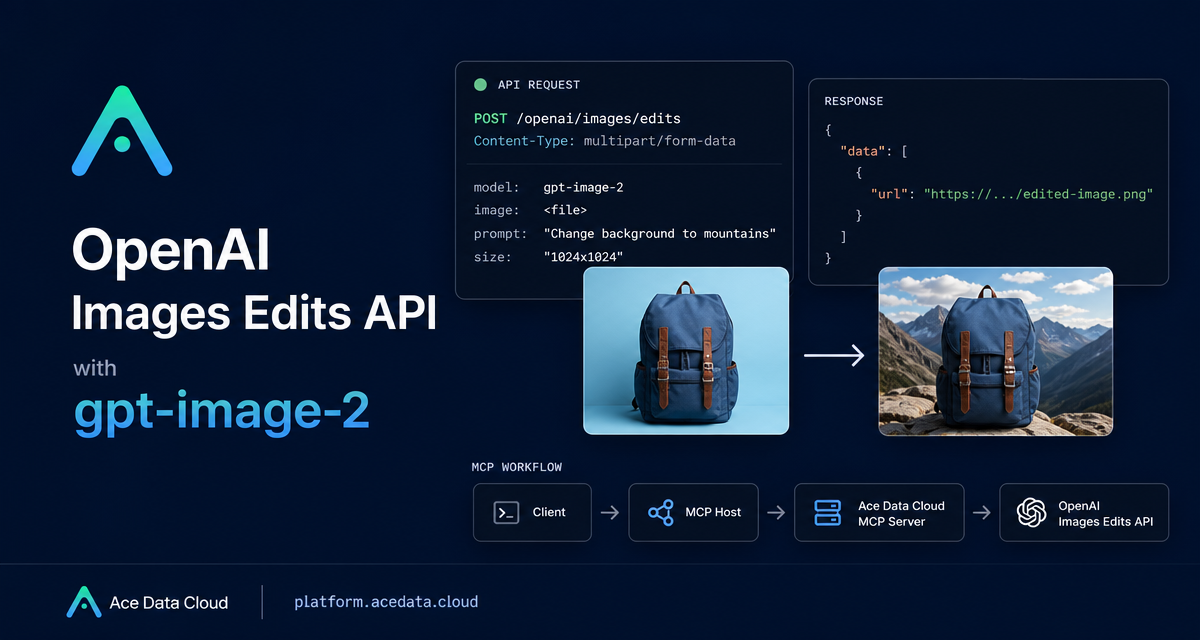
Image editing becomes much more valuable when it can run inside a real product flow: provide a source image, describe the change, preserve the parts that matter, and return a modified image your app can review or publish.
What you can do
Ace Data Cloud exposes the OpenAI Images Edits API through POST https://api.acedata.cloud/openai/images/edits. The same interface supports gpt-image-1, gpt-image-2, and the nano-banana model family. This guide focuses on gpt-image-2, which the documentation describes as stronger for structure stability, text retention, direct image URL input, base64 input, and high resolution redrawing with size.
- Convert an infographic to dark mode while keeping its layout.
- Replace a product background while keeping the main object and composition.
- Combine several reference images into one final scene.
- Send URL or base64 input from a backend flow without local file download.
How it works
The JSON path is simple. Send model, image, prompt, and optionally size. The image value can be one URL, an array of URLs, a data:image/png;base64,... value, or raw base64. GPT Image models can accept up to 16 reference images.
The size value can be auto, omitted, or written as WIDTHxHEIGHT. Custom dimensions must have width and height as multiples of 16, long side no more than 3840, and total pixel count no more than 8,294,400. With auto, output keeps the reference image aspect ratio.
Call the API with JSON and an image URL
For backend work, JSON plus an image URL is the most direct pattern.
curl -X POST "https://api.acedata.cloud/openai/images/edits"   -H "Authorization: Bearer {token}"   -H "Content-Type: application/json"   -d '{
    "model": "gpt-image-2",
    "image": "https://platform.cdn.acedata.cloud/gpt-image/5c9fa635-8794-4c6d-88f8-584d7f4716c6_0.png",
    "prompt": "Convert this infographic to dark mode: dark navy background, light cream text, deep gray rounded module cards with soft shadows. Keep all layout, structure, and module arrangement identical — only invert the color scheme.",
    "size": "1024x1536"
  }'
This is a good fit for dashboards, onboarding graphics, docs illustrations, and other images where composition matters more than free-form creativity.
Use Python in a worker
The same call maps cleanly to a Python job. That makes it easy to place image editing after upload, review, or content creation.
import requests

url = "https://api.acedata.cloud/openai/images/edits"
headers = {
    "accept": "application/json",
    "authorization": "Bearer {token}",
    "content-type": "application/json",
}
payload = {
    "model": "gpt-image-2",
    "image": "https://platform.cdn.acedata.cloud/gpt-image/5c9fa635-8794-4c6d-88f8-584d7f4716c6_0.png",
    "prompt": "Convert this infographic to dark mode: dark navy background, light cream text, deep gray rounded module cards with soft shadows. Keep all layout, structure, and module arrangement identical — only invert the color scheme.",
    "size": "1024x1536",
}
response = requests.post(url, json=payload, headers=headers)
print(response.text)
A documented successful response includes success, task_id, trace_id, created, data, and elapsed. The image URL is in data[].url, and data[].revised_prompt may show the prompt used by the model.
Use multiple reference images
When the output depends on more than one input, pass an array in image. The documentation shows this shape for composing several product references into one scene:
payload = {
    "model": "gpt-image-2",
    "image": [
        "https://example.com/item1.png",
        "https://example.com/item2.png",
        "https://example.com/item3.png"
    ],
    "prompt": "Combine all the items above into a single 'Relax & Unwind' gift basket on a clean white background, photorealistic, soft natural lighting.",
    "size": "1024x1024"
}
SDK compatible uploads
If you already use the official OpenAI Python SDK, the documented multipart upload flow also works. Configure the client base URL as https://api.acedata.cloud/openai, use your token as the API key, and call client.images.edit with model="gpt-image-2".
import base64
from openai import OpenAI

client = OpenAI()
result = client.images.edit(
    model="gpt-image-2",
    image=[open("test.png", "rb")],
    prompt="Convert this image to dark mode while keeping the layout intact."
)
image_base64 = result.data[0].b64_json
image_bytes = base64.b64decode(image_base64)
with open("edited.png", "wb") as f:
    f.write(image_bytes)
Implementation notes
response_format=b64_jsonsupports onlyn=1.- For
n > 1, use the default URL return. The documented range is1to10. - Choose
sizeexplicitly if you need a specific aspect ratio. - For Nano Banana models on this endpoint, supported parameters are limited to
model,prompt,image, andn;mask,size, andresponse_formatare not supported there.
The practical approach is to be precise: give the model a strong reference image, say what should change, say what must remain stable, and choose size only when dimensions matter. For the full examples and parameter notes, read the OpenAI Images Edits API Integration Guide.


Comments
Post a Comment