How to Edit Images from Claude Code with NanoBanana MCP
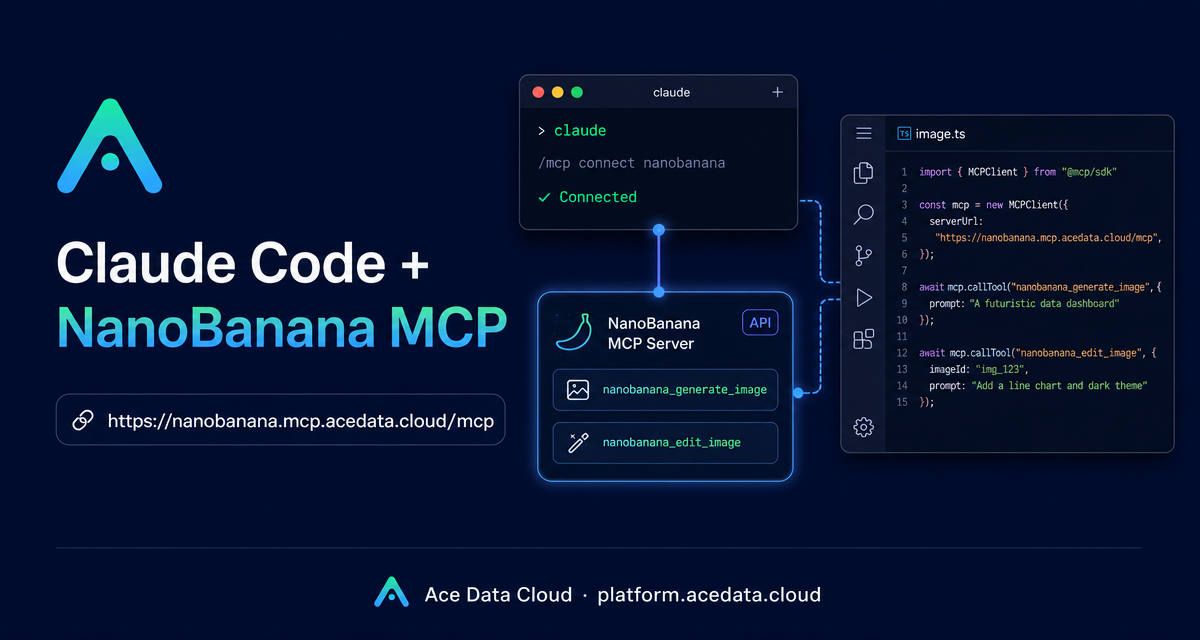
Moving between a terminal, a browser-based image tool, and a folder full of assets is a small tax on every visual iteration. If you already use Claude Code as your working shell, the more useful path is to keep the image request close to the task: describe the edit, pass the image URLs, and let the MCP server do the image work from the same session.
This guide walks through the NanoBanana MCP setup for Claude Code and shows how to use it for practical image generation and editing tasks, including multi-image composition and screenshot cleanup.
What you can do
The NanoBanana MCP server is designed for image generation and image editing through Claude Code. The underlying workflow is simple: Claude Code connects to the MCP endpoint, authenticates with an Ace Data Cloud API token, and exposes image tools inside your terminal session.
The source documentation lists two tools:
nanobanana_generate_imagefor text-to-image generation.nanobanana_edit_imagefor image editing, including multi-image input.
The interesting part is not just making a single image from a prompt. The editing flow is useful when you need the model to understand the relationship between images: for example, taking an object from one image and placing it into the scene of another image with the angle and lighting adjusted so the result feels natural.
How it works
Claude Code supports adding MCP servers from the command line. NanoBanana is exposed as a Streamable HTTP MCP endpoint at https://nanobanana.mcp.acedata.cloud/mcp. You add it with claude mcp add, pass the transport as http, and include an authorization header.
The documented command is:
claude mcp add nanobanana --transport http https://nanobanana.mcp.acedata.cloud/mcp -H "Authorization: Bearer YOUR_API_TOKEN"One small detail matters: -H must be uppercase. In the Claude Code command, lowercase -h is help, not a header flag. If you accidentally type -h, the server will not be added with your authorization header.
Choose the right MCP scope
If you run the command without -s, Claude Code uses the default local scope. That means the MCP server is only effective in the project directory where you ran the command. This is fine for a quick test, but it is not always the best setup for everyday work.
local: no-sflag, or-s local. The configuration is stored in~/.claude.jsonand applies only to the current project directory.user: use-s user. The configuration is stored in~/.claude.jsonand is available across projects.project: use-s project. The configuration is written to.mcp.jsonin the project root, which makes it shareable with a team.
For personal workflows, -s user is usually the least surprising option. For a team repository, -s project is useful, but do not commit a real token into a public repo. Use an environment-variable placeholder and let each developer provide their own token locally.
claude mcp add nanobanana -s user --transport http https://nanobanana.mcp.acedata.cloud/mcp -H "Authorization: Bearer YOUR_API_TOKEN"Verify the connection before prompting
After adding the server, verify it before you ask Claude Code to edit an image:
claude mcp listThe expected result is that nanobanana appears as connected. If it does not, check the endpoint URL, confirm the header flag is uppercase -H, and make sure the token value is present in the command or in the environment variable you referenced.
Practical usage patterns
Compose two images
A common builder task is combining a product asset with a generated or photographed environment. The documented example is the kind of instruction you can give after the MCP server is configured:
Put the phone from the first image onto the desk in the second image, adjusting angle and lighting to make it look natural.This is where multi-image input matters. You are not just asking for “a phone on a desk”; you are asking the model to preserve the object from one source image and integrate it into another scene.
Clean up screenshots
For documentation and product blogs, screenshots often contain a watermark, a test label, or some distracting text. The documented workflow supports this kind of edit:
Edit this image to remove the text watermark in the bottom right corner, filling the background.When you write prompts like this, be specific about the region and the desired fill behavior. “Bottom right corner” and “filling the background” are both useful constraints.
Generate lightweight page illustrations
You can also use the generation tool when you need a small visual concept rather than an edit. The documentation gives a 404-page style example:
Generate an illustration of a small dinosaur crouching next to a crack in the ground looking down, for use on a 404 page.That kind of prompt works well when you already know the page context and need a quick visual direction without leaving your terminal.
A small workflow I would use in a repo
- Add NanoBanana MCP with
-s userfor personal use, or-s projectif the team wants a shared MCP definition. - Run
claude mcp listand confirmnanobananais connected. - Keep source image URLs in the issue, README draft, or local notes so the edit request is reproducible.
- Ask for one change at a time: compose, remove text, adjust lighting, or generate an illustration.
- Save the final image URL or asset path next to the content that uses it.
The benefit is not that every image task becomes automatic. The benefit is that the image iteration loop moves into the same place where you are already writing docs, reviewing UI copy, or preparing a release note.
If you want the full setup reference, read the original Claude Code + NanoBanana MCP documentation.


Comments
Post a Comment