How to Edit Images from Claude Code with NanoBanana MCP
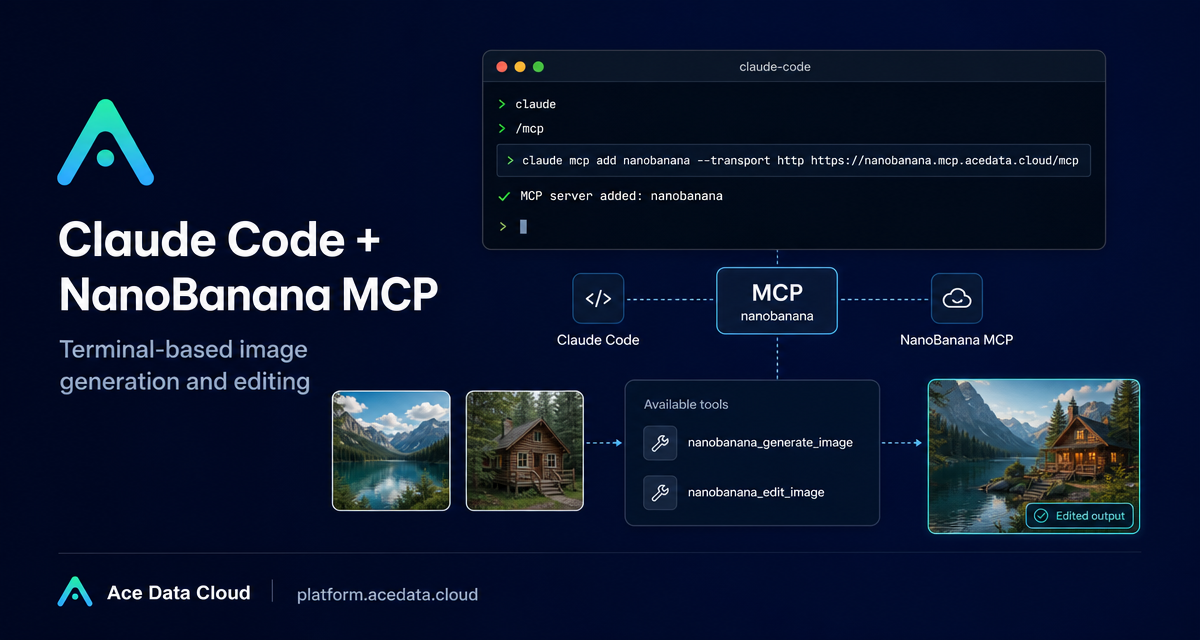
You are in the terminal, deep inside a project, and you need one practical image edit: place an object from one reference image into another scene, clean up a watermark, or make a small illustration for a page. The usual flow is to leave the IDE, open an image tool, upload files, copy results back, and lose context. NanoBanana MCP lets you keep that loop inside Claude Code.
What you can do
The Ace Data Cloud NanoBanana MCP integration for Claude Code exposes image generation and image editing directly in a Claude Code session. The documented tools are nanobanana_generate_image for text-to-image generation and nanobanana_edit_image for editing existing images, including multi-image input.
The most useful pattern is not “make me a pretty picture.” It is a builder workflow:
- compose multiple images, such as putting the object from image A into the environment from image B;
- remove unwanted text or watermark-like marks from a screenshot while filling the background;
- generate a small product, empty-state, or error-page illustration without leaving the terminal;
- iterate with natural-language instructions while Claude Code still has your project context.
How it works
Claude Code can connect to external tools through MCP servers. For NanoBanana, the MCP server URL in the documentation is https://nanobanana.mcp.acedata.cloud/mcp. Once configured, Claude Code can call the NanoBanana tools from a normal coding conversation.
The setup uses an Ace Data Cloud API token passed as an HTTP authorization header. The important detail is that the Claude Code command uses uppercase -H for headers. Lowercase -h is the help flag, so using the wrong case will not attach your token.
Configure the MCP server in Claude Code
Start from a terminal where you use Claude Code. Replace YOUR_TOKEN with your Ace Data Cloud API token:
claude mcp add nanobanana --transport http https://nanobanana.mcp.acedata.cloud/mcp -H "Authorization: Bearer YOUR_TOKEN"By default, without an explicit scope, Claude Code treats the configuration as local. The documentation describes three scopes:
local: the default behavior, stored in~/.claude.json, effective for the current project directory;user: configured with-s user, stored in~/.claude.json, available across projects;project: configured with-s project, stored in.mcp.jsonin the project root, suitable for team sharing.
If you want every project on your machine to have access, use a user scope:
claude mcp add nanobanana -s user --transport http https://nanobanana.mcp.acedata.cloud/mcp -H "Authorization: Bearer YOUR_TOKEN"If you want a team project to carry the MCP configuration, use project scope, but do not commit real tokens to a public repository. The documentation recommends using environment-variable placeholders for shared project configuration.
Verify the connection before you rely on it
After adding the server, check that Claude Code sees it:
claude mcp listYou are looking for nanobanana to appear as connected. This small verification step saves time later: if the tool is not connected, the problem is usually configuration, scope, or the authorization header rather than your image prompt.
Use case 1: multi-image composition
The documentation highlights multi-image editing as a core reason to use NanoBanana. A practical prompt might be:
Use nanobanana_edit_image with these two image URLs. Put the phone from the first image onto the desk in the second image. Match the desk angle and lighting so it looks natural.This is useful for product mockups, app screenshots placed into device frames, or quick concept images for a landing page. The key is to describe the role of each image clearly: what should be taken from the first image, what should remain from the second image, and what visual constraints matter.
Use case 2: clean up screenshots
For documentation and tutorials, screenshots often include text overlays or distracting marks. The documented workflow includes removing text from an image and filling the background. A concise instruction is usually enough:
Edit this image to remove the text watermark in the bottom right corner, filling the background naturally.For builder content, this is especially handy when you need clean visuals for a README, docs page, changelog, or blog post but do not want to open a separate editor.
Use case 3: generate small page illustrations
NanoBanana can also generate images from text through nanobanana_generate_image. The documentation gives the example of creating a small dinosaur illustration for a 404 page. In practice, you can keep the prompt tied to your UI:
Generate an illustration of a small dinosaur crouching next to a crack in the ground looking down, for use on a 404 page.Because this runs in Claude Code, you can ask for a visual that matches the page you are building, then continue editing copy, component states, or docs in the same session.
A few habits that make the workflow safer
- Use
-s userwhen the tool is personal to your machine; use-s projectonly when the team needs the same MCP server entry. - Keep real tokens out of committed files. If the configuration is shared, use environment variables instead of literal secrets.
- Verify with
claude mcp listbefore debugging prompts. - When editing with multiple images, describe each image’s role explicitly.
The win is simple: image generation and editing become part of the terminal workflow instead of a separate browser task. If you already use Claude Code for implementation, NanoBanana MCP gives you a practical way to create, adjust, and compose visuals while staying in the same builder loop. Read the source documentation here: Claude Code integration with NanoBanana MCP.


Comments
Post a Comment