How to Configure Claude Code Through Ace Data Cloud
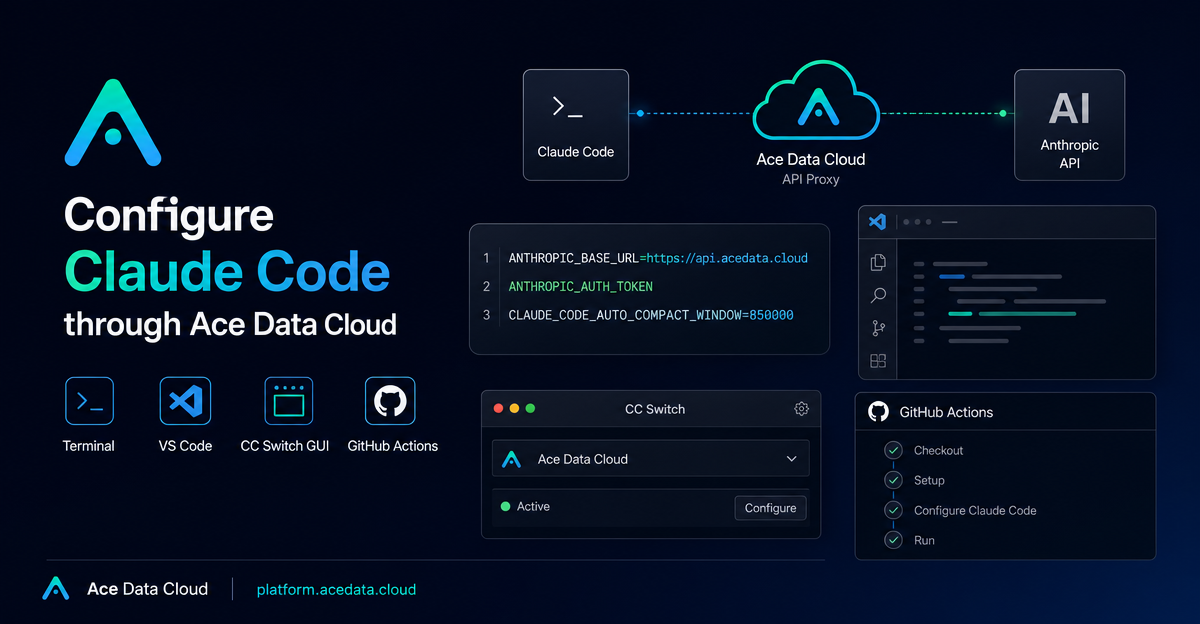
If your coding agent works in the terminal but not in your editor or CI pipeline, the problem is usually not the model itself. It is configuration drift: every environment points at a different API base, token source, or context setting.
This guide walks through a small, repeatable way to configure Claude Code through Ace Data Cloud so the same setup can work across terminal sessions, VS Code, CC Switch, and GitHub Actions. The goal is not to hide Claude Code behind another abstraction. It is to make the connection explicit: one base URL, one token, and one context-window setting you can carry between developer environments.
What you can do
The Ace Data Cloud Claude Code guide describes four practical entry points for using Claude Code:
- Terminal CLI: run
claudefrom a normal shell. - VS Code: use the native extension experience, including inline diff workflows,
@-mentions, and scheduled reviews. - CC Switch: use a GUI to switch vendors without hand-editing configuration files.
- GitHub Actions: automate issue and pull request work with
@claude.
The useful part for builders is that the core configuration is shared. Once the environment variables are correct, the surrounding surface can change: a terminal on your laptop, an editor integration, a desktop switcher, or a CI job.
How it works
Claude Code reads Anthropic-style configuration from the environment. Ace Data Cloud acts as the API base that Claude Code talks to, so the main step is pointing Claude Code at https://api.acedata.cloud and providing an Ace Data Cloud API token.
The documented general configuration uses three environment variables:
export ANTHROPIC_BASE_URL="https://api.acedata.cloud"
export ANTHROPIC_AUTH_TOKEN="YOUR_ACE_DATA_CLOUD_API_TOKEN"
export CLAUDE_CODE_AUTO_COMPACT_WINDOW="850000"
ANTHROPIC_BASE_URL tells Claude Code where to send API traffic. ANTHROPIC_AUTH_TOKEN carries the API token. CLAUDE_CODE_AUTO_COMPACT_WINDOW sets the automatic compaction trigger window to about 850,000 tokens. The documentation notes that this reserves room for tool results and final answers; it does not change the model context limit.
Start with the terminal
The terminal is the cleanest place to validate the setup because it removes editor-specific behavior. Open a fresh shell, export the variables, and start Claude Code:
export ANTHROPIC_BASE_URL="https://api.acedata.cloud"
export ANTHROPIC_AUTH_TOKEN="YOUR_ACE_DATA_CLOUD_API_TOKEN"
export CLAUDE_CODE_AUTO_COMPACT_WINDOW="850000"

claude
For local development, I prefer putting these exports in a project-specific shell profile or a secret-aware environment manager rather than committing them to the repository. The token should be treated like any other API credential: inject it at runtime, keep it out of Git, and rotate it if it is exposed.
Carry the same configuration into VS Code
Once the CLI works, the VS Code path becomes less mysterious. The guide describes VS Code as the native extension route for inline diffs, @-mentions, and scheduled review flows. Those workflows are editor features, but the underlying connection still depends on the same values: ANTHROPIC_BASE_URL, ANTHROPIC_AUTH_TOKEN, and CLAUDE_CODE_AUTO_COMPACT_WINDOW.
A good debugging rule is simple: if a prompt succeeds in the terminal and fails in the editor, compare the environment visible to the editor process. GUI apps often do not inherit the same shell startup files as your terminal. On macOS and Linux, this difference is a common source of “works in shell, fails in editor” bugs.
Use CC Switch when people should not edit config files
The document also lists CC Switch as a GUI option for one-click vendor switching. That is helpful for teams where not everyone wants to maintain local configuration files manually. The builder-friendly way to think about this is separation of concerns: the GUI can manage the switch, while you still verify the same underlying values and keep credentials scoped to the user or machine that needs them.
For onboarding, I would still document the three variables somewhere internal. Even when a GUI manages the configuration, knowing the expected base URL and compaction setting makes support much easier.
Use GitHub Actions for review workflows
GitHub Actions is the CI entry point described in the guide. The scenario is automated work in issues and pull requests using @claude. The same principle applies: keep the base URL and token in the job environment, but store the token as a secret rather than writing it into workflow files.
At a high level, the CI checklist looks like this:
- Set
ANTHROPIC_BASE_URLtohttps://api.acedata.cloud. - Provide
ANTHROPIC_AUTH_TOKENfrom a CI secret. - Set
CLAUDE_CODE_AUTO_COMPACT_WINDOWto850000. - Test the workflow on a low-risk issue or pull request before making it part of the main review path.
A practical configuration checklist
- Get an Ace Data Cloud API token from your account.
- Export
ANTHROPIC_BASE_URLashttps://api.acedata.cloud. - Export
ANTHROPIC_AUTH_TOKENfrom a local secret store or CI secret. - Set
CLAUDE_CODE_AUTO_COMPACT_WINDOWto850000. - Validate the terminal first, then move to VS Code, CC Switch, or GitHub Actions.
This setup is intentionally small. For most teams, that is the advantage: fewer moving parts means fewer places for a coding agent integration to break. If you want the original platform-specific links and details, read the Claude Code Integration Guide.


Comments
Post a Comment