How to Build a Speech-to-Text Workflow with Ace Data Cloud’s OpenAI-Compatible Transcriptions API
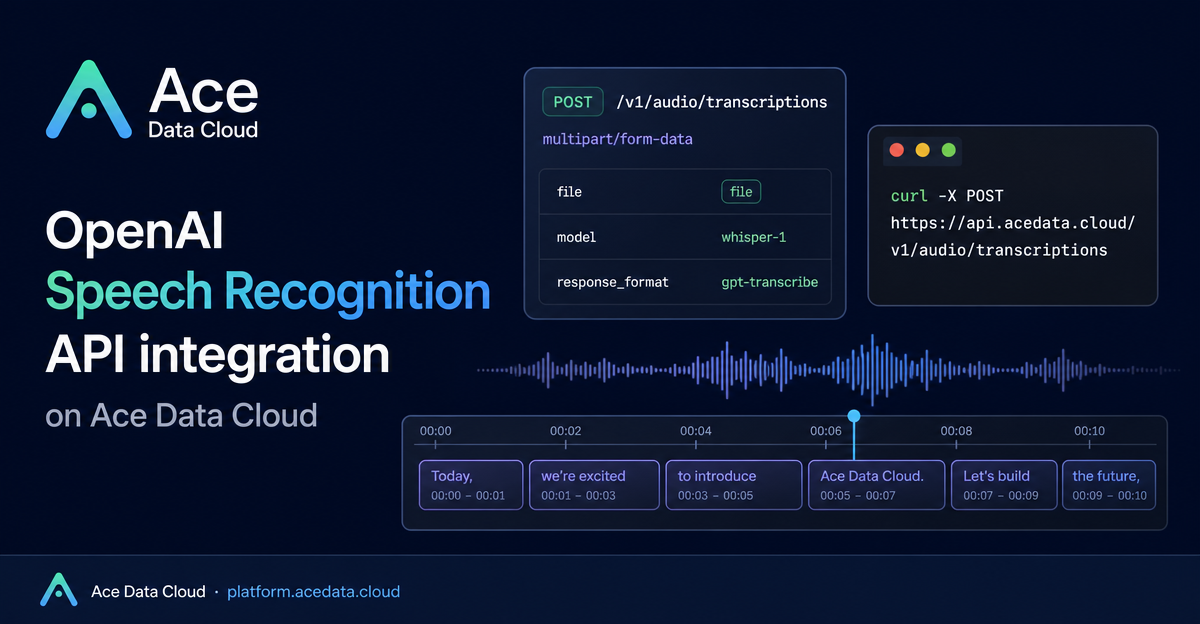
Most audio features start with the same unglamorous problem: you have an audio.mp3, and your app needs reliable text, subtitles, or timestamps without building a speech-recognition pipeline from scratch.
What you can do
Ace Data Cloud exposes an OpenAI-compatible speech recognition endpoint at POST https://api.acedata.cloud/v1/audio/transcriptions. If you already use the OpenAI SDK, the integration pattern is intentionally small: point the client at https://api.acedata.cloud/v1, use your Ace Data token, and call the standard audio transcription API.
The endpoint accepts multipart/form-data and returns the transcription result synchronously. That makes it a good fit for backend jobs, internal tooling, meeting note ingestion, subtitle generation, and media processing scripts where a simple request-response flow is easier to operate than a separate async queue.
- Transcribe common audio/video containers including
flac,mp3,mp4,mpeg,mpga,m4a,ogg,wav, andwebm. - Choose
whisper-1when you need subtitle formats or word-level timestamps. - Choose
gpt-transcribewhen you want better recognition of brand names and proper nouns, with support forlanguages[]andkeywords[]. - Use
promptto guide style or provide domain-specific terms.
How it works
The request is a POST to /v1/audio/transcriptions with an Authorization: Bearer {token} header. The required field is file; every other field is optional, but the optional fields are where most practical workflows get better.
The model field can be whisper-1 or gpt-transcribe. If you omit it, the documented default is whisper-1. The language field accepts an ISO-639-1 code such as en or zh, which can improve accuracy and speed. If you do not know the language, leave it blank and let the service auto-detect.
The response_format field controls what you get back. For whisper-1, supported values are json, text, srt, verbose_json, and vtt. For gpt-transcribe, the documented formats are json and text. The temperature field accepts values from 0 to 1 and defaults to 0.
Start with the smallest useful curl command
For a backend smoke test, keep the first request plain. This verifies authentication, file upload, and the synchronous response shape before you add subtitles or hints.
curl -X POST 'https://api.acedata.cloud/v1/audio/transcriptions' \
  -H 'authorization: Bearer {token}' \
  -F file=@audio.mp3 \
  -F model=whisper-1
A typical JSON response contains a text field:
{
  "text": "Ace Data Cloud Platform is testing the speech recognition endpoint. The quick brown fox jumps over the lazy dog."
}
That simple response is enough for many workflows: indexing podcast episodes, extracting searchable text from user uploads, or turning short voice notes into structured records.
Generate subtitles directly
If your output needs to be used by a video player or editing tool, avoid writing your own subtitle formatter. With whisper-1, send response_format as srt or vtt. The endpoint returns plain text, so you can write the result directly to a file.
curl -X POST 'https://api.acedata.cloud/v1/audio/transcriptions' \
  -H 'authorization: Bearer {token}' \
  -F file=@audio.mp3 \
  -F model=whisper-1 \
  -F response_format=srt \
  -o subtitle.srt
The important implementation detail is that subtitle output is a whisper-1 capability. Do not send response_format=srt to gpt-transcribe; that model supports only json and text.
Get word-level timestamps for alignment
For transcript highlighting, karaoke-style captions, or audio-text alignment, request verbose_json and pair it with timestamp_granularities[]=word. The timestamp granularity option must be used with response_format=verbose_json.
curl -X POST 'https://api.acedata.cloud/v1/audio/transcriptions' \
  -H 'authorization: Bearer {token}' \
  -F file=@audio.mp3 \
  -F model=whisper-1 \
  -F response_format=verbose_json \
  -F 'timestamp_granularities[]=word'
The response can include fields such as task, language, duration, text, and a words array where each item has word, start, and end. That is usually enough to build a transcript viewer without running a separate alignment pass.
Use model-specific hints carefully
The most common production mistake is mixing parameters between models. languages[] and keywords[] are documented for gpt-transcribe only, while timestamp_granularities[] is for whisper-1 with verbose_json. Unsupported model-specific parameters return 400 instead of being silently ignored, which is good for correctness but worth validating in your client code.
Operational limits matter too. A single file can be up to 25 MB, and the documented maximum duration for one request is 1 hour. If files exceed the size limit, split them or lower the bitrate; speech recognition generally does not require high audio fidelity. The endpoint does not support streaming responses, and the stream parameter is ignored. For longer files, configure your client timeout to at least 300 seconds.
Call it from Python with the official SDK
Because the API is compatible with OpenAI’s transcription interface, a Python integration can stay close to standard SDK usage. The only Ace Data Cloud-specific pieces are the base_url and token.
from openai import OpenAI

client = OpenAI(base_url="https://api.acedata.cloud/v1", api_key="{token}")

with open("audio.mp3", "rb") as f:
    result = client.audio.transcriptions.create(
        model="whisper-1",
        file=f,
    )

result.text
In a real builder workflow, I would start with whisper-1 and json until the upload path is stable, switch to srt or verbose_json only when the product needs subtitles or timestamps, and try gpt-transcribe when names, brands, or multilingual hints matter more than subtitle formats.
For the full parameter table, model differences, limits, and error codes, see the Ace Data Cloud OpenAI Transcriptions API guide.


Comments
Post a Comment