How to Build a Reliable Image Editing Pipeline with GPT-Image-2
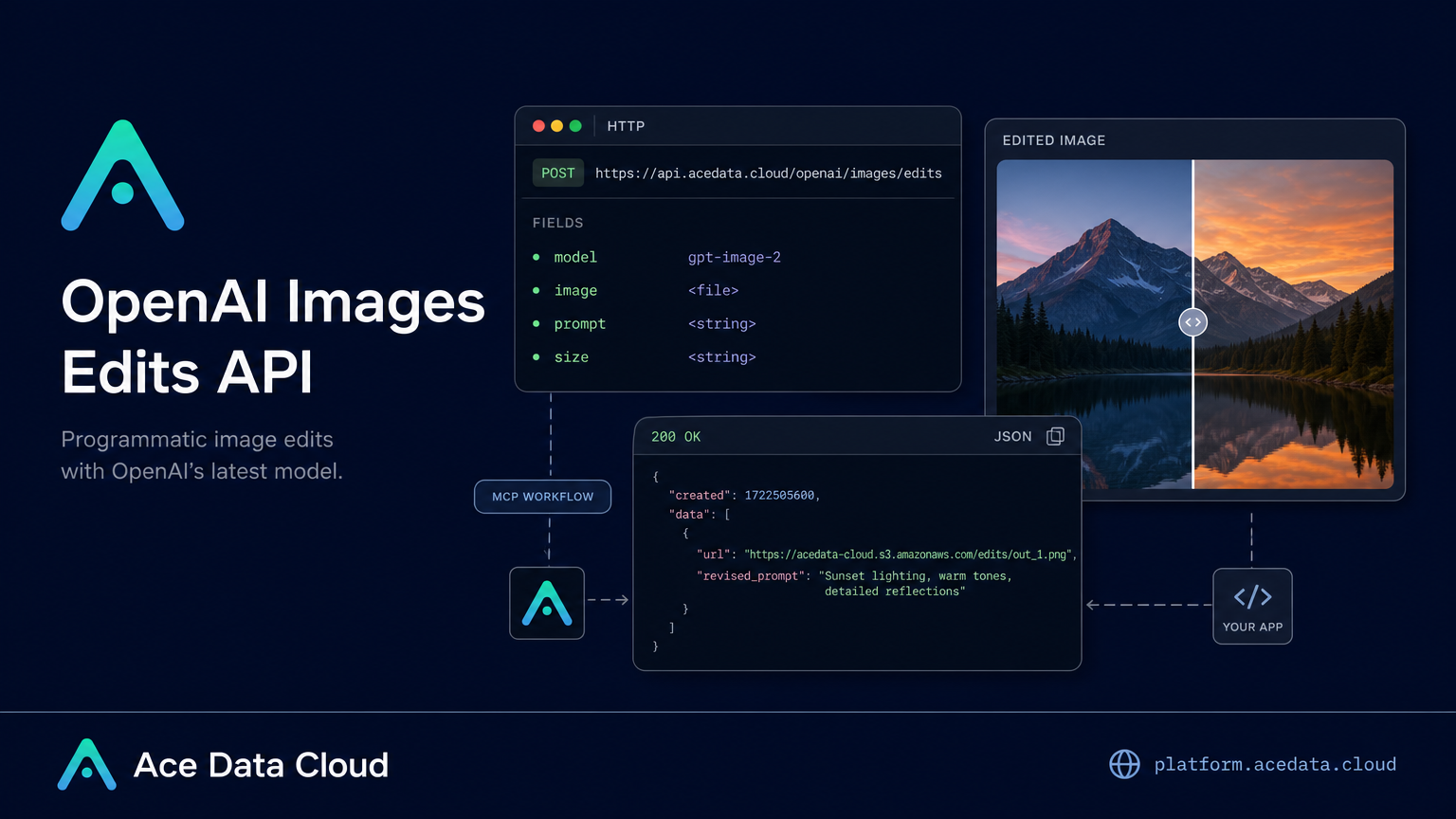
Image editing is easy to demo once; it is much harder to make it reliable inside a real product workflow where images arrive as URLs, local files, or multiple references, and the output has to preserve layout instead of becoming a new picture.
This guide walks through a practical pipeline for the OpenAI Images Edits API on Ace Data Cloud, focusing on gpt-image-2 and the fields you need to control structure, reference images, output size, and integration style.
What you can do
The edits interface is designed for instruction-driven image modification. You send one or more input images plus a text instruction, and the API returns edited image results. With gpt-image-2, the useful builder-facing capabilities are:
- Change a style while keeping the layout intact, such as converting an infographic to dark mode.
- Preserve text-heavy designs more accurately, which matters for posters, menus, diagrams, and product cards.
- Pass an image URL directly in JSON instead of downloading the file to your server first.
- Pass base64 image input using
data:image/png;base64,...or raw base64 for local files. - Use up to 16 reference images when the edit needs to combine or compare multiple inputs.
- Request a specific output size with
size, including 1K, 2K, 4K, or custom dimensions that meet the documented limits.
How it works
The main endpoint for the JSON URL workflow is:
POST https://api.acedata.cloud/openai/images/editsFor a minimal gpt-image-2 request, the important fields are model, image, prompt, and optionally size. The image field can be a single URL, an array of image URLs, or base64 input. The same endpoint also supports other editing models through the model field, but this tutorial keeps the workflow centered on gpt-image-2.
A typical response includes fields such as success, task_id, trace_id, created, data, and elapsed. Each item in data can include a revised_prompt and a result url.
Start with JSON and an image URL
The URL-based JSON call is the cleanest path for backend pipelines. Your application can store the source image in object storage or a CDN, pass the URL to the API, and avoid temporary file downloads.
curl -X POST "https://api.acedata.cloud/openai/images/edits" \
  -H "Authorization: Bearer {token}" \
  -H "Content-Type: application/json" \
  -d '{
    "model": "gpt-image-2",
    "image": "https://platform.cdn.acedata.cloud/gpt-image/5c9fa635-8794-4c6d-88f8-584d7f4716c6_0.png",
    "prompt": "Convert this infographic to dark mode: dark navy background, light cream text, deep gray rounded module cards with soft shadows. Keep all layout, structure, and module arrangement identical — only invert the color scheme.",
    "size": "1024x1536"
  }'
That prompt is intentionally specific. It tells the model what to change, but it also names what must stay stable: layout, structure, and module arrangement. In production, this is the difference between a useful edit and a beautiful but unusable reinterpretation.
Choose size deliberately
The size field accepts auto, an empty value, or a WIDTHxHEIGHT string. For gpt-image-2, custom sizes must have width and height as multiples of 16, a long side no larger than 3840, and a total pixel count no larger than 8,294,400. Invalid size formats return a 400 error, and values beyond those limits return a 4xx error.
If you omit size or pass auto, the output keeps the aspect ratio of the reference image. If you need a blog cover, social preview, mobile poster, or product thumbnail, specify the size explicitly instead of relying on inference.
1024x1024works well for square assets.1792x1024is a documented 16:9 1K recommendation.3840x2160is a documented 16:9 4K recommendation.
Use multiple references when the output depends on several inputs
When an edit needs more context, pass an array to image. The documentation notes that GPT Image series models can accept up to 16 reference images. This is useful for product bundles, before-and-after compositions, or visual systems where a brand mark, layout, and product shot all need to influence the result.
import requests

url = "https://api.acedata.cloud/openai/images/edits"
headers = {
    "accept": "application/json",
    "authorization": "Bearer {token}",
    "content-type": "application/json"
}
payload = {
    "model": "gpt-image-2",
    "image": [
        "https://example.com/item1.png",
        "https://example.com/item2.png",
        "https://example.com/item3.png"
    ],
    "prompt": "Combine all the items above into a single 'Relax & Unwind' gift basket on a clean white background, photorealistic, soft natural lighting.",
    "size": "1024x1024"
}

response = requests.post(url, json=payload, headers=headers)
print(response.text)
Handle local files with base64 or multipart uploads
If your image is local and you do not want to upload it to a public URL first, encode it and send it through the same JSON endpoint:
import base64
import requests

b64 = base64.b64encode(open("input.png", "rb").read()).decode()
payload = {
    "model": "gpt-image-2",
    "image": f"data:image/png;base64,{b64}",
    "prompt": "Convert this infographic to dark mode.",
    "size": "1024x1536"
}

requests.post(
    "https://api.acedata.cloud/openai/images/edits",
    json=payload,
    headers={"authorization": "Bearer {token}"}
)
If you already use a multipart upload flow, the documented interface also accepts multipart/form-data. For multiple file references, image[] can appear more than once, such as image[]=@a.png and image[]=@b.png. GPT Image series models support up to 16 images, each no larger than 50MB, in png, webp, or jpg format.
Think in constraints, not just prompts
The best editing prompts describe both the intended change and the invariants. For example: “replace the wooden bookshelf with a modern white floating shelf” is weaker than “replace the wooden bookshelf with a modern white floating shelf, keep the exact same arrangement of books, and add one small succulent.” The second prompt gives the model a checklist that can be evaluated by your application or reviewer.
For a production pipeline, I would usually log task_id, trace_id, the original prompt, the requested size, and the returned data[].url. That gives you enough context to debug failures, compare edits, and reproduce a request when a human asks why a particular output changed.
Where to go next
If your use case is layout-preserving edits, product image composition, or image style conversion, start with the JSON URL workflow and make size explicit. Add base64 input only when files are local, and add multiple references only when the model truly needs them.
Read the full API guide here: OpenAI Images Edits API Integration Guide.


Comments
Post a Comment