How to Build a Reliable Image Editing Pipeline with the OpenAI Images Edits API
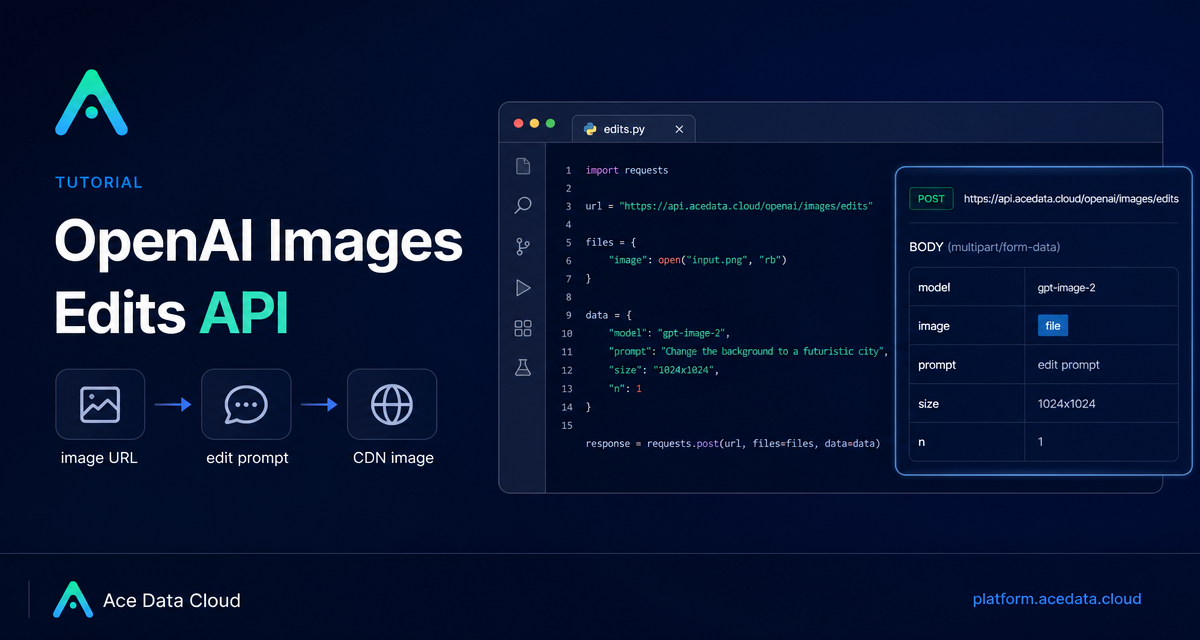
When image edits move from a one-off design task into a product workflow, the hard part is not writing a prompt — it is preserving structure, accepting real user assets, and returning a usable image without turning your backend into a file-conversion service.
What you can do
The OpenAI Images Edits API on Ace Data Cloud lets you send one or more input images plus an instruction, then receive modified images back. The same endpoint supports the GPT Image series, including gpt-image-1 and gpt-image-2, and the Nano Banana series: nano-banana, nano-banana-2-lite, nano-banana-2, and nano-banana-pro.
That makes it useful for practical builder workflows such as:
- turning an existing infographic into a dark-mode version while keeping layout intact;
- changing a product scene while preserving object placement;
- combining multiple reference images into a single composed output;
- running image edits from a server using image URLs or base64 data instead of manual uploads.
How it works
The core endpoint is POST https://api.acedata.cloud/openai/images/edits. You authenticate with Authorization: Bearer {token}, choose a model, provide an image, and describe the edit in prompt. For gpt-image-2, the image field can be a URL, an array of URLs, base64 data such as data:image/png;base64,..., or multipart file uploads through the compatible OpenAI-style flow.
The important design choice is that gpt-image-2 is not only a “make a new image” model. The documentation emphasizes structure stability, clearer text retention for graphics such as posters and menus, URL input for server-side pipelines, base64 input for local assets, and high-resolution redrawing through the size parameter.
Start with JSON + image URL
For most backend systems, JSON plus an image URL is the cleanest path. You do not need to download the image locally, re-upload it, or manage temporary files. The model fetches the image and applies your prompt.
curl -X POST "https://api.acedata.cloud/openai/images/edits" \
  -H "Authorization: Bearer {token}" \
  -H "Content-Type: application/json" \
  -d '{
    "model": "gpt-image-2",
    "image": "https://platform.cdn.acedata.cloud/gpt-image/5c9fa635-8794-4c6d-88f8-584d7f4716c6_0.png",
    "prompt": "Convert this infographic to dark mode: dark navy background, light cream text, deep gray rounded module cards with soft shadows. Keep all layout, structure, and module arrangement identical — only invert the color scheme.",
    "size": "1024x1536"
  }'
This pattern is especially good when users already store files in object storage or when your app has a media CDN. The request stays simple: model, image, prompt, and optionally size.
Use size intentionally
The size field accepts auto, an empty value, or a WIDTHxHEIGHT string. If you pass auto or omit the field, the edited output keeps the reference image’s aspect ratio. If you want to change the aspect ratio, specify it explicitly.
For gpt-image-2, custom sizes must follow these constraints: width and height must both be multiples of 16, the long side must be no more than 3840, and total pixels must be no more than 8,294,400. The docs list common working sizes such as 1024x1024, 2048x1536, 3840x2160, and 2160x3840.
In practice, I like to treat size as a product decision, not a default. Use portrait sizes for tutorial diagrams, square sizes for marketplace assets, and 3840x2160 only when your downstream channel really benefits from a 16:9 4K-style output.
Reference more than one image
The GPT Image series can accept up to 16 reference images. In JSON, pass an array in image. This lets you build workflows such as “combine these product shots into a gift basket” or “use this logo, this product, and this background style.”
import requests

url = "https://api.acedata.cloud/openai/images/edits"
headers = {
    "authorization": "Bearer {token}",
    "content-type": "application/json"
}

payload = {
    "model": "gpt-image-2",
    "image": [
        "https://example.com/item1.png",
        "https://example.com/item2.png",
        "https://example.com/item3.png"
    ],
    "prompt": "Combine all the items above into a single 'Relax & Unwind' gift basket on a clean white background, photorealistic, soft natural lighting.",
    "size": "1024x1024"
}

response = requests.post(url, json=payload, headers=headers)
print(response.text)
For multipart uploads, the docs also note that multiple references can be supplied by repeating image[], for example -F "image[]=@a.png" -F "image[]=@b.png". GPT Image models support up to 16 images, each no larger than 50MB, in png, webp, or jpg format.
Know when Nano Banana is different
The Nano Banana models use the same /openai/images/edits endpoint, but the supported parameter range is narrower. According to the guide, Nano Banana supports model, prompt, image, and n. Parameters such as mask, size, and response_format are not supported and will be ignored.
A minimal form request looks like this:
curl -X POST "https://api.acedata.cloud/openai/images/edits" \
  -H "Authorization: Bearer {token}" \
  -F "model=nano-banana" \
  -F "prompt=add a green leaf on top of the apple" \
  -F "image=https://platform.cdn.acedata.cloud/nanobanana/6870b330-65c4-436c-bb80-819fdae7a7a4.png"
Return handling and async jobs
The response can include edited image URLs under data[].url. The guide’s gpt-image-2 JSON example also shows fields such as success, task_id, trace_id, created, data, and elapsed. If image editing takes longer than you want to hold an HTTP connection, the API supports a callback_url field. In that flow, the request returns a task_id, and the completed result is posted back to your callback URL as JSON.
One small but useful production habit: store the trace_id or task_id with your own job record. If a user asks why an edit changed too much, you can inspect the exact prompt, model, size, and references used for that run.
Putting it into a product workflow
A reliable image editing feature usually has three layers: validate the user’s images, construct a narrow prompt that says what to change and what to preserve, then store the returned CDN URL or decoded image bytes. Ace Data Cloud fits naturally in the middle layer: your app keeps ownership of the product logic, while the edit request stays a normal authenticated HTTP call.
If you are building an editor, CMS helper, marketplace asset generator, or internal design automation tool, start with gpt-image-2, JSON URL input, and explicit size. Add multiple references only when the product experience truly needs them. Read the full OpenAI Images Edits API integration guide for the complete examples and model-specific notes.


Comments
Post a Comment