How to Build Reliable Audio Transcription Workflows with an OpenAI-Compatible API
Audio looks simple until you try to put it into a real product: files arrive in different formats, users expect subtitles, support teams need searchable transcripts, and long recordings can quietly break timeout assumptions.
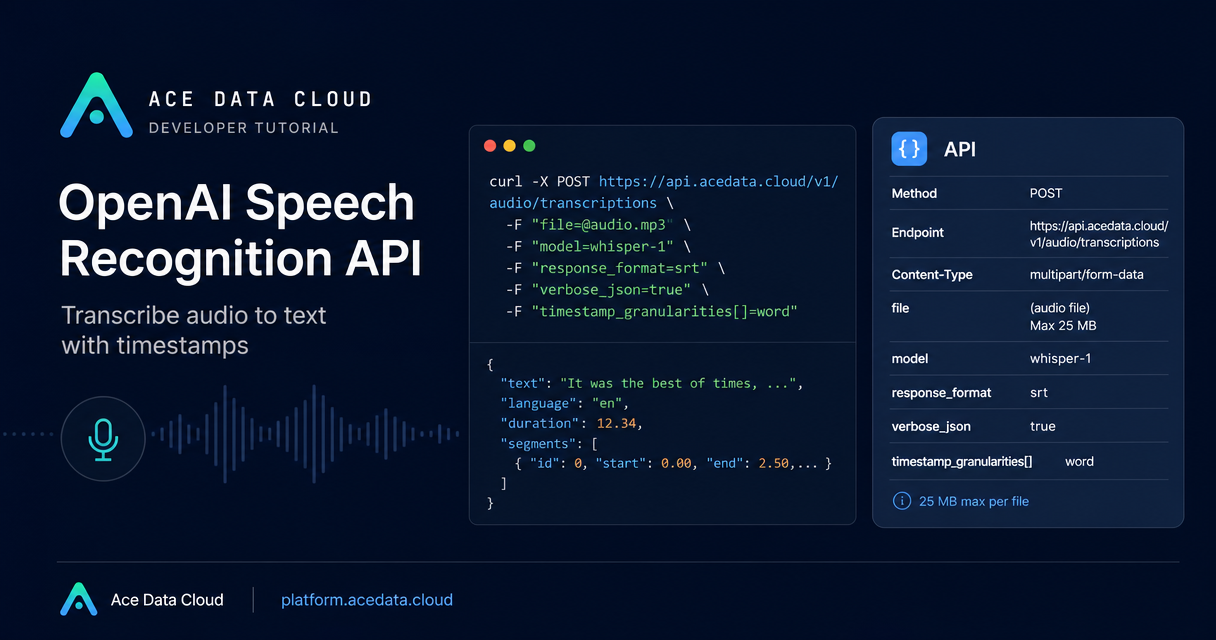
This guide walks through a practical way to build speech-to-text into an app using Ace Data Cloud’s OpenAI-compatible transcription endpoint. The API follows the shape of OpenAI’s /v1/audio/transcriptions, so familiar request patterns still apply while the client points at https://api.acedata.cloud.
What you can do
The endpoint is synchronous: send an audio file as multipart/form-data, choose a model, and receive the transcription result in the response.
- Transcribe
flac,mp3,mp4,mpeg,mpga,m4a,ogg,wav, andwebm. - Use
whisper-1for subtitle output such assrtorvtt. - Use
verbose_jsonwithtimestamp_granularities[]=wordfor word-level timing. - Use
gpt-transcribewhen you need language candidates throughlanguages[]or term hints throughkeywords[].
The request URL is:
POST https://api.acedata.cloud/v1/audio/transcriptionsThe docs also list the alias POST /openai/audio/transcriptions. Authentication uses a bearer token:
Authorization: Bearer {token}How it works
Your backend should treat transcription as a file upload operation, not a JSON-only call. The required field is file, and one uploaded file can be up to 25 MB.
curl -X POST 'https://api.acedata.cloud/v1/audio/transcriptions' \
  -H 'authorization: Bearer {token}' \
  -F file=@audio.mp3 \
  -F model=whisper-1
A typical JSON response contains the recognized text:
{
  "text": "Ace Data Cloud Platform is testing the speech recognition endpoint. The quick brown fox jumps over the lazy dog."
}
If you already use the official OpenAI Python SDK, the migration path is mostly configuration. Point the client at Ace Data Cloud’s base URL and use your Ace Data token as the API key:
from openai import OpenAI

client = OpenAI(
    base_url="https://api.acedata.cloud/v1",
    api_key="{token}"
)

with open("audio.mp3", "rb") as f:
    result = client.audio.transcriptions.create(
        model="whisper-1",
        file=f
    )

print(result.text)
Choosing between whisper-1 and gpt-transcribe
The two documented models are not interchangeable in every situation. A practical rule is to choose based on the output shape your product needs.
Use whisper-1 if the workflow needs subtitles or timestamps. It supports json, text, srt, verbose_json, and vtt. That fits podcast clips, video captions, lecture playback, and transcript UIs that must stay aligned to audio.
Use gpt-transcribe when proper nouns and controlled language hints matter. It supports languages[] and keywords[], but only returns json or text. That fits support calls, interviews, internal recordings, and demos where brand names or domain terms matter more than subtitle files.
Generating subtitles directly
For video publishing or media tools, you do not need to write a subtitle formatter first. With whisper-1, pass response_format=srt or response_format=vtt and save the response as a subtitle file.
curl -X POST 'https://api.acedata.cloud/v1/audio/transcriptions' \
  -H 'authorization: Bearer {token}' \
  -F file=@audio.mp3 \
  -F model=whisper-1 \
  -F response_format=srt \
  -o subtitle.srt
The returned content is plain text, so an app can store it directly, attach it to a video render job, or expose it for download.
Getting word-level timestamps
For a searchable media player, karaoke-style transcript, or precise highlight extraction, request verbose_json and include timestamp_granularities[]=word. The timestamp granularity parameter must be paired with response_format=verbose_json.
curl -X POST 'https://api.acedata.cloud/v1/audio/transcriptions' \
  -H 'authorization: Bearer {token}' \
  -F file=@audio.mp3 \
  -F model=whisper-1 \
  -F response_format=verbose_json \
  -F 'timestamp_granularities[]=word'
The response includes fields such as task, language, duration, text, and a words array with word, start, and end.
Production notes that save debugging time
- Keep uploads at or below
25 MB. Split or compress larger files. - Use a client timeout of at least
300seconds because transcription can take time. - Do not rely on streaming. The
streamparameter is ignored and the complete result is returned. - Do not mix model-specific parameters.
timestamp_granularities[]is forwhisper-1;languages[]andkeywords[]are forgpt-transcribe. - A
400 bad_requestcan mean a missing file, unsupportedmodelorresponse_format, invalidtemperature, or parameters unsupported by the chosen model.
That is enough to build a useful first version: upload audio, choose the model based on subtitles or term hints, store the returned text, and add timestamps only when the product experience needs them. For the full parameter table and error code reference, read the Ace Data Cloud OpenAI Transcriptions API documentation.


Comments
Post a Comment