How to Build a Motion-Driven Video Workflow with the Kling Motion Generation API
If you have ever tried to turn a static product shot, character portrait, or storyboard frame into a short video, the hard part is usually not writing a prompt. It is keeping the subject, background, and motion consistent enough that the result can fit into a real workflow.
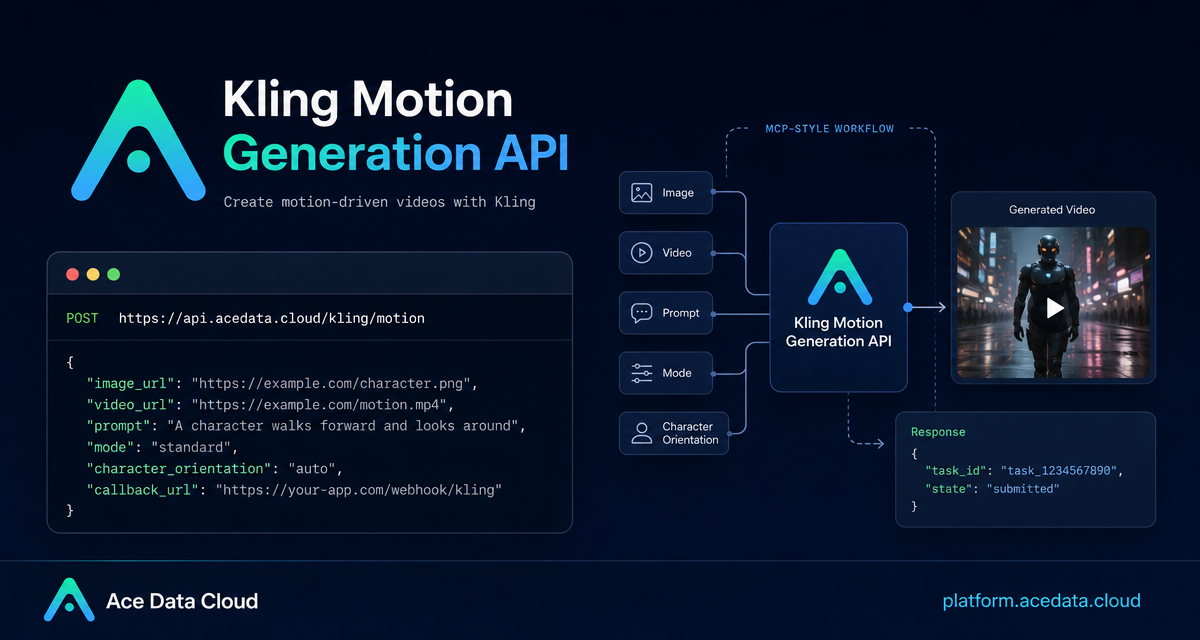
The Kling Motion Generation API on Ace Data Cloud is designed for that exact pattern: give it a reference image, a reference video, and a prompt, then receive a generated Kling video result. This guide walks through a practical integration shape that you can drop into a backend service, internal creative tool, or content pipeline.
What you can do
The endpoint lets you generate a video from three core inputs:
image_url: the reference image. According to the documentation, this is the basis for characters, backgrounds, and other visual elements in the generated video.video_url: the reference video. The generated character actions are intended to stay consistent with this reference motion.prompt: the instruction that describes what you want the image to become.
That combination is useful when you want more control than a pure text-to-video prompt can provide. For example, you might start with a campaign visual and use a short motion reference to make a character wave, walk, dance, or simply “come alive” while preserving the main look of the image.
How it works
The API is called with a POST request to https://api.acedata.cloud/kling/motion. The request uses JSON and requires three headers shown in the documentation: accept: application/json, authorization: Bearer {token}, and content-type: application/json.
The body supports the following fields:
image_url: reference image URL.video_url: reference video URL.prompt: generation instruction.mode: generation mode. The documented values arestdandpro.character_orientation: choose whether the generated character orientation follows theimageor thevideo.keep_original_sound: choose whether to keep the reference video sound withyesorno.callback_url: an optional URL that receives the final result asynchronously.
A completed response includes success, video_id, video_url, duration, state, and task_id. The documented examples show a successful state as succeed.
Start with the smallest useful request
For a first integration test, keep the request small. Use an image, a short reference video, a clear prompt, and standard mode. This is the curl example from the documentation, with the token placeholder left for your own environment variable or secret store:
curl -X POST 'https://api.acedata.cloud/kling/motion' \
  -H 'accept: application/json' \
  -H 'authorization: Bearer {token}' \
  -H 'content-type: application/json' \
  -d '{
    "image_url": "https://sourceyoya.wenge.com/2025/06/03/683e9f76e4b0684509ab1aca.jpg",
    "video_url": "https://cdn.acedata.cloud/odwfm5.mp4",
    "prompt": "Make the picture come alive",
    "mode": "std",
    "character_orientation": "image"
  }'
When the call completes successfully, read video_url from the response and store task_id beside your own job record. Even when you are not using callbacks yet, keeping task_id makes debugging and later migration to async processing much easier.
Choose image or video orientation deliberately
The character_orientation field is small, but it affects how predictable your output feels. Use image when the source image is the visual authority: product pose, portrait angle, background layout, or brand composition. Use video when the reference motion should drive the orientation more strongly.
A practical rule: if your review criteria are “does it still look like this image?”, start with image. If they are “does it move like this clip?”, test video. Keep the same image_url, video_url, and prompt while changing only this field so you can compare results cleanly.
Use callbacks for production jobs
The documentation notes that generation can take about 1-2 minutes. Holding an HTTP connection open for that long is awkward in web apps, queues, and serverless handlers. For production, include callback_url.
With a callback, the initial request can return immediately with a task_id:
{
  "task_id": "20068983-0cc9-4c6a-aeb6-9c6a3c668be0"
}
Later, Ace Data Cloud posts the generated result to your callback URL as JSON. The documented callback payload includes the same task_id, so your service can match the result to the original job:
{
  "success": true,
  "video_id": "030bb06d-98d4-4044-9042-0aa0822e8c8c",
  "video_url": "https://cdn.klingai.com/bs2/upload-kling-api/7822108635/text2video/CjJzzGfBfqcAAAAAAKdVMQ-0_raw_video_1.mp4",
  "duration": "5.1",
  "state": "succeed",
  "task_id": "20068983-0cc9-4c6a-aeb6-9c6a3c668be0"
}
In your callback handler, validate that task_id exists, update the job state from state, and persist video_url only when success is true. This keeps your UI simple: users see a pending job first, then a playable video when the callback arrives.
Handle errors as part of the workflow
The documented error response is structured, so do not treat every non-success response as an opaque failure. The shape is:
{
  "success": false,
  "error": {
    "code": "api_error",
    "message": "fetch failed"
  },
  "trace_id": "2cf86e86-22a4-46e1-ac2f-032c0f2a4e89"
}
The documented error codes include 400 token_mismatched, 400 api_not_implemented, 401 invalid_token, 429 too_many_requests, and 500 api_error. In a builder workflow, I would surface error.message in internal logs, store trace_id for support, and map 401 invalid_token or 429 too_many_requests to clear operator-facing states instead of silently retrying forever.
Where this fits in a real app
A simple architecture is: upload or select source media, create an internal job, call /kling/motion with callback_url, mark the job as pending, then update it when the callback arrives. This is enough for a lightweight creative dashboard, an automated short-video pipeline, or a batch tool that turns existing images into motion variants.
The API surface is intentionally small, so the quality of your integration mostly comes from operational details: keeping prompts versioned, storing the exact input URLs, comparing std and pro on the same asset set, and making callback handling idempotent.
Closing thoughts
Kling Motion Generation is most useful when you treat it less like a one-off prompt box and more like a media transformation step: image in, motion reference in, prompt in, generated video out. Start synchronously to understand the response, then move to callback_url once you are building for real users or batch jobs.
Read the full reference in the Kling Motion Generation API Integration Guide.


Comments
Post a Comment