How to Build an Image Generation and Editing Workflow with the Nano Banana Images API
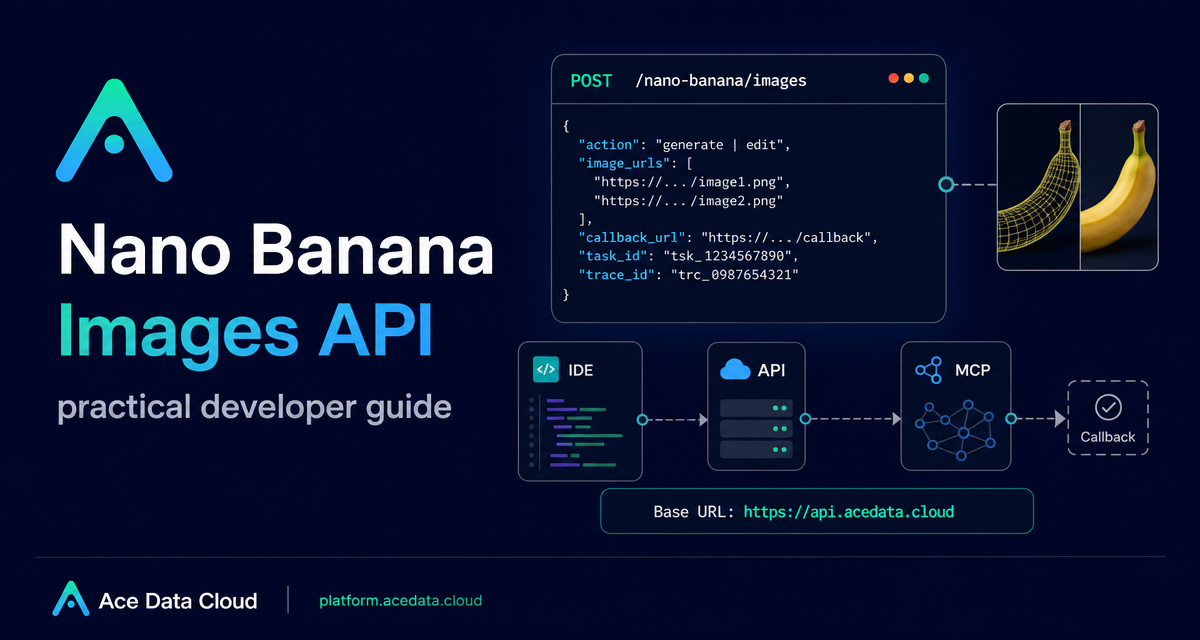
If your product needs AI images, the hard part is rarely the first demo. The real work is building a workflow that can generate new assets, edit existing ones, track every request, and recover cleanly when a job fails or takes longer than expected.
The Nano Banana Images API gives you one endpoint for two common production tasks: generating images from prompts and editing existing images from one or more references. This guide walks through a practical implementation pattern using only the documented fields: action, prompt, image_urls, model, count, callback_url, task_id, and trace_id.
What you can do
The API is exposed at https://api.acedata.cloud with a single image endpoint: POST /nano-banana/images. You authenticate by sending authorization: Bearer {token} in the HTTP header, and the request body chooses the behavior.
- Use
action: "generate"to create an image from a textprompt. - Use
action: "edit"to edit or combine existing images usingimage_urlsplus aprompt. - Use
countto request 1–4 images. The default is 1. - Use
callback_urlwhen you want the result delivered to a public webhook instead of keeping a long request open.
The documented model options include nano-banana as the default, plus nano-banana-2-lite, nano-banana-2, nano-banana-pro, and corresponding :official channel variants. Optional layout controls include aspect_ratio, such as 1:1 or 16:9, and resolution, such as 1K, 2K, or 4K. One documented limitation to keep in mind: nano-banana-2-lite only supports 1K.
How it works
A typical request has three layers. First, the headers tell the platform that you expect JSON and are sending JSON:
-H 'authorization: Bearer {token}'
-H 'accept: application/json'
-H 'content-type: application/json'
Second, the action field decides whether this is a generation job or an edit job. Third, the response gives you a result envelope that can be stored in your database:
{
  "success": true,
  "task_id": "70e6931b-6e34-43db-9e36-8765e2809d04",
  "trace_id": "60df8d38-f265-4986-aec7-75c9220bced2",
  "data": [
    {
      "prompt": "...",
      "image_url": "https://platform2.cdn.acedata.cloud/nanobanana/...png"
    }
  ]
}
In application code, treat task_id as the job identifier and trace_id as the troubleshooting handle. If a user reports a bad or missing result, these two values are more useful than a screenshot of the UI.
Generate images from a prompt
For generation, the minimum required fields are action and prompt. The example below asks for one image using nano-banana-pro. You can omit model to use the default nano-banana.
curl -X POST 'https://api.acedata.cloud/nano-banana/images'   -H 'authorization: Bearer {token}'   -H 'accept: application/json'   -H 'content-type: application/json'   -d '{
    "action": "generate",
    "model": "nano-banana-pro",
    "prompt": "A clean developer workspace with an API card, terminal window, and image preview panel, deep navy SaaS style, 16:9 composition.",
    "count": 1
  }'
For product teams, this is a good fit for feature illustrations, onboarding visuals, internal mockups, or social assets where you want a repeatable prompt template rather than manual design work every time.
Edit images with reference URLs
Editing uses the same endpoint but changes the action to edit. The documented edit-specific field is image_urls, an array with at least one item. These images can be publicly accessible HTTP or HTTPS URLs, or Base64 encoded images such as data:image/png;base64,....
import requests

url = "https://api.acedata.cloud/nano-banana/images"
headers = {
    "authorization": "Bearer {token}",
    "accept": "application/json",
    "content-type": "application/json",
}
payload = {
    "action": "edit",
    "prompt": "Place the product screenshot inside the laptop mockup and keep the background clean.",
    "image_urls": [
        "https://cdn.acedata.cloud/v8073y.png",
        "https://cdn.acedata.cloud/44xlah.png"
    ],
    "count": 1
}
resp = requests.post(url, json=payload, headers=headers)
print(resp.json())
This pattern is useful when you already have source material: a product screenshot, a character, a shirt, a packaging render, or a brand asset. Instead of asking the model to invent everything from text, you pass real inputs and describe the edit you want.
Use callbacks for production workflows
Image generation and editing can take time. The documented way to avoid holding a connection open is callback_url. Add a public webhook URL that accepts POST JSON. The API can return a task_id immediately, then send the final payload to your callback when the job completes.
{
  "action": "generate",
  "prompt": "a white siamese cat",
  "count": 1,
  "callback_url": "https://example.com/webhooks/nano-banana"
}
Your webhook should store task_id, trace_id, and each returned image_url. If your UI has a jobs table, show the user a pending state keyed by task_id, then update it when the callback arrives.
Handle partial success and errors
Because count can request multiple images, build your result parser around data[] instead of assuming exactly one output. The documentation notes that if some images fail, only successful images are returned and billed.
For failures, expect a JSON shape with success: false, an error object, and a trace_id. Common documented error codes include token_mismatched, api_not_implemented, invalid_token, too_many_requests, and api_error.
{
  "success": false,
  "error": {
    "code": "api_error",
    "message": "Internal server error."
  },
  "trace_id": "2cf86e86-22a4-46e1-ac2f-032c0f2a4e89"
}
A small but important builder habit: log the full error object and trace_id, but do not expose your bearer token in logs, screenshots, or support tickets.
Wrapping up
The simplest reliable architecture is one endpoint, two actions, a stored task_id, a stored trace_id, and optional callbacks for longer-running work. Start with action: "generate" for prompt-only assets, move to action: "edit" when you have reference images, and keep your UI resilient by treating data[] as a list of successful outputs.
For the complete field reference and official examples, read the Nano Banana Images API integration guide.


Comments
Post a Comment