How to Build Image Generation and Editing Workflows with the Nano Banana Images API
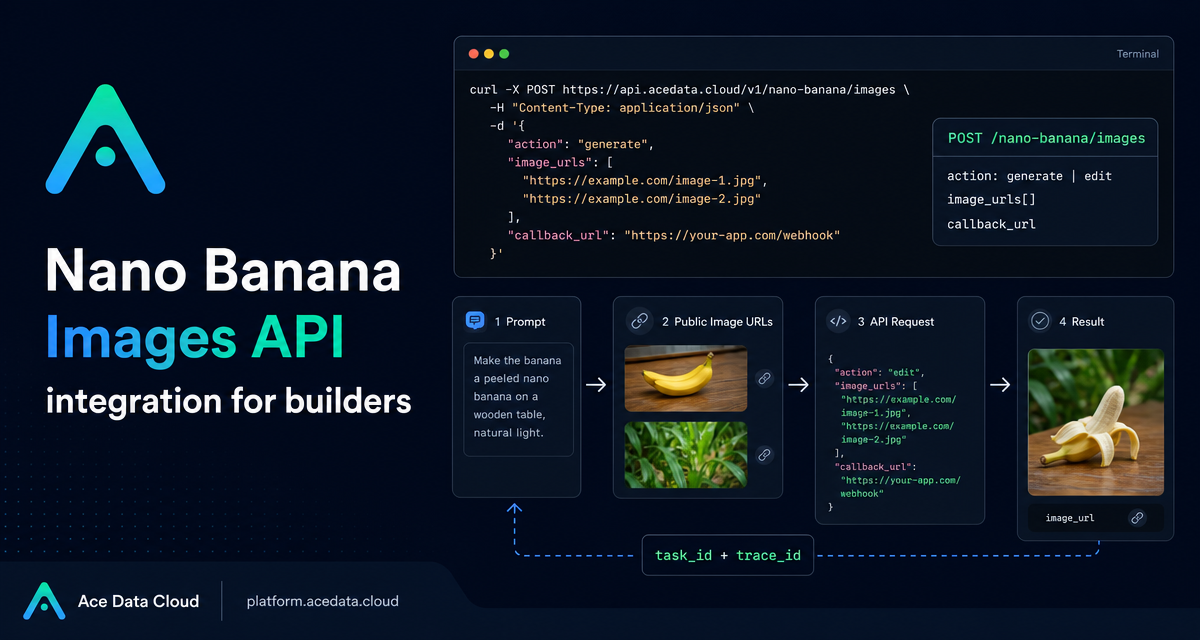
When an app needs AI images, the hard part is rarely the first prompt. The real work is turning generation and editing into a predictable workflow: send the right inputs, track the task, store the final image_url, and debug failures when users upload imperfect source images.
The Nano Banana Images API gives builders one endpoint for both text-to-image generation and image-based editing. This guide walks through the practical shape of that integration: the endpoint, required fields, optional controls, response handling, callbacks, and a small Python wrapper you can adapt for your own product.
What you can do
The API supports two actions through the same endpoint:
generate: create images from a textprompt.edit: edit or combine one or more existing images usingimage_urlsplus a prompt.
That makes it useful for product mockups, creative tools, avatar or portrait workflows, apparel previews, background changes, visual brainstorming, and any feature where a user starts with either text or existing images. A common product pattern is to expose a simple UI with two modes: “create from prompt” and “edit this image,” while your backend sends both through POST /nano-banana/images.
How it works
The interface is straightforward:
- Base URL:
https://api.acedata.cloud - Endpoint:
POST /nano-banana/images - Authentication: send
authorization: Bearer {token}in the request headers. - Headers: use
accept: application/jsonandcontent-type: application/json. - Required fields:
actionandprompt. - Edit-only field:
image_urls, an array with at least one image.
The response includes success, task_id, trace_id, and a data array. Each returned item contains the echoed prompt and a direct image_url. Keep both task_id and trace_id; they are useful for associating requests with results and for troubleshooting.
Choosing an action and model
For first drafts, thumbnails, scene concepts, or brand visuals, use action: "generate". The minimum request only needs action and prompt, though in practice you will usually set a model and maybe output controls.
The optional model field can be one of nano-banana, nano-banana-2-lite, nano-banana-2, nano-banana-pro, or the matching official-channel variants such as nano-banana-pro:official. The documented default is nano-banana. The guide describes nano-banana-2-lite as supporting only 1K, so if your UI exposes resolution, validate that combination before sending the request.
Use action: "edit" when the user provides source material: a product photo, a portrait, a clothing image, a room photo, or multiple references. The image_urls field accepts publicly accessible HTTP or HTTPS links, and the documentation also describes Base64 image data such as a data:image/png;base64,... string. HTTPS direct links are the safest default for production systems.
Generation example with curl
Here is a compact text-to-image request. Replace {token} with your API token on the server side; do not ship it to the browser.
curl -X POST 'https://api.acedata.cloud/nano-banana/images'   -H 'authorization: Bearer {token}'   -H 'accept: application/json'   -H 'content-type: application/json'   -d '{
    "action": "generate",
    "model": "nano-banana-pro",
    "prompt": "A clean product hero image of a matte black desk lamp on a walnut desk, soft window light, minimal background, realistic materials, 16:9 composition",
    "count": 1,
    "aspect_ratio": "16:9",
    "resolution": "1K"
  }'
The count field is optional and supports 1–4 images, with a default of 1. If some requested images fail, the response only returns successful images in data.
Editing example with Python
For editing, send one or more public image URLs and describe the change. The API combines the source material with your instruction.
import requests

url = "https://api.acedata.cloud/nano-banana/images"
headers = {
    "authorization": "Bearer {token}",
    "accept": "application/json",
    "content-type": "application/json",
}
payload = {
    "action": "edit",
    "prompt": "Place the product on a clean studio background and keep the original shape and color accurate",
    "image_urls": [
        "https://example.com/product-photo.png"
    ],
    "count": 1,
}

resp = requests.post(url, json=payload, headers=headers, timeout=120)
result = resp.json()

if not result.get("success"):
    raise RuntimeError(result)

for item in result.get("data", []):
    print(item["image_url"])

print("task_id:", result.get("task_id"))
print("trace_id:", result.get("trace_id"))
In a real application, you would persist the request payload, task_id, trace_id, and returned image_url. That gives support and engineering teams enough context to reproduce issues without asking the user to recreate the prompt.
Using callbacks for longer jobs
Image generation and editing can take time. The API supports an optional callback_url field for asynchronous completion. Your callback endpoint must be publicly accessible and accept POSTed JSON. When the task completes, the platform sends a payload with the same general structure as the successful response: success, task_id, trace_id, and data items containing prompt and image_url.
A simple production flow looks like this:
- Create a local database row before calling the API.
- Send
callback_urlin the request body. - Store the returned
task_idandtrace_id. - When the callback arrives, match by
task_idand save each returnedimage_url. - If the callback reports an error, store the
error.code,error.message, andtrace_id.
Error handling that helps users
The documented error shape is:
{
  "success": false,
  "error": {
    "code": "api_error",
    "message": "Internal server error."
  },
  "trace_id": "2cf86e86-22a4-46e1-ac2f-032c0f2a4e89"
}
Handle the common cases explicitly. invalid_token means authentication failed or the token is missing. token_mismatched points to invalid request parameters. too_many_requests means you should slow down or queue requests instead of retrying aggressively. For api_error, show a calm retry message to the user and keep the trace_id in your logs.
Practical implementation notes
- Validate
actionon your server so clients cannot send unsupported modes. - Keep user-uploaded images behind publicly reachable, temporary URLs if you use
image_urls. - Expose
aspect_ratioandresolutiononly as documented values in your UI, such as1:1,16:9,1K,2K, or4K. - Never lose
trace_id; it is the fastest way to connect a user-visible problem to an API request.
If you are building image features into an app, the useful mental model is simple: treat generation and editing as two actions on the same job pipeline. Normalize the request, store the IDs, collect the final image_url, and give users clear feedback when source images are not accessible or a request is throttled.
For the complete field reference and examples, read the Nano Banana Images API integration guide.


Comments
Post a Comment