How to Build an Image Editing Workflow with OpenAI Images Edits API
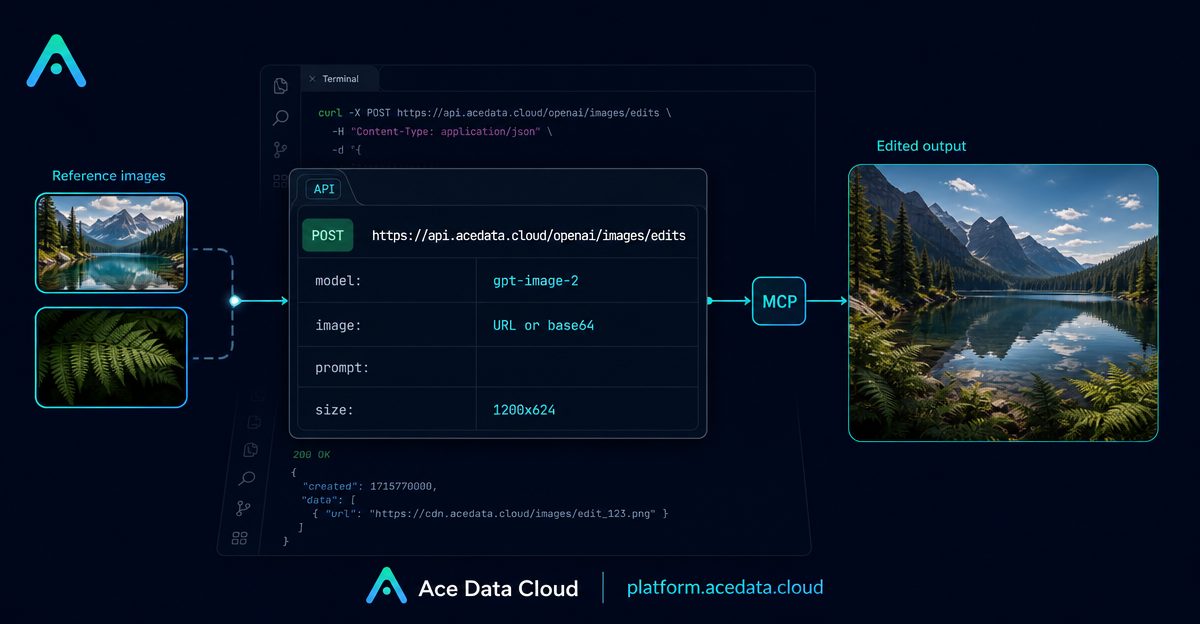
When you build an image workflow for a product, the hard part is rarely “generate something pretty.” It is keeping structure stable while changing one thing: a background, a color system, product placement, or a design style.
This guide walks through a practical image editing workflow using Ace Data Cloud’s OpenAI-compatible Images Edits API. The goal is simple: send one or more reference images, describe the edit, and receive an edited image that you can use in an application pipeline.
What you can do
The Images Edits API accepts an input image plus a natural-language instruction, then returns a modified image. According to the documentation, the same editing interface supports gpt-image-1, gpt-image-2, and the nano-banana family of models, including nano-banana, nano-banana-2-lite, nano-banana-2, and nano-banana-pro.
For builder workflows, the most useful capabilities are:
- Edit an image by passing an image URL directly in JSON.
- Pass base64 image data in the
imagefield when the source image is local. - Use up to 16 reference images with the GPT Image series models.
- Ask for multiple outputs with
nfrom 1 to 10. - Specify an output
sizesuch as1024x1024,1024x1536, or another valid custom size when usinggpt-image-2.
How it works
The JSON calling pattern is straightforward. You send a POST request to:
https://api.acedata.cloud/openai/images/editsAt minimum, you provide an authorization token, a model, an image, and a prompt. With gpt-image-2, the image field can be a URL, a base64 string such as data:image/png;base64,..., or an array of image references. The size field controls the requested output dimensions.
One important detail: custom size values must be written as WIDTHxHEIGHT. The documentation says custom sizes must use width and height that are multiples of 16, with the long side no larger than 3840 and the total pixel count no larger than 8,294,400. Invalid size formats return a 400-class error.
Start with a URL-based edit
For server-side pipelines, the cleanest path is JSON plus an image URL. You do not need to download the image, re-upload it, or build a multipart request. This makes it easier to connect image editing to CMS assets, product images, design exports, or generated images from a previous step.
curl -X POST "https://api.acedata.cloud/openai/images/edits" \
  -H "Authorization: Bearer {token}" \
  -H "Content-Type: application/json" \
  -d '{
    "model": "gpt-image-2",
    "image": "https://platform.cdn.acedata.cloud/gpt-image/5c9fa635-8794-4c6d-88f8-584d7f4716c6_0.png",
    "prompt": "Convert this infographic to dark mode: dark navy background, light cream text, deep gray rounded module cards with soft shadows. Keep all layout, structure, and module arrangement identical — only invert the color scheme.",
    "size": "1024x1536"
  }'
This is the kind of edit that matters in production: preserve layout and structure, change only the visual treatment. The prompt explicitly asks the model to keep the module arrangement identical, which reduces the chance of accidental redesign.
Use Python when the edit is part of a backend job
If your image pipeline already runs in Python, use a normal HTTP request and treat the payload as application data. The example below mirrors the JSON call above:
import requests

url = "https://api.acedata.cloud/openai/images/edits"

headers = {
    "accept": "application/json",
    "authorization": "Bearer {token}",
    "content-type": "application/json"
}

payload = {
    "model": "gpt-image-2",
    "image": "https://platform.cdn.acedata.cloud/gpt-image/5c9fa635-8794-4c6d-88f8-584d7f4716c6_0.png",
    "prompt": "Convert this infographic to dark mode: dark navy background, light cream text, deep gray rounded module cards with soft shadows. Keep all layout, structure, and module arrangement identical — only invert the color scheme.",
    "size": "1024x1536"
}

response = requests.post(url, json=payload, headers=headers)
print(response.text)
A successful response follows the OpenAI-style image response shape. The documented example includes success, task_id, trace_id, created, and a data array with the edited image url and revised_prompt.
{
  "success": true,
  "task_id": "cb104e35-af1f-45be-9fac-b62e2b256753",
  "trace_id": "3e5c77c6-6c2e-4bba-a42d-98ea049b58a8",
  "created": 1777048863,
  "data": [
    {
      "revised_prompt": "Convert this infographic to dark mode: dark navy background, light cream text, deep gray rounded module cards with soft shadows. Keep all layout, structure, and module arrangement identical — only invert the color scheme.",
      "url": "https://platform.cdn.acedata.cloud/gpt-image/cb104e35-af1f-45be-9fac-b62e2b256753_0.png"
    }
  ],
  "elapsed": 83.859
}
When to pass multiple images
The image field can also be an array. This is useful when the final edit needs to reference several objects or visual constraints. The documentation shows a gift basket workflow where multiple item images are combined into a single product-style scene:
payload = {
    "model": "gpt-image-2",
    "image": [
        "https://example.com/item1.png",
        "https://example.com/item2.png",
        "https://example.com/item3.png"
    ],
    "prompt": "Combine all the items above into a single 'Relax & Unwind' gift basket on a clean white background, photorealistic, soft natural lighting.",
    "size": "1024x1024"
}
In practice, this pattern is helpful for ecommerce mockups, campaign visuals, design-system experiments, or any workflow where you want the model to preserve input objects while composing a new scene.
Using Nano Banana models on the same endpoint
The nano-banana series also uses /openai/images/edits, but its parameter range is narrower. The documented supported parameters are model, prompt, image, and n. Parameters such as mask, size, and response_format are not supported for Nano Banana through this adaptation layer and are ignored if provided.
curl -X POST "https://api.acedata.cloud/openai/images/edits" \
  -H "Authorization: Bearer {token}" \
  -F "model=nano-banana" \
  -F "prompt=add a green leaf on top of the apple" \
  -F "image=https://platform.cdn.acedata.cloud/nanobanana/6870b330-65c4-436c-bb80-819fdae7a7a4.png"
For Nano Banana responses, the documentation notes that the return structure follows the OpenAI format with data[].url, while created is fixed at 0, b64_json is not returned, and revised_prompt equals the original prompt.
Practical guardrails
- Be explicit about what should stay unchanged: layout, object count, text, camera angle, or background.
- Use
autoor omitsizewhen you want to retain the reference image’s aspect ratio. - Specify
sizewhen you want to intentionally change aspect ratio or request a higher-resolution redraw. - Use
nfor variants, but remember thatresponse_format=b64_jsononly supportsn=1. - Keep model-specific parameters separate:
gpt-image-2supports more editing controls than the Nano Banana adaptation layer.
The main takeaway: treat image editing as an API workflow, not a one-off creative prompt. Start with a reference image, describe the transformation narrowly, choose the model and size intentionally, then store the returned image URL as the next artifact in your pipeline.
For the full parameter details and additional examples, read the OpenAI Images Edits API Integration Guide.


Comments
Post a Comment