How to Build an Image Editing Workflow with GPT-Image-2 and Ace Data Cloud
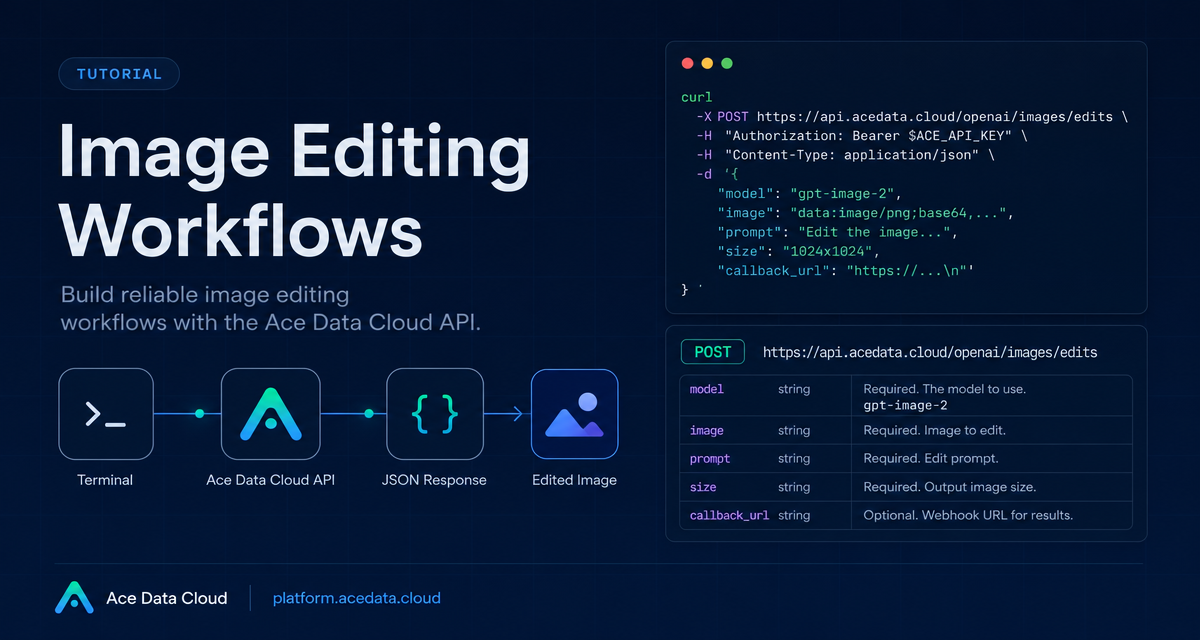
Editing images in production is rarely just a single prompt. You need a way to preserve structure, pass reference images from URLs or local files, choose output dimensions, and avoid blocking your application while a long image job runs. This guide walks through a practical workflow for using Ace Data Cloud's OpenAI-compatible image edits endpoint with gpt-image-2.
What you can do
The image edits API is designed for instruction-based edits on one or more reference images. According to the public documentation, the same edits endpoint supports gpt-image-1, gpt-image-2, and the nano-banana model family. For GPT Image models, you can provide up to 16 reference images, edit by URL or base64 input, and request output sizes such as 1K, 2K, 4K, or a valid custom size.
That makes it useful for builder workflows such as:
- Converting an existing infographic to dark mode while keeping layout intact.
- Combining several product references into one composed scene.
- Changing a room, shelf, product, or poster style without rebuilding the asset from scratch.
- Running server-side image edits without first downloading every source file locally.
How it works
The main endpoint for JSON-based edits is:
POST https://api.acedata.cloud/openai/images/editsFor a simple gpt-image-2 request, the core fields are:
model: for example,gpt-image-2.image: a URL string, a base64 image string, or an array of image references.prompt: the instruction describing what should change and what should stay fixed.size:auto, empty, or aWIDTHxHEIGHTvalue.
The size value has real validation rules. Custom dimensions must use width and height that are multiples of 16, the long side must be no larger than 3840, and the total pixel count must be no larger than 8,294,400. If you omit size or use auto, the output keeps the reference image's aspect ratio.
Start with JSON and an image URL
For backend services, the most convenient pattern is to send JSON and let the API fetch the reference image. This avoids adding a storage or file-download step to your pipeline.
curl -X POST "https://api.acedata.cloud/openai/images/edits"   -H "Authorization: Bearer $ACEDATACLOUD_API_KEY"   -H "Content-Type: application/json"   -d '{
    "model": "gpt-image-2",
    "image": "https://platform.cdn.acedata.cloud/gpt-image/5c9fa635-8794-4c6d-88f8-584d7f4716c6_0.png",
    "prompt": "Convert this infographic to dark mode: dark navy background, light cream text, deep gray rounded module cards with soft shadows. Keep all layout, structure, and module arrangement identical — only invert the color scheme.",
    "size": "1024x1536"
  }'
Notice the prompt has two parts: the edit request and the preservation rule. In image editing workflows, preservation instructions are not decoration; they are how you tell the model what must remain stable. For infographics, menus, UI screenshots, and posters, be explicit about keeping layout, structure, module arrangement, and text legibility.
Use multiple references when one image is not enough
The documented image field can also be an array, which is useful when the output should borrow information from several sources. For example, a product-composition job can pass several item photos and ask the model to combine them into one final scene.
import requests

url = "https://api.acedata.cloud/openai/images/edits"
headers = {
    "authorization": "Bearer {token}",
    "content-type": "application/json"
}
payload = {
    "model": "gpt-image-2",
    "image": [
        "https://example.com/item1.png",
        "https://example.com/item2.png",
        "https://example.com/item3.png"
    ],
    "prompt": "Combine all the items above into a single 'Relax & Unwind' gift basket on a clean white background, photorealistic, soft natural lighting.",
    "size": "1024x1024"
}

response = requests.post(url, json=payload, headers=headers)
print(response.text)
GPT Image models support up to 16 reference images. If you request multiple outputs with n, the documented range is 1 to 10. One important edge case: response_format=b64_json only supports n=1; for more than one result, use the default URL response.
Local files and SDK compatibility
If your input starts as a local file, you have two practical options. First, encode it as base64 and send it in the JSON image field using a data:image/png;base64,... prefix or raw base64. Second, use the OpenAI SDK's multipart-style edit call and point the SDK at Ace Data Cloud's OpenAI-compatible base URL:
export OPENAI_BASE_URL=https://api.acedata.cloud/openai
export OPENAI_API_KEY={token}
import base64
from openai import OpenAI
client = OpenAI()
result = client.images.edit(
model="gpt-image-2",
image=[open("test.png", "rb")],
prompt="Convert this image to dark mode while keeping the layout intact."
)
image_base64 = result.data[0].b64_json
image_bytes = base64.b64decode(image_base64)
with open("edited.png", "wb") as f:
f.write(image_bytes)When to use callbacks
Image editing can take long enough that holding an HTTP connection open is not always a good fit. The API supports an asynchronous callback flow through callback_url. In that pattern, your request includes a callback URL, the initial response contains a task_id, and the completed result is POSTed back to your service with the same task identifier.
This is a clean fit for job queues: store the task_id, mark the asset as processing, and update your database when the webhook arrives. It also keeps your web request handlers from waiting on image generation.
Model notes for Nano Banana
The same edits endpoint also accepts nano-banana, nano-banana-2-lite, nano-banana-2, and nano-banana-pro. The documented parameter set is narrower for these models: model, prompt, image, and n. Parameters such as mask, size, and response_format are not supported for Nano Banana edits and may be ignored, so keep Nano Banana requests small and explicit.
A practical way to think about it
For production builders, the key is to treat image editing as a structured operation, not a magic prompt box. Decide how your images enter the system, choose URL, base64, or multipart input, write prompts that separate changes from invariants, validate size, and use callbacks when the edit belongs in a background workflow.
If you want the exact endpoint notes, parameter behavior, model variants, and examples, read the full OpenAI Images Edits API Integration Guide.


Comments
Post a Comment