How to Build an Image Editing Pipeline with gpt-image-2 and URL Inputs
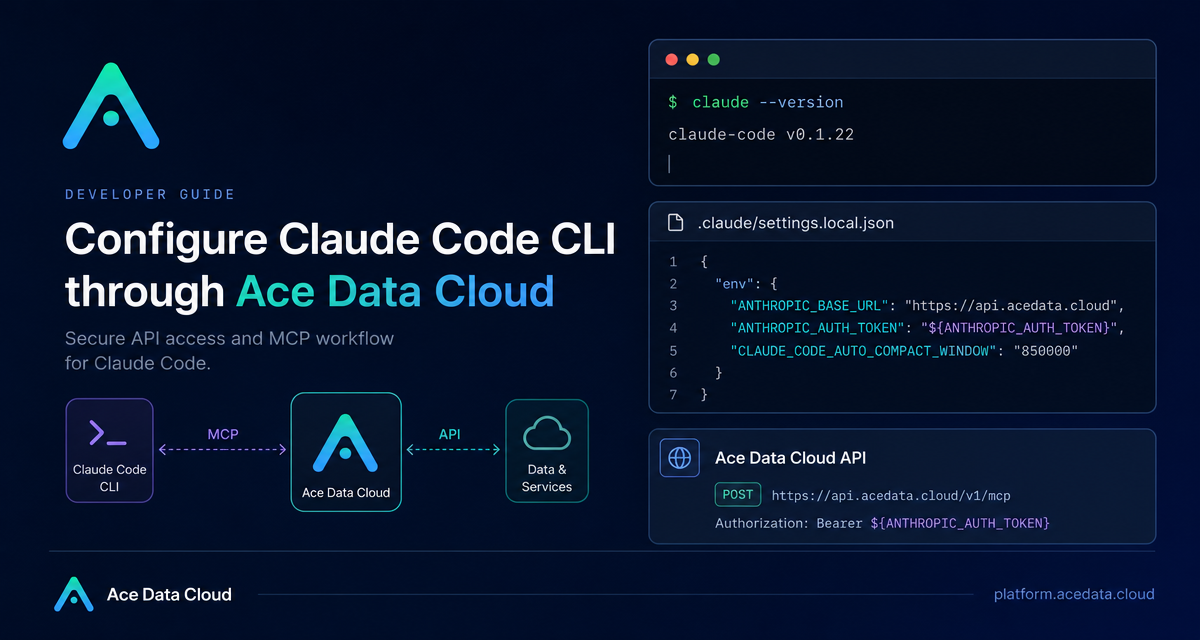
Claude Code is most useful when it can sit directly inside the same terminal where you inspect logs, run tests, and move through a repository. The small but important setup step is making sure the CLI reads the right base URL and token before it starts a session.
What you can do
With the terminal CLI configured, you can run claude inside any project directory and ask it to read code, modify files, run commands, explain errors, or help complete development tasks. The workflow stays close to the native Claude Code experience: you still use the same command-line interface, but the underlying API requests are sent to https://api.acedata.cloud.
In practice, this is useful for everyday builder tasks such as:
- asking for a quick explanation of a new repository structure;
- reviewing a recent
git diffbefore you commit; - summarizing a file from the terminal without opening another tool;
- keeping project-specific Claude Code settings out of shared configuration.
How it works
Claude Code uses the Anthropic Messages API protocol. Ace Data Cloud provides a compatible proxy service at https://api.acedata.cloud, so Claude Code does not need a local proxy program or additional plugin.
The request path is simple: Claude Code reads ANTHROPIC_BASE_URL and ANTHROPIC_AUTH_TOKEN from your shell environment or from .claude/settings.local.json. When the base URL points to https://api.acedata.cloud, requests are sent there. Ace Data Cloud authenticates the API token, checks available quota, forwards the request through a Claude Code service channel, and records usage after the request completes.
Install the CLI
Claude Code supports macOS, Linux, Windows, and WSL. On macOS, Linux, or WSL, the native installer provides the claude command and handles updates:
curl -fsSL https://claude.ai/install.sh | bashOn Windows PowerShell, the documented installer command is:
irm https://claude.ai/install.ps1 | iexIf you already use Node.js, the npm path is also supported, as long as your Node.js version is 18 or higher:
npm install -g @anthropic-ai/claude-codeAfter installation, reopen the terminal and check that the command is available:
claude --versionIf you see command not found, the current shell probably has not loaded the updated PATH. Close and reopen the terminal, or check the path guidance printed by the installer.
Configure it globally in your shell
If you want all local projects to use Ace Data Cloud by default, place the environment variables in a shell configuration file such as ~/.zshrc, ~/.bashrc, or ~/.bash_profile:
export ACEDATACLOUD_API_TOKEN="{token}"
export ANTHROPIC_BASE_URL="https://api.acedata.cloud"
export ANTHROPIC_AUTH_TOKEN="$ACEDATACLOUD_API_TOKEN"
export CLAUDE_CODE_AUTO_COMPACT_WINDOW="850000"
Replace {token} with your API token. The CLAUDE_CODE_AUTO_COMPACT_WINDOW value sets the automatic compression trigger window to about 850,000 tokens, reserving room for tool results and final answers. It does not change the model context limit.
Reload the shell configuration after saving it:
source ~/.zshrcUse the corresponding file name if you are using Bash or another shell.
Configure one project only
For a repository-specific setup, create .claude/settings.local.json in the project root:
{
  "env": {
    "ANTHROPIC_AUTH_TOKEN": "{token}",
    "ANTHROPIC_BASE_URL": "https://api.acedata.cloud",
    "CLAUDE_CODE_AUTO_COMPACT_WINDOW": "850000"
  }
}
This setting applies to the current project and also works for the Claude Code VS Code extension when the same project is opened in VS Code. Keep personal credentials in .claude/settings.local.json or local environment variables, not in a team-shared .claude/settings.json.
Add the local settings file to .gitignore so the token is not committed:
echo ".claude/settings.local.json" >> .gitignoreIf the environment still contains an old ANTHROPIC_API_KEY, unset it in the same terminal where you start Claude Code:
unset ANTHROPIC_API_KEYThe important detail is to truly unset the variable rather than assigning an empty string. After cleanup, restart Claude Code; if you use the VS Code extension, reload the VS Code window as well.
Start and verify a session
Move into a project directory and start the interactive interface:
cd /path/to/your/project
claude
You can then type a request such as:
Explain the directory structure of this projectFor one-off tasks, pass the prompt directly:
claude "Help me check the recent git diff for possible bugs"Or use -p when you want Claude Code to print the result and exit:
claude -p "Summarize the purpose of README.md"Inside Claude Code, verify the active configuration with:
/statusThe relevant lines should show Auth token: ANTHROPIC_AUTH_TOKEN and Anthropic base URL: https://api.acedata.cloud. If the base URL is different, the terminal did not read the expected configuration file or environment variables.
Optional model defaults
Claude Code can select different model levels based on task type, but you can also set defaults through environment variables:
export ANTHROPIC_DEFAULT_OPUS_MODEL="claude-opus-4-8"
export ANTHROPIC_DEFAULT_SONNET_MODEL="claude-sonnet-4-6"
export ANTHROPIC_DEFAULT_HAIKU_MODEL="claude-haiku-4-5-20251001"
export CLAUDE_CODE_SUBAGENT_MODEL="claude-sonnet-4-6"
Use ANTHROPIC_DEFAULT_OPUS_MODEL for complex reasoning and planning, ANTHROPIC_DEFAULT_SONNET_MODEL for everyday coding, ANTHROPIC_DEFAULT_HAIKU_MODEL for lighter tasks, and CLAUDE_CODE_SUBAGENT_MODEL for Claude Code sub-agents. If you are unsure, skip these variables and let Claude Code choose its defaults.
Keep the setup boring
The best Claude Code terminal setup is usually the least surprising one: one base URL, one token source, one local settings file if the configuration is project-specific, and a quick /status check when something feels off. From there, the CLI can stay in the normal development loop: inspect, ask, edit, run, and repeat.
Read the source guide in the Ace Data Cloud documentation: Claude Code Terminal CLI Integration Guide.


Comments
Post a Comment