How to Build an Image Editing Pipeline with gpt-image-2 and URL Inputs
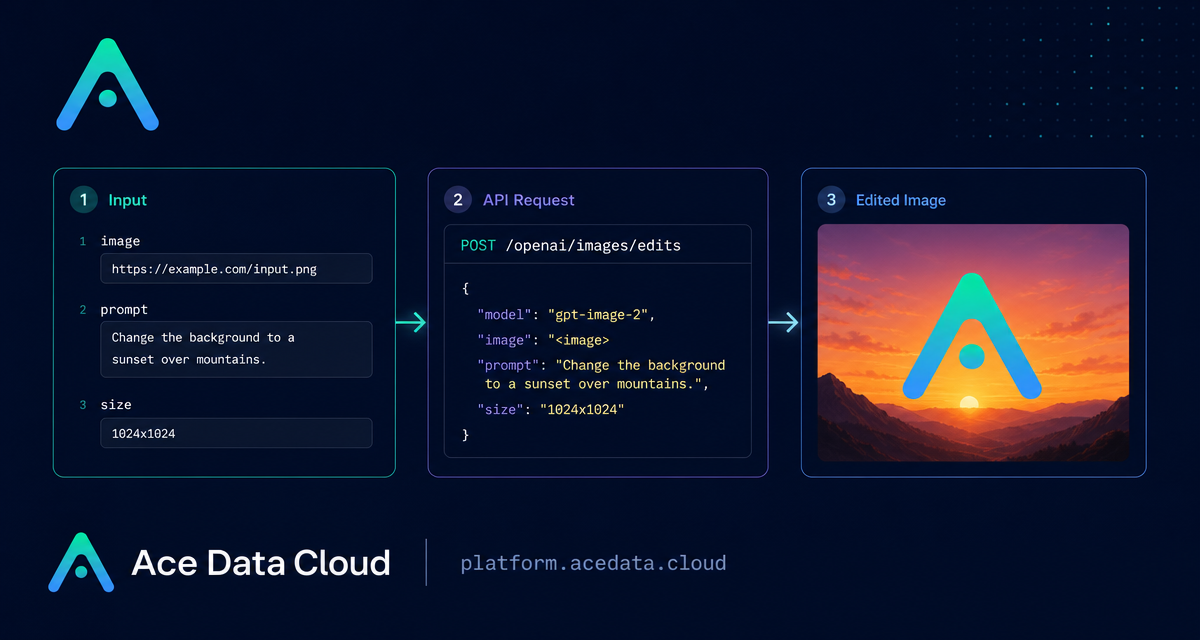
Image editing APIs become much more useful when they fit into a real pipeline: a user uploads an asset, your backend sends an edit instruction, and the result comes back as a URL you can store, review, or pass into the next step. The OpenAI Images Edits API on Ace Data Cloud is designed for exactly that kind of workflow.
This guide walks through a practical implementation using gpt-image-2, the /openai/images/edits endpoint, URL-based image input, multiple reference images, and the OpenAI-compatible SDK path. The goal is not to generate random pictures; it is to make controlled edits while preserving structure, text, and layout where the prompt asks for it.
What you can do
The editing interface accepts an input image and a natural-language instruction, then returns a modified image. According to the documentation, the GPT Image series can accept up to 16 reference images in one request. The same interface supports gpt-image-1, gpt-image-2, and the nano-banana model family, but this tutorial focuses on gpt-image-2 because it is a strong fit for structured editing workflows.
- Convert an existing infographic to a dark theme while keeping the layout intact.
- Change a product or interior style while preserving object positions.
- Combine multiple reference images into one composed result.
- Use direct image URLs or base64 input from a backend service.
- Request a specific output size with
size, including high-resolution redraws within the documented limits.
How it works
The recommended server-side path is a JSON request to:
POST https://api.acedata.cloud/openai/images/editsThe important fields are:
model: for this workflow, usegpt-image-2.image: a single image URL, a base64 image string, or an array of image URLs/base64 strings.prompt: the edit instruction. Be explicit about what should change and what must remain unchanged.size: eitherauto, omitted, or aWIDTHxHEIGHTstring such as1024x1536.
For gpt-image-2, custom sizes must use width and height values that are multiples of 16. The long side must be no more than 3840, and the total pixel count must be no more than 8,294,400. If you omit size or pass auto, the output keeps the reference image aspect ratio. If you want to change aspect ratio, pass an explicit size.
Start with URL-based editing
URL input is convenient for backend pipelines because you do not need to download the image locally before sending it to the edit endpoint. For example, suppose you have an infographic and want to convert it to dark mode while preserving the module layout:
curl -X POST "https://api.acedata.cloud/openai/images/edits"   -H "Authorization: Bearer {token}"   -H "Content-Type: application/json"   -d '{
    "model": "gpt-image-2",
    "image": "https://platform.cdn.acedata.cloud/gpt-image/5c9fa635-8794-4c6d-88f8-584d7f4716c6_0.png",
    "prompt": "Convert this infographic to dark mode: dark navy background, light cream text, deep gray rounded module cards with soft shadows. Keep all layout, structure, and module arrangement identical — only invert the color scheme.",
    "size": "1024x1536"
  }'
A typical response includes success, task_id, trace_id, created, and a data array. Each item in data contains a result url and may include revised_prompt. Store the returned URL as the canonical output for your workflow.
Use multiple reference images when the edit depends on several assets
The same image field can be an array. This is useful for product bundles, visual moodboards, character sheets, or any case where the model should reference more than one input.
import requests

url = "https://api.acedata.cloud/openai/images/edits"
headers = {
    "authorization": "Bearer {token}",
    "content-type": "application/json"
}
payload = {
    "model": "gpt-image-2",
    "image": [
        "https://example.com/item1.png",
        "https://example.com/item2.png",
        "https://example.com/item3.png"
    ],
    "prompt": "Combine all the items above into a single 'Relax & Unwind' gift basket on a clean white background, photorealistic, soft natural lighting.",
    "size": "1024x1024"
}

response = requests.post(url, json=payload, headers=headers)
print(response.text)
The documentation notes that the GPT Image series supports up to 16 images, with each image no larger than 50MB and in png, webp, or jpg format when uploaded as files. Exceeding the image count returns a 400 error.
Send local images without hosting them first
If your image starts as a local file and you do not want to upload it to object storage first, gpt-image-2 also supports base64 in the image field. Both data:image/png;base64,... and raw base64 are accepted.
import base64
import requests

b64 = base64.b64encode(open("input.png", "rb").read()).decode()
payload = {
    "model": "gpt-image-2",
    "image": f"data:image/png;base64,{b64}",
    "prompt": "Convert this infographic to dark mode.",
    "size": "1024x1536"
}

requests.post(
    "https://api.acedata.cloud/openai/images/edits",
    json=payload,
    headers={"authorization": "Bearer {token}"}
)
That makes it straightforward to integrate editing into a job worker: read the file, encode it, send the JSON request, and persist the returned image URL.
Use the OpenAI-compatible SDK path
If your application already uses the OpenAI Python SDK, you can point it at Ace Data Cloud by setting the documented environment variables:
export OPENAI_BASE_URL=https://api.acedata.cloud/openai
export OPENAI_API_KEY={token}
Then call the edit method with gpt-image-2:
import base64
from openai import OpenAI

client = OpenAI()

result = client.images.edit(
    model="gpt-image-2",
    image=[open("test.png", "rb")],
    prompt="Convert this image to dark mode while keeping the layout intact."
)

image_base64 = result.data[0].b64_json
image_bytes = base64.b64decode(image_base64)
with open("edited.png", "wb") as f:
    f.write(image_bytes)
A practical builder pattern
For production use, treat the prompt as a small contract. Write what should change, then write what should not change. For example: “replace the background, keep product shape and text unchanged” is usually safer than a vague style instruction. Choose auto when you want to preserve aspect ratio, and choose an explicit WIDTHxHEIGHT when the target channel requires a fixed size.
If edits may take longer than your request timeout budget, the API also supports an asynchronous callback flow using callback_url. In that mode, the initial response includes a task_id, and the completed result is sent to your callback endpoint as POST JSON with the same task identifier.
For the full reference, including model variants and parameter notes, read the OpenAI Images Edits API Integration Guide.


Comments
Post a Comment