How to Build an Async Image Generation Flow with the Seedream Images API
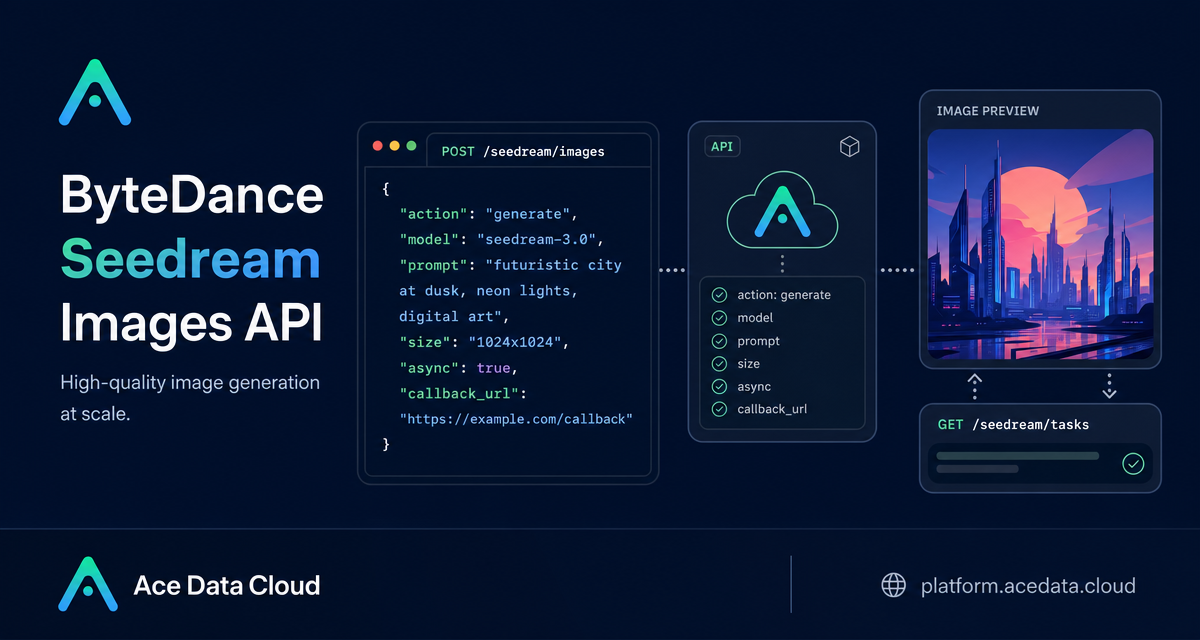
Image generation is easy to demo with a single prompt, but harder to ship: your app needs predictable request fields, task identifiers, result URLs, and a clean way to avoid holding an HTTP connection open while the model works.
This guide walks through a practical integration pattern for the Seedream Images API on Ace Data Cloud. The goal is not to wrap every option. Instead, we will build the core flow a builder usually needs: send a prompt to /seedream/images, understand the returned task metadata, and switch to asynchronous handling when a request may take longer than you want a frontend or worker to wait.
What you can do
The Seedream Images API can generate official Seedream images from custom parameters. The basic request is centered on a few fields:
action: usegeneratefor text-to-image generation.model: pass the complete model string, such asdoubao-seedream-5-0-260128. The documentation notes that abbreviated names such asdoubao-seedream-5.0-litereturn400.prompt: the text instruction for the generated image.image: optional input image data as a URL or Base64 value, for editing or image-to-image workflows.size: either a supported preset such as1K,2K,3K, or4Kdepending on model, or explicit pixel dimensions such as2048x2048.response_format:urlby default, withb64_jsonalso supported.watermark: controls whether a watermark is added; the default istrue.output_format:jpegby default, withpngsupported bydoubao-seedream-5-0-pro-260628anddoubao-seedream-5-0-260128.
Some capabilities are model-specific. For example, doubao-seedream-5-0-pro-260628 is described as a flagship single-image model and does not support sequential_image_generation, stream, or tools. The tools field currently supports web_search and is only documented for doubao-seedream-5-0-260128.
How it works
The API endpoint for image generation is:
POST https://api.acedata.cloud/seedream/imagesSend JSON with your prompt and generation options, and authenticate with an authorization header. A successful response includes success, task_id, trace_id, and a data list. Each item in data can include the final image_url, the prompt, and the generated size.
A minimal request looks like this:
curl -X POST 'https://api.acedata.cloud/seedream/images' \
  -H 'accept: application/json' \
  -H 'authorization: Bearer ${token}' \
  -H 'content-type: application/json' \
  -d '{
    "action": "generate",
    "model": "doubao-seedream-5-0-260128",
    "prompt": "A photorealistic studio product shot of a frosted-glass perfume bottle on wet black slate, single softbox key light, water droplets, dark moody background, 85mm macro."
  }'
The documented response shape is:
{
  "success": true,
  "task_id": "81246f86-05ff-4d7d-9553-1013e0c1cd32",
  "trace_id": "ab50a78d-ab1f-457f-a46b-c2259cd5d35b",
  "data": [
    {
      "prompt": "A photorealistic studio product shot of a frosted-glass perfume bottle on wet black slate, single softbox key light, water droplets, dark moody background, 85mm macro.",
      "size": "2048x2048",
      "image_url": "https://platform2.cdn.acedata.cloud/seedream/901c6af6-e83a-4849-b233-295f6c20bacb.jpg"
    }
  ]
}
Choosing a model and size
The most common integration mistake is treating model names and sizes as loose labels. The documentation is explicit: pass the complete model string. That means storing model IDs as constants in your code, not hand-writing friendly names in request payloads.
For size, choose one of the two documented styles and do not mix them. You can pass a resolution preset and describe the aspect ratio naturally in the prompt, or specify width and height directly. Preset support differs by model: doubao-seedream-5-0-pro-260628 supports 1K/2K; doubao-seedream-5-0-260128 supports 2K/3K/4K; doubao-seedream-4-5-251128 supports 2K/4K; and doubao-seedream-4-0-250828 supports 1K/2K/4K.
Editing an existing image
For an edit workflow, provide the image field with one or more input images. The documented models doubao-seedream-5-0-pro-260628, doubao-seedream-5-0-260128, doubao-seedream-4-5-251128, and doubao-seedream-4-0-250828 all support image input.
In application code, keep the edit prompt precise: describe what should remain unchanged and what should change. The documentation example keeps pose and garment shape unchanged while changing material and lighting behavior. That is the right level of instruction for production UI: preserve identity-critical or layout-critical elements, then ask for one controlled transformation.
Handling longer runs with async
The documentation notes that generation may take around one to two minutes. If your app waits on a single HTTP request, that can tie up frontend, gateway, or worker resources. The API gives you two documented async patterns.
- Provide
callback_url. The API returns atask_idimmediately, then sends a POST JSON result to your callback URL when the image is ready. - Set
asynctotruewithout a callback. The API still returns atask_idimmediately, and your service polls/seedream/taskswith that task ID to retrieve the final result.
For most builders, callbacks are best when you already run a public backend. Polling is simpler for scripts, internal tools, and prototypes where exposing a callback endpoint would be unnecessary overhead.
Error handling
Handle API errors as structured data. The documented error response includes success: false, an error object with code and message, and a trace_id. Common documented codes include 400 token_mismatched, 400 api_not_implemented, 401 invalid_token, 429 too_many_requests, and 500 api_error.
{
  "success": false,
  "error": {
    "code": "api_error",
    "message": "fetch failed"
  },
  "trace_id": "2cf86e86-22a4-46e1-ac2f-032c0f2a4e89"
}
In practice, log trace_id, show users a recoverable message for 429, and fail fast on missing or invalid tokens. The small detail that makes this API pleasant to integrate is that the same task fields appear in both immediate and async flows, so you can build one result-normalization layer and reuse it.
If you want the complete parameter list and model-specific notes, read the Seedream Images API integration guide.


Comments
Post a Comment