How to Add Nano Banana Image Tools to Claude Desktop, VS Code, and Cursor
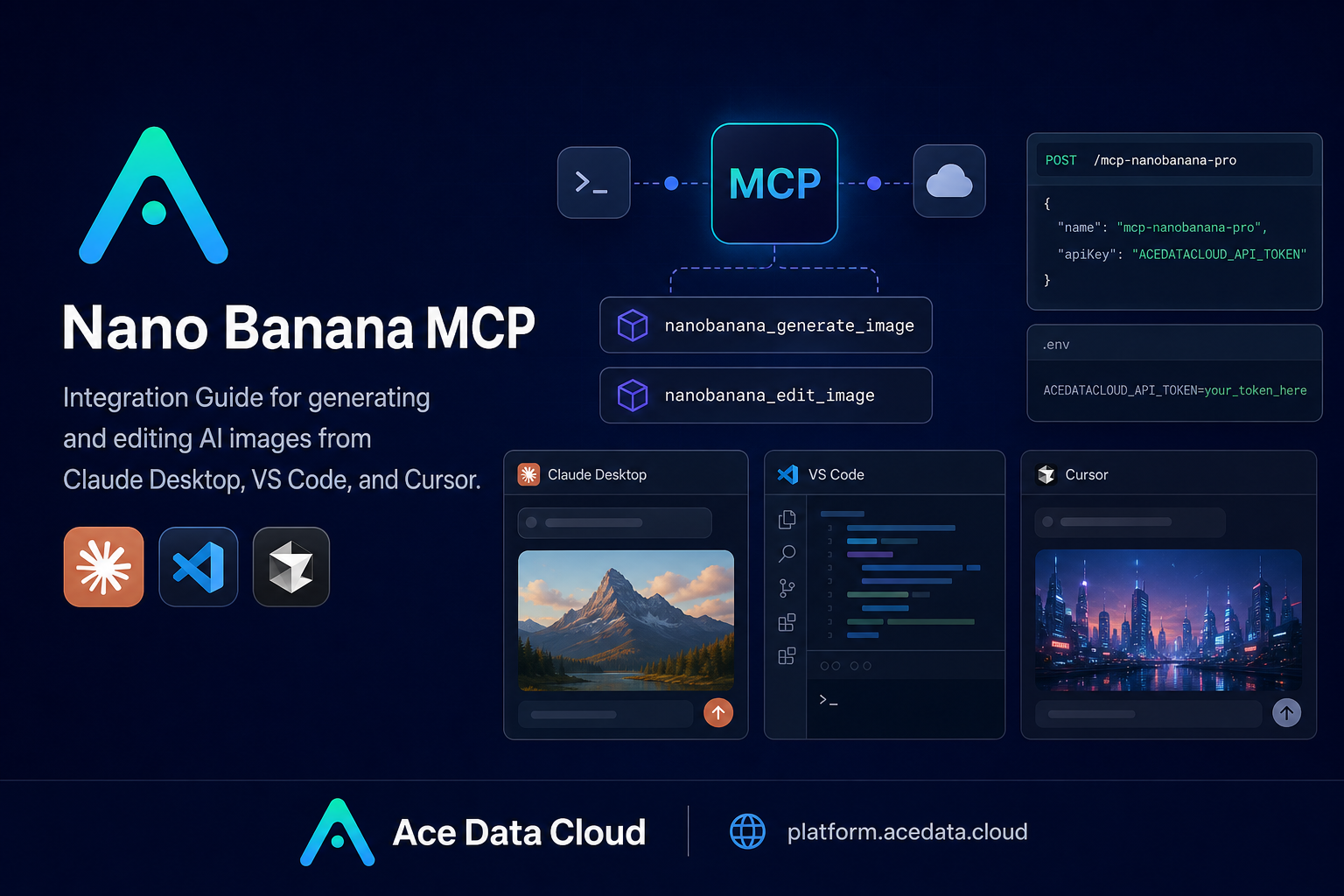
When an AI assistant can only talk about images, the workflow stops at advice; when it can call an image tool through MCP, the same assistant can help you generate, edit, and iterate on visual assets directly from the place where you already work.
What you can do
The Nano Banana MCP Server connects AI clients such as Claude Desktop, VS Code, and Cursor to Ace Data Cloud’s Nano Banana image capabilities through the Model Context Protocol. In practical terms, it gives your coding or chat environment a small set of image-focused tools instead of forcing you to switch to a separate web UI.
According to the source guide, the server supports these core use cases:
- Image generation: create images from text prompts.
- Image editing: modify existing images or combine multiple images.
- Virtual try-on: dress clothing onto photos of people.
- Product placement: place products into real scenes.
- Multi-model use: work with
nano-banana,nano-banana-2, andnano-banana-pro. - Task querying: monitor generation progress and retrieve results.
That combination is useful for builder workflows: product mockups, quick blog illustrations, UI concept art, marketing screenshots, try-on demos, or visual variants for a design review.
How it works
MCP, or Model Context Protocol, gives AI clients a standardized way to call external tools. The Nano Banana MCP Server is installed locally as a command-line package. Your client starts that command, passes an Ace Data Cloud API token through the environment, and then exposes a few tool calls to the assistant.
The key command from the documentation is:
mcp-nanobanana-proThe important environment variable is:
ACEDATACLOUD_API_TOKEN="Your API Token"Once configured, you do not usually call the tool from your shell. Instead, you ask the AI client in natural language, and the client decides when to invoke one of the MCP tools.
Install the MCP server
The recommended installation path is the Python package:
pip install mcp-nanobanana-proIf you prefer to install from source, the guide also documents this route:
git clone https://github.com/AceDataCloud/NanoBananaMCP.git
cd NanoBananaMCP
pip install -e .
After installation, the mcp-nanobanana-pro command is what your MCP client will run. Keep your API token out of prompts, commits, and screenshots; place it only in the client configuration environment block.
Configure Claude Desktop
For Claude Desktop, edit the configuration file for your operating system:
- macOS:
~/Library/Application Support/Claude/claude_desktop_config.json - Windows:
%APPDATA%\Claude\claude_desktop_config.json
Add the server under mcpServers:
{
  "mcpServers": {
    "nanobanana": {
      "command": "mcp-nanobanana-pro",
      "env": {
        "ACEDATACLOUD_API_TOKEN": "Your API Token"
      }
    }
  }
}
If you use uvx and do not want to install the package ahead of time, the documented alternative is:
{
  "mcpServers": {
    "nanobanana": {
      "command": "uvx",
      "args": ["mcp-nanobanana-pro"],
      "env": {
        "ACEDATACLOUD_API_TOKEN": "Your API Token"
      }
    }
  }
}
Save the file, restart Claude Desktop, and the Nano Banana tools should become available in conversation.
Configure VS Code or Cursor
For VS Code or Cursor, create .vscode/mcp.json in the project root. The documented configuration uses a servers object:
{
  "servers": {
    "nanobanana": {
      "command": "mcp-nanobanana-pro",
      "env": {
        "ACEDATACLOUD_API_TOKEN": "Your API Token"
      }
    }
  }
}
The equivalent uvx version is:
{
  "servers": {
    "nanobanana": {
      "command": "uvx",
      "args": ["mcp-nanobanana-pro"],
      "env": {
        "ACEDATACLOUD_API_TOKEN": "Your API Token"
      }
    }
  }
}
This is especially handy inside a repository. For example, while working on a landing page, you can ask the assistant to create a product-scene concept, revise it, and keep the prompt context close to the code and copy you are editing.
Use the available tools
The guide lists four MCP tools:
nanobanana_generate_image: generate images from text prompts.nanobanana_edit_image: edit or combine existing images.nanobanana_get_task: query the status of a single task.nanobanana_get_tasks_batch: query multiple task statuses.
You can keep the user-facing instruction simple. The documentation’s examples include requests like “Help me generate a watercolor landscape painting,” “Photoshop this clothing onto this person,” “Place this product in a café scene,” and “Generate a high-quality portrait using the nano-banana-pro model.”
For a builder, the more useful habit is to provide constraints: describe the asset, the intended surface, the visual style, and whether the task is generation or editing. For example:
Create a clean product placement image for this desk accessory in a bright café scene.
Use Nano Banana. Keep the product shape unchanged, avoid extra text, and return the final image result.
If the client starts an asynchronous image task, use the task-querying tools to monitor progress and retrieve the result rather than submitting the same request repeatedly.
Where this fits in a real workflow
The strength of this setup is not that it replaces design judgment. It removes the friction around small visual iterations. You can stay in Claude Desktop for ideation, or stay in VS Code or Cursor while building a page, and ask for image generation or editing at the moment the need appears.
Start with one narrow workflow: a blog cover, a product-in-scene mockup, a try-on test, or a visual reference for a UI section. Once the MCP server is configured, the loop becomes prompt, inspect, refine, and continue building.
For the exact installation snippets and tool list, read the Nano Banana MCP Integration Guide.


Comments
Post a Comment