Getting Started with Seedance MCP in Claude: A Practical Text-to-Video Workflow
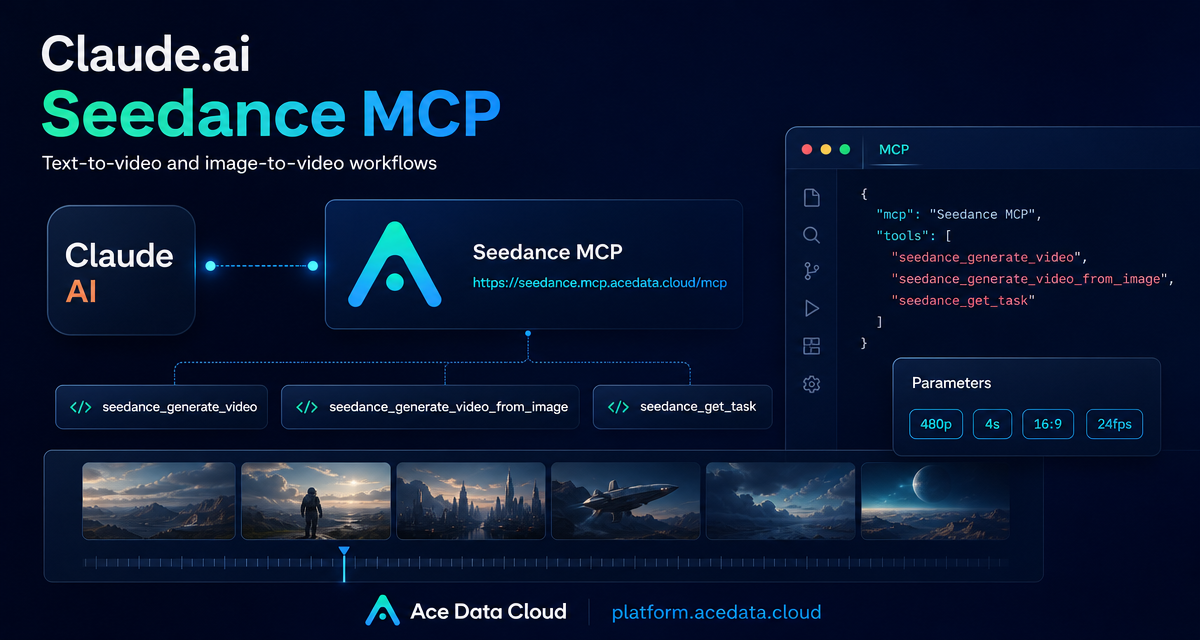
If you already use Claude for planning scenes, writing prompts, or reviewing creative outputs, the next bottleneck is usually leaving the chat to run video tools somewhere else. Seedance MCP solves that by making video generation callable from Claude through a remote MCP connector, so the model can inspect available options, submit a generation task, poll it, and return the final video URL inside the same conversation.
What you can do
The Seedance MCP connector described in the Ace Data Cloud documentation exposes a small set of tools that cover the core lifecycle of a short video generation task:
seedance_generate_videofor text-to-video generation.seedance_generate_video_from_imagefor image-to-video generation.seedance_get_taskto query one task after submission.seedance_get_tasks_batchto query multiple tasks together.seedance_list_actions,seedance_list_models, andseedance_list_resolutionsto let Claude discover supported actions, models, and resolutions before choosing parameters.
That last group matters. Instead of hard-coding assumptions into every prompt, you can ask Claude to list valid models and resolutions first, then select from the values returned by the connector.
How it works
MCP, or Model Context Protocol, lets a model call external tools through a standard interface. In this workflow, Ace Data Cloud hosts a remote MCP server for Seedance. Claude connects to that server, performs OAuth authorization, discovers the available tools, and then calls those tools as part of a normal chat.
The connector URL from the documentation is:
https://seedance.mcp.acedata.cloud/mcpIn Claude.ai, the setup is intentionally simple: open the Connectors settings, add a custom connector, give it a name such as Seedance, and use the MCP URL above. After authorization, Claude can see the Seedance tool list.
Configure the connector
For a reproducible setup, treat the connector details like configuration rather than prose. The documented fields are just the connector name and URL:
{
  "name": "Seedance",
  "url": "https://seedance.mcp.acedata.cloud/mcp"
}
Once the connector is added and connected, open it in Claude and confirm that the expected tools are visible: seedance_generate_video, seedance_generate_video_from_image, seedance_get_task, seedance_get_tasks_batch, seedance_list_actions, seedance_list_models, and seedance_list_resolutions.
The source guide also notes that video generation usually involves several tool calls: listing options, submitting a task, and polling the task result. If you are doing repeated experiments, reducing per-tool confirmations in Claude can make the workflow less interrupted.
Run a minimal text-to-video test
A good first run should be small and explicit. The documented example uses Claude to list models and resolutions first, then choose a fast model variant, 480p, a 4 second duration, 16:9 aspect ratio, and 24fps. Here is a prompt shaped for that workflow:
Use Seedance to generate one short video.
First call seedance_list_models and seedance_list_resolutions.
Then choose a fast model variant, 480p resolution, 4 seconds, 16:9, and 24fps.
Subject: a fluffy white kitten chasing a red leaf falling in a sunny garden,
side view, simple background.
After submitting the task, poll with seedance_get_task and return the final video URL.
There are two practical habits in this prompt. First, it tells Claude to discover valid values before generating. Second, it asks Claude to poll with seedance_get_task, which matches the task-based flow described in the docs.
Use image-to-video when you need consistency
Text-to-video is useful for exploration, but image-to-video is often better when you already have a product shot, character frame, UI mockup, or storyboard still. The connector supports that through seedance_generate_video_from_image.
Take this image: https://cdn.acedata.cloud/foo.png
Animate it with Seedance using a fast model variant.
Use a slow zoom-in, soft wind, 4 seconds, and 480p.
Return the task result URL when seedance_get_task finishes.
The important part is not the placeholder URL; it is the control pattern. Give Claude the image, describe the motion, keep duration and resolution explicit, and ask it to return the finished task result.
Batch experiments without losing track
Prompt iteration is where this kind of connector becomes useful for builders. If you want three quick variations, you can ask Claude to submit multiple tasks and then query them together with seedance_get_tasks_batch:
Generate 3 Seedance videos in parallel:
1. puppy on beach
2. hot air balloon at sunrise
3. coffee being poured
Use 480p, 4 seconds, and a fast model variant for all three.
Then use seedance_get_tasks_batch and return all final URLs.
This keeps the workflow conversational while still making the task lifecycle explicit. You can compare outputs, refine the scene description, and rerun only the ideas that are worth exploring further.
Builder notes
- Ask Claude to call
seedance_list_modelsandseedance_list_resolutionsbefore generation when you are unsure which values are available. - Keep early tests short, for example
4seconds at480p, so prompt mistakes are cheaper to catch in iteration time. - Use
seedance_generate_video_from_imagewhen identity, composition, or product appearance matters. - Use
seedance_get_tasks_batchwhen running several variants and you want Claude to summarize the results together.
Where to go next
The main value of Seedance MCP is not that it replaces creative judgment. It removes a context switch: Claude can help choose supported options, run the generation tool, and bring the result back into the conversation where you are already iterating. For a builder, that makes it easier to turn a storyboard idea into a testable clip without wiring a custom UI first.
Read the source documentation here: Claude connects to Seedance MCP.


Comments
Post a Comment