Getting Started with Nano Banana MCP for Image Workflows in Your IDE
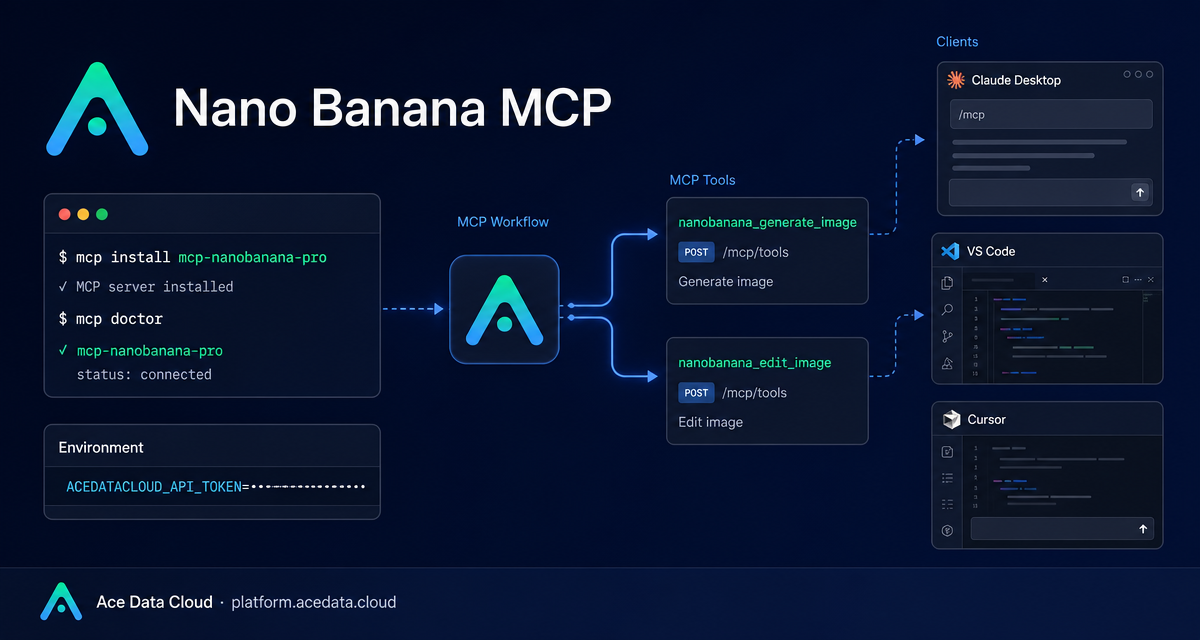
If your image workflow keeps bouncing between an AI chat, a design tool, and a folder full of references, MCP gives you a cleaner path: ask from the same client where you are already working, then let a tool handle generation, editing, and task lookup.
What you can do
The Nano Banana MCP Server from Ace Data Cloud exposes image capabilities to MCP-compatible clients such as Claude Desktop, VS Code, and Cursor. Instead of wiring a custom UI before you can test an idea, you configure a local MCP server and call the tools from your AI client using natural language.
According to the source documentation, the server covers six practical areas:
- Image generation: create images from text prompts.
- Image editing: modify existing images or combine multiple images.
- Virtual try-on: dress clothing on photos of people.
- Product placement: place products into real scenes.
- Multi-model support: use
nano-banana,nano-banana-2, ornano-banana-pro. - Task querying: monitor generation progress and retrieve results.
How it works
MCP, the Model Context Protocol, lets AI clients call external tools through a standardized interface. In this setup, your desktop or IDE client launches the Nano Banana MCP command locally. The command reads your Ace Data Cloud token from an environment variable, then exposes a small tool surface to the AI client.
The important detail is that this is not a one-off prompt template. Once the server is configured, the client can discover tools like nanobanana_generate_image, nanobanana_edit_image, and nanobanana_get_task. That makes the workflow useful for iterative work: generate a first concept, edit a reference image, ask for a product placement scene, then check a task result without leaving the editor.
Install the MCP server
The recommended installation path in the documentation is the Python package mcp-nanobanana-pro:
pip install mcp-nanobanana-proIf you prefer working from source, the documented alternative is:
git clone https://github.com/AceDataCloud/NanoBananaMCP.git
cd NanoBananaMCP
pip install -e .
After installation, the server can be started with the mcp-nanobanana-pro command. In most day-to-day usage you will not run it manually; your MCP client starts it from configuration.
Configure Claude Desktop
For Claude Desktop, edit the client configuration file. The documented locations are ~/Library/Application Support/Claude/claude_desktop_config.json on macOS and %APPDATA%\Claude\claude_desktop_config.json on Windows.
Add a server entry like this, replacing the token value with your own Ace Data Cloud API token:
{
  "mcpServers": {
    "nanobanana": {
      "command": "mcp-nanobanana-pro",
      "env": {
        "ACEDATACLOUD_API_TOKEN": "Your API Token"
      }
    }
  }
}
If you do not want to install the package ahead of time, the documentation also shows a uvx configuration:
{
  "mcpServers": {
    "nanobanana": {
      "command": "uvx",
      "args": ["mcp-nanobanana-pro"],
      "env": {
        "ACEDATACLOUD_API_TOKEN": "Your API Token"
      }
    }
  }
}
Save the file, restart Claude Desktop, and the Nano Banana tools should be available in the conversation.
Configure VS Code or Cursor
For IDE workflows, create a .vscode/mcp.json file in your project root. This keeps the image workflow close to the code, copy, product screenshots, or design notes you are already editing.
{
  "servers": {
    "nanobanana": {
      "command": "mcp-nanobanana-pro",
      "env": {
        "ACEDATACLOUD_API_TOKEN": "Your API Token"
      }
    }
  }
}
The equivalent uvx form is:
{
  "servers": {
    "nanobanana": {
      "command": "uvx",
      "args": ["mcp-nanobanana-pro"],
      "env": {
        "ACEDATACLOUD_API_TOKEN": "Your API Token"
      }
    }
  }
}
Use the tools in a real workflow
The documented tool list is intentionally small:
nanobanana_generate_imagegenerates images from text prompts.nanobanana_edit_imageedits or combines existing images.nanobanana_get_taskqueries the status of a single task.nanobanana_get_tasks_batchqueries task statuses in batches.
A builder-friendly flow might look like this:
- Ask your client to generate a first concept, such as “generate a watercolor landscape painting.”
- Switch to an edit request when you have a reference, such as “place this product in a café scene.”
- Use a higher-quality prompt when appropriate, such as “generate a high-quality portrait using the
nano-banana-promodel.” - Query the task status when the generation is asynchronous or when you need to retrieve a result later.
The value is not only speed. It is context. Your client already knows the surrounding request, the product copy, or the design constraints you are discussing. MCP lets the image operation happen inside that same conversation instead of becoming a disconnected browser tab.
Practical notes
Keep the token in ACEDATACLOUD_API_TOKEN rather than pasting it into prompts. Restart the client after changing MCP configuration. If tools do not appear, first check the JSON shape: Claude Desktop uses mcpServers, while VS Code and Cursor use servers in .vscode/mcp.json.
That is enough to start experimenting with image generation, editing, try-on, and product placement from a local MCP client. For the original setup reference, read the Nano Banana MCP Integration Guide.


Comments
Post a Comment